Feature · Leave & absence
One request, one approval, one payroll effect. A single chain.
Most entries do not come from an administrator typing them in: they come from a request made by the employee. The screen is there to approve first, to archive second.
Paid, unpaid, deducted: the category decides the effect
An absence counts from first to last day, leave in working or business days
Debited by your company setting, not by payroll’s unit
The module in one line
Approve, don’t retype
Two views
As a list, or as a calendar: one row per employee, one bar per absence.
One tab per status
To approve, approved, rejected, all. Requests awaiting approval come first.
On the dashboard
Pending requests surface on the home page: they do not sleep in a tab.
Requests
Approve or reject from the row
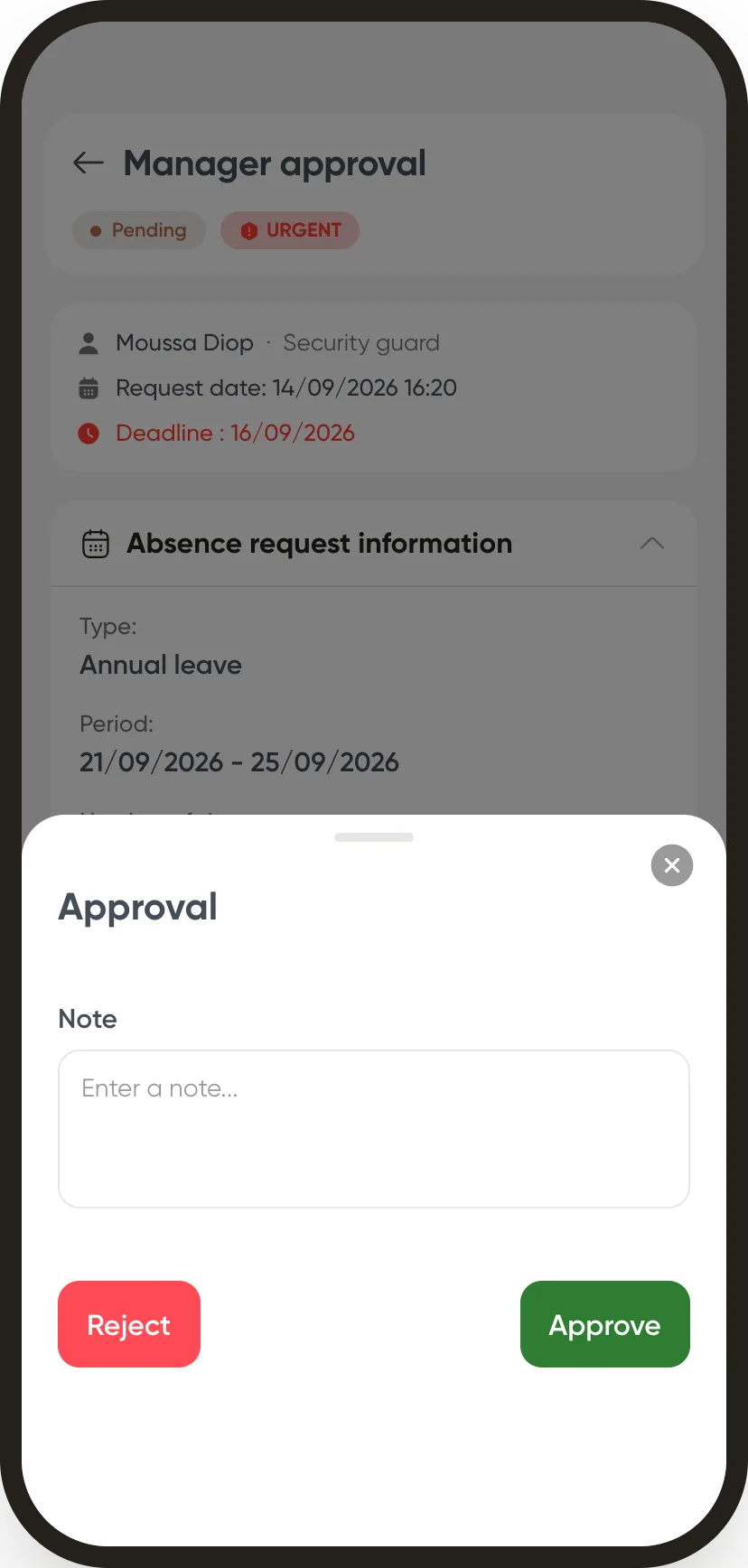
The approval chain applies once you have set it up: line manager, then HR, then management.
 WeplanifySC
| Employee | Type | Length | State |
|---|---|---|---|
| Awa Ndiaye | Annual leave | 5 days | approved |
| Moussa Diop | Sick leave | 2 days | to approve |
| Fatou Sow | Family event | 1 day | approved |
| Ibrahima Ba | Unexcused absence | 1 day | rejected |
Annual leave from Tuesday to the following Monday is six working days, or five business days, depending on your setting. The absence panel shows the number and the method.
WeplanifySC| Category | Effect on pay | Leave balance |
|---|---|---|
| Paid | none (the employee is paid) | none |
| Unpaid | deducted from salary | none |
| Deducted | no deduction | debits the balance |
| All three | a day counts in one category only | add up |
You add the three counters to get a total. You never subtract one from another.
5 days of annual leave
Awa Ndiaye · Monday 21 to Friday 25 September
- ✓Request submitted14/09 · 14:02
Awa Ndiaye · Front desk officer
- ✓Line manager14/09 · 16:40
Ousmane Kane · Approved
- •Human resourcesto approve
Mariama Diallo · Pending for 2 days
- Management
Next step
The approval chain
Two or three steps, and nobody has to call to find out where their request stands.
A request does not jump from “submitted” to “approved”. It travels a chain you configure, and every step carries a name and a time.
The chain is yours. Line manager, then HR, then management. Or a single step, if that is how you work. The chain is set once for all leave, not request by request.
You always know who is holding it. The pending step carries the approver’s name and how long it has waited. A reminder goes to a person, not a department.
The balance moves on approval, not on request. Until the chain completes, the displayed balance stays the real one. The request panel shows the days counted and the effect on pay before you decide.
Pending requests surface on the home screen. They do not sleep in a tab nobody opens: the dashboard puts them in front of the approver.
From the phone
The request leaves from the field, and the answer lands in the same place.
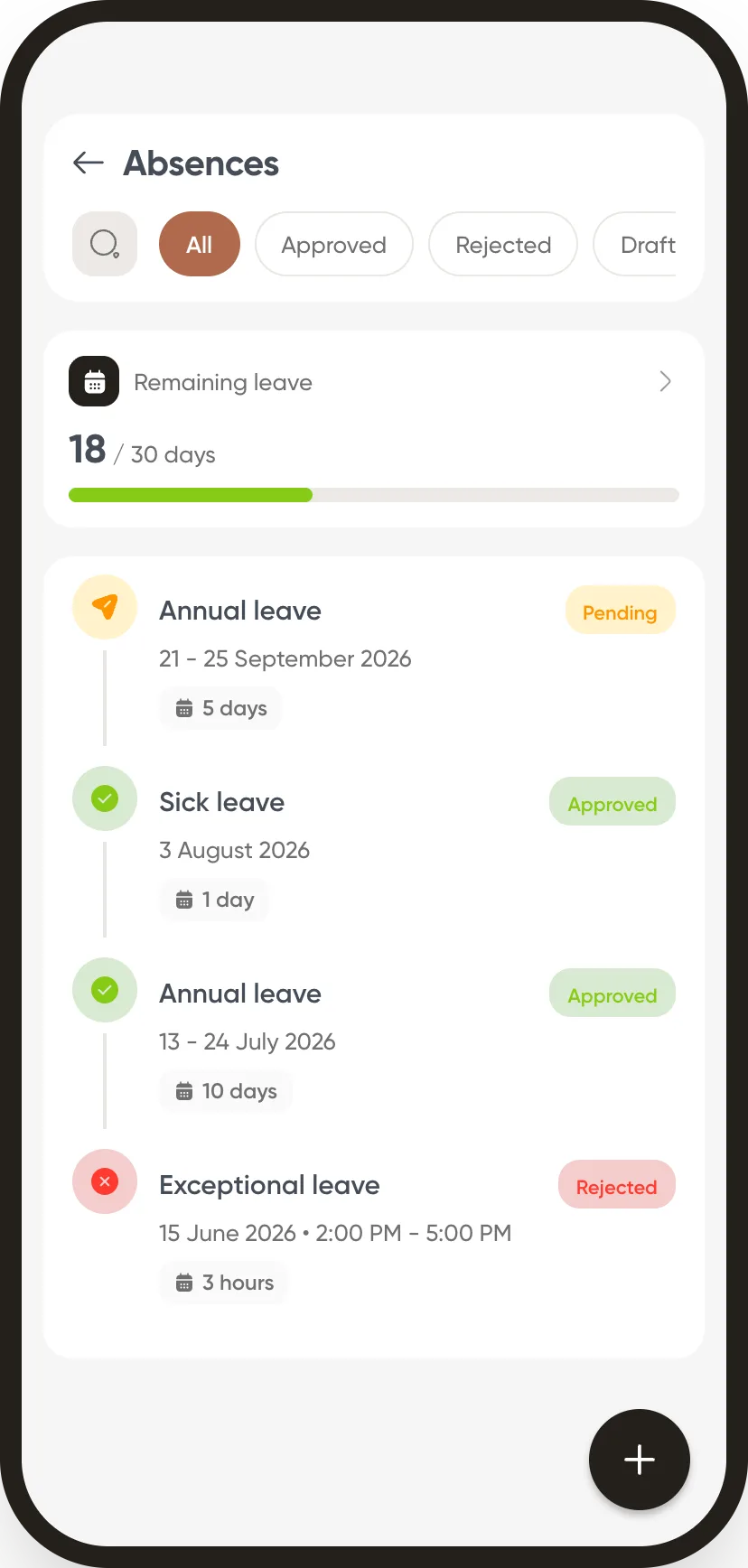
An officer on duty does not fill in a paper form to drop at the office next week. They request from their phone, and their manager decides from theirs.
The balance is in front of them before they ask. Eighteen days left at the top of the screen, then every request with its number of days and its status: pending, approved, rejected. The employee knows where they stand without calling the office.
The approver sees the hole it leaves. While it waits, the request shows as “Leave requested” on the affected shifts in the schedule: you see what will need covering before you approve. Approving is no longer a blind act.
The attachment travels with it. A certificate photographed on site arrives attached to the request, not in a WhatsApp thread.
In detail
What the module can do
Configurable types
Your own labels, each attached to one of the three categories.
Public holidays
Managed per country, visible in the schedule and in the count.
Per-employee counters
Days withheld, days justified, leave days debited: all on the record.
Balance after the absence
It shows before you save: you know what will be left before approving.
Declare from the schedule
An absence opens straight from the selected cells of the grid.
Automations
Rules that watch without you: nudge a stalled approval, flag a late clock-in, contract or probation ending at D-30, approved expense claim passed to accounting.
Summary report
The period’s absences, by employee, by type and by category.
The classic trap
Two figures, two units
Leave debits the balance in working days (Monday to Saturday) or business days (Monday to Friday), according to your company setting, public holidays excluded. A paid or unpaid absence, on the other hand, counts from first to last day, in the country’s payroll unit. The two numbers do not measure the same thing and do not have to match. This is the most frequent misreading.
The other modules
See leave & absence in your industry
Move your leave requests into the platform.
One month is enough to see the difference on payroll.