
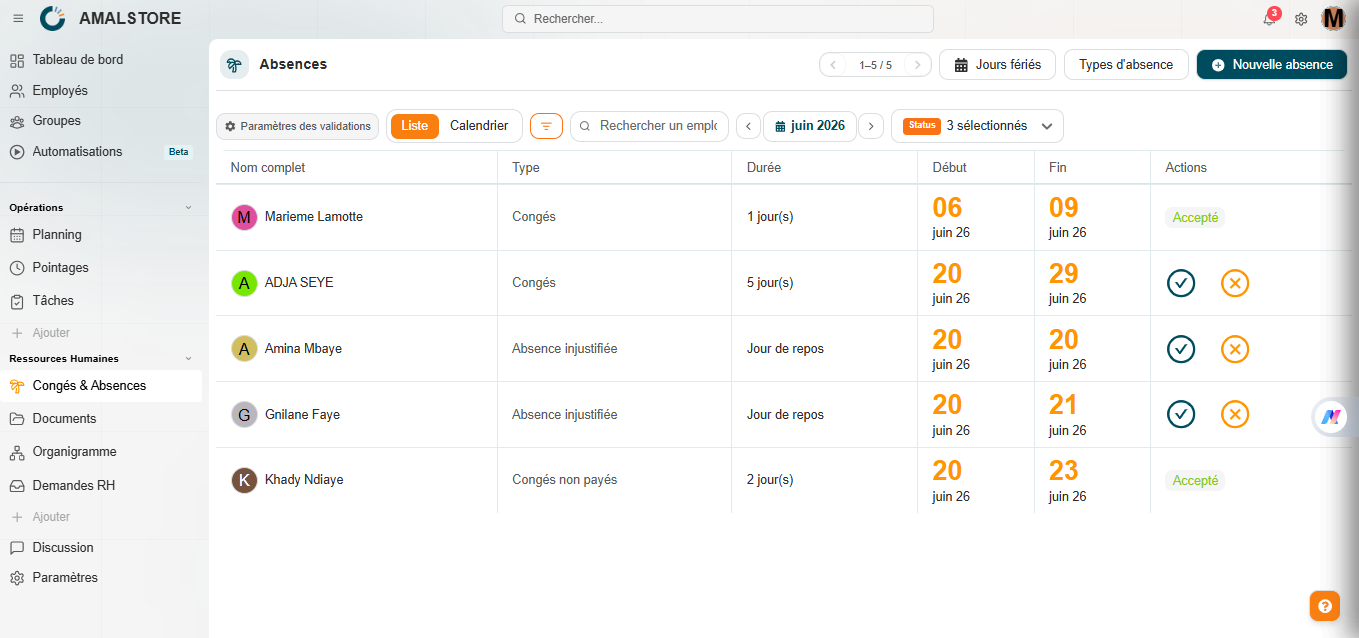
Managing leave and absences is one of the most repetitive, yet most sensitive, HR tasks: a missed approval, an incorrectly calculated balance or a public holiday that hasn’t been taken into account can quickly lead to tension between an employee and their manager. Weplanify’s Leave & Absences module has been designed to eliminate these issues by centralising the entire process on a single interface, accessible to HR administrators, managers and employees alike.
In practical terms, this module covers the entire lifecycle of an absence request. It begins with the configuration of absence types, which allows the company to define precisely which categories of absence exist internally (paid leave, unauthorised absences, unpaid leave, or any other customised type) and according to which pay rules they are processed. It continues with the implementation of a fully customisable approval workflow, which determines who must approve each request, in what order, and what action to take in the event of a refusal or failure to respond within the deadline. The module also includes detailed management of public holidays, ensuring that these days are never mistakenly deducted from employees’ holiday balances. Finally, it offers two complementary views for monitoring requests on a day-to-day basis: a List view, useful for quickly processing pending approvals, and a Calendar view, which is more visual and provides an overview of availability
The aim of this guide is to provide a detailed overview of each of these features, following the logical order in which they appear in the process: configuring absence types and public holidays, setting up the approval workflow, creating an absence request from the employee’s perspective, and then tracking and approving these requests from the manager’s and HR’s perspective. Whether you are using the module for the first time or looking to explore a specific aspect of its configuration in more detail, you will find the explanations you need to make full use of Weplanify’s capabilities for managing leave and absences.
Weplanify also allows you to manage a calendar of public holidays, which are automatically excluded from the calculation of absence days. This feature prevents public holidays from being incorrectly deducted from employees’ leave balances.
To view public holidays, click the ‘Public Holidays’ button on the ‘Absences’ page, then select the desired year from the ‘Year’ drop-down menu. The list will then display the date, the name of the public holiday and its status (e.g. ‘Paid’).
The ‘Customise’ button allows you to add, edit or remove company-specific public holidays, in addition to the official calendar provided by default (national public holidays, religious festivals, etc.). This customisation is particularly useful for movable festivals, such as Ramadan, whose dates vary each year: it is therefore advisable to