Scheduling and time tracking software
Who works where this week, and who was there this morning.
The week’s schedule lands on everyone’s phone, clock-in happens with a QR code posted on site, and lateness shows the same day. Your payroll stays where it is: the month’s time-tracking report exports to Excel for your current tool.

Today’s schedule
08:00 → 16:00
Morning shift · dock 2
Clock-in recorded
07:56
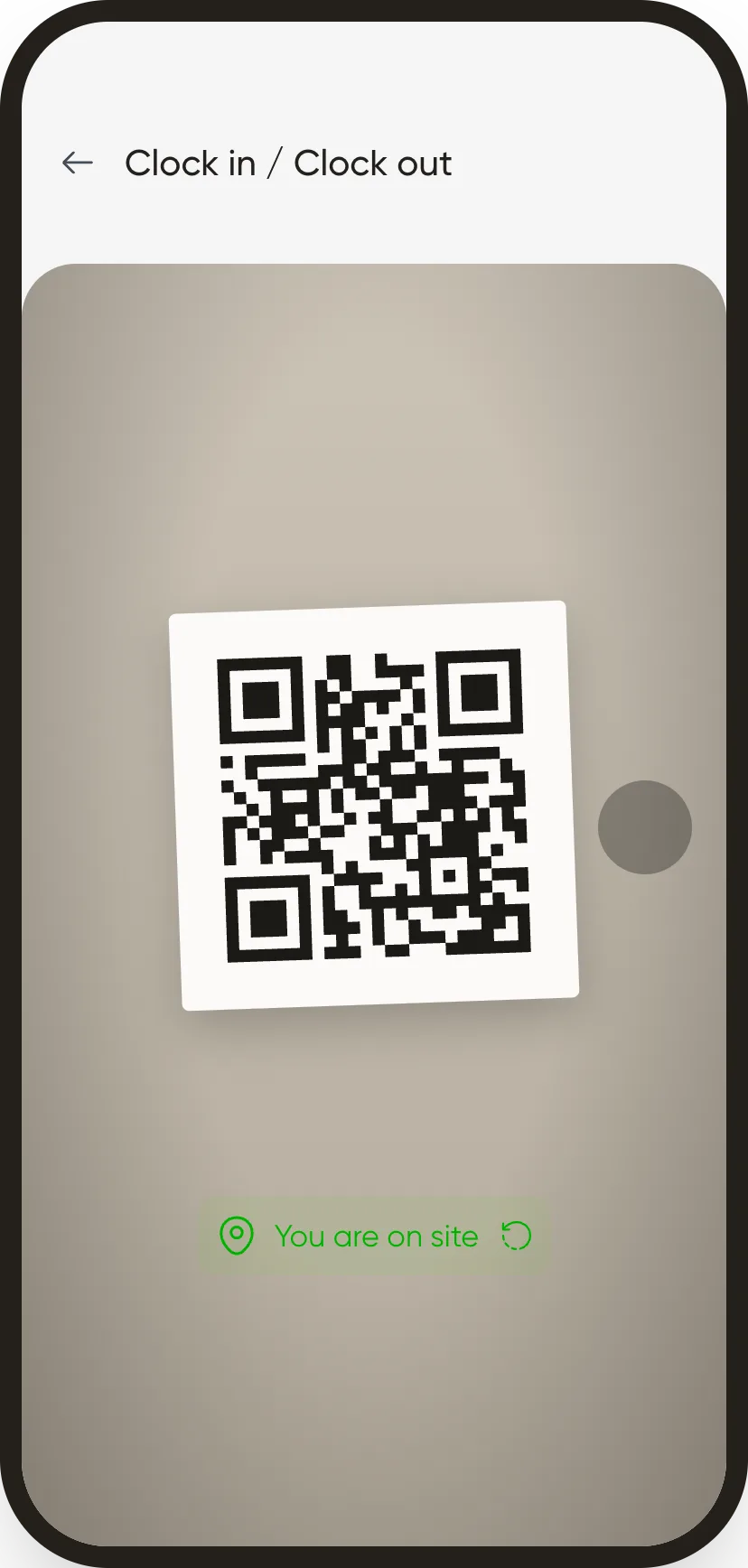
QR code posted at the entrance
FCFA per tracked employee per month, no minimum term
The month’s time-tracking report, for your current payroll tool
To create the account, post the QR code and have a first team clock in
The Core HR plan
Scheduling, time tracking, and what goes with them.
For teams that first need to know who works where, who was there, and what was approved.
Scheduling
The typical week comes back on its own. Alerts show before you publish, then everyone gets their schedule on their phone.
Time tracking
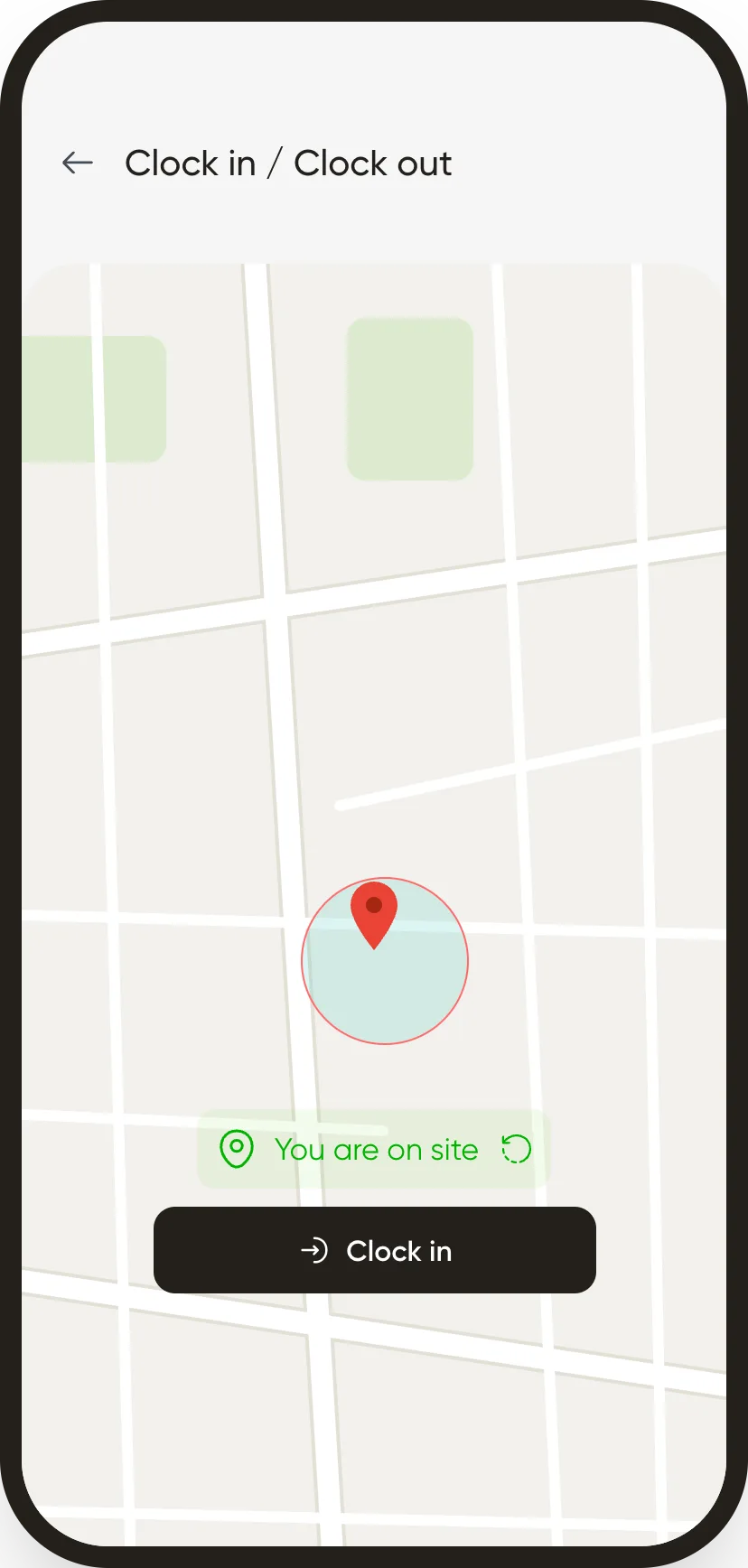
QR code, geolocation or face recognition, checked against the schedule: lateness, missing clock-outs and absentees, the same day.
Leave & absence
The request starts on the phone, you approve or refuse. Once approved, the absence shows on the schedule and leaves the absentee list.
Documents
Contracts, IDs, certificates: incomplete files stand out, PDFs get signed, documents get collected.
Core HR
Working time, end to end.
Minimum billing up to 20 employees: 25,000 FCFA / month
You only pay for tracked employees: managers, HR and directors are not billed. No minimum term.
30-day free trialSee both plans →Scheduling
You save the typical week. The next ones arrive filled.
A shift is one employee, one day, one time slot, one site and one position. While it is a draft, only managers see it. Once published, it reaches the employee’s phone.
 WeplanifySC
The typical week
Saved once, per person or per team, it comes back every week, staggered days off included. Editing a shift offers to change that week only.
Alerts before you publish
Leave on a shift, a double booking, a day below minimum staffing: it is flagged before the week goes out.
On the phone, or on the wall
Once published, the week reaches each employee’s app. Export to PDF prints it as compact initials or with full hours.
Time tracking
Lateness shows the same day, not at month end
Every arrival and departure is checked against the planned shift. The day’s list sorts who is present, late, missing a clock-out, absent or off. A correction keeps its reason.
WeplanifySC| Employee | In | Out | State |
|---|---|---|---|
| Awa Ndiaye | 08:02 | 16:12 | clocked |
| Fatou Sow | 08:41 | 16:30 | 41 min late |
| Ibrahima Ba | – | – | absent |
| Abdou Cissé | 21:58 | 06:10 | night shift |
| Ndèye Faye | – | – | off |
Lateness is measured against the planned shift. With no shift that day, the employee record’s usual hours apply.
Nothing to buy
A printed QR code and the employee’s phone are enough. Geolocation or face recognition is chosen on the record, employee by employee.
Even with no network
The time is saved on the phone and sent as soon as the connection returns. A reminder tells the employee to clock out before leaving.
The team with no phones
Manual clock-in reuses the schedule’s hours: you mark present or absent, and only change the exceptions, with a reason.
Your current payroll
Your payroll stays where it is. The month’s hours arrive in Excel.
At month end, the time-tracking report sums up each employee: days, hours worked against hours planned, lateness, overtime and absences. It exports to Excel for your payroll software, your spreadsheet or your accountant.
WeplanifySC| Employee | Days | Hours / planned | Late | Overtime | Absences |
|---|---|---|---|---|---|
| Awa Ndiaye | 26 | 208 h 40 / 208 h | – | – | – |
| Fatou Sow | 22 | 171 h 15 / 176 h | 3 | – | 2 d |
| Ibrahima Ba | 21 | 168 h 00 / 176 h | – | – | 1 d |
| Abdou Cissé | 25 | 264 h 00 / 240 h | – | 24 h | – |
The columns you keep on screen are the ones that go into the file. Overtime only appears if its tracking is switched on.
At month end
- 01
Open the month’s report, and filter by site, team or shift if needed.
- 02
Fix what the banner flags before payroll: missing clock-outs, clock-ins away from the planned site.
- 03
Keep the columns your payroll needs.
- 04
Export to Excel downloads the report on screen. You hand it to your payroll tool, as before.
Getting started
Running in minutes, fully set up in two weeks
Week 1: we set it up with you
Your sites, your positions and your shifts (Morning, Day, Evening, Night). Employees import from an Excel file. Nothing to build.
Week 2: teams clock in
You publish a first schedule and post the QR code on site. Employees get the app link and clock in with their phone.
Month end: the export
You review the time-tracking report, fix what it flags, and export it to Excel for your payroll.
Later, if you want: payroll
Clock-ins already feed Weplanify’s payroll. Whenever you want, you switch plans, and the first payroll runs alongside your current method.
Scheduling and time tracking in your industry
Have one team clock in, keep your payroll.
A thirty-day free trial: a real schedule, a QR code posted on site, and the month’s report exported to Excel for your current payroll.