
Set the accounting and questions of an expense type
In Weplanify, give an expense type its category, its expense and counterpart accounts and VAT, and add your own questions to the entry form.
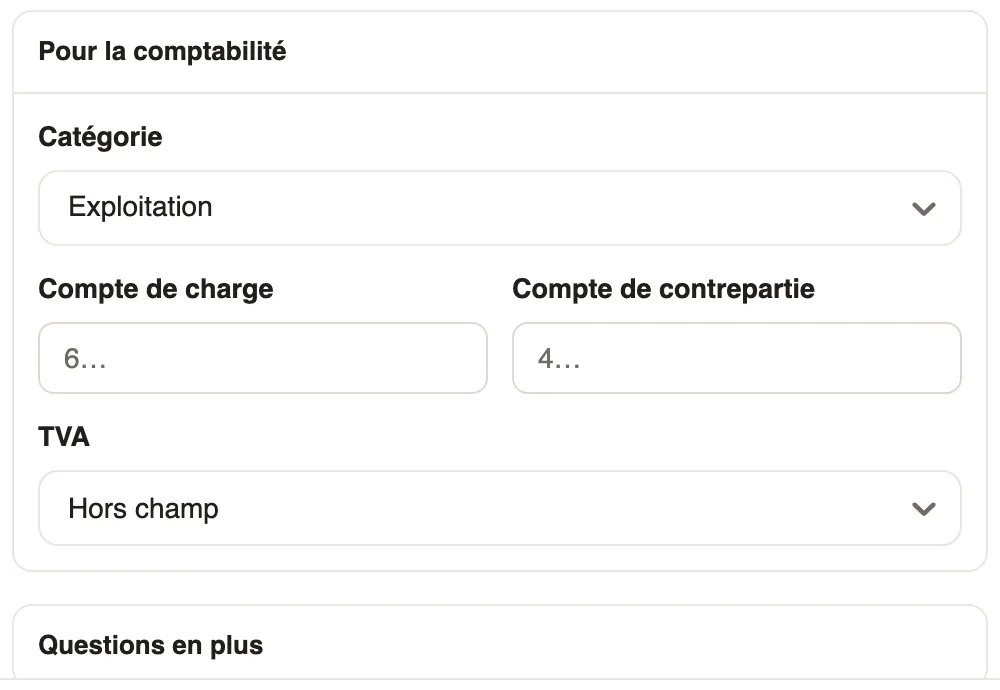
In Weplanify, an expense type's panel ends with two folded sections: For accounting and Extra questions. Amount and date are always asked.
Steps
- In Settings → Expense types, open the type.
- Unfold For accounting: choose the Category, the Expense account (debit), the Counterpart account (credit) and the VAT.
- Unfold Extra questions to ask your own questions on entry.
- Also set, higher up, Ask for a quantity (and what it counts: number of meals, kilometres…) and the Receipt.
- Click Save.
Good to know
- With a flat-rate amount, the quantity is asked.
- The type's VAT rate is copied onto each expense when it is entered: changing it does not affect expenses already entered.
- See also create an expense type and record an expense.
Go further
Create an expense typeIn Weplanify, an expense type (fuel, meals, road tolls) decides who pays, how the amount is computed, what must be attached and who approves it.Record an expenseIn Weplanify, record an expense starting from the receipt: its type, who paid, the amount, date and site concerned, then see what will happen next.