
Open a screen's help without leaving it
In Weplanify, the Guide button or the ? key opens the screen's help in a side panel, with the page's buttons and the articles to go further.
In Weplanify, every screen has its guide. It opens in a panel on the right, without leaving what you are doing.
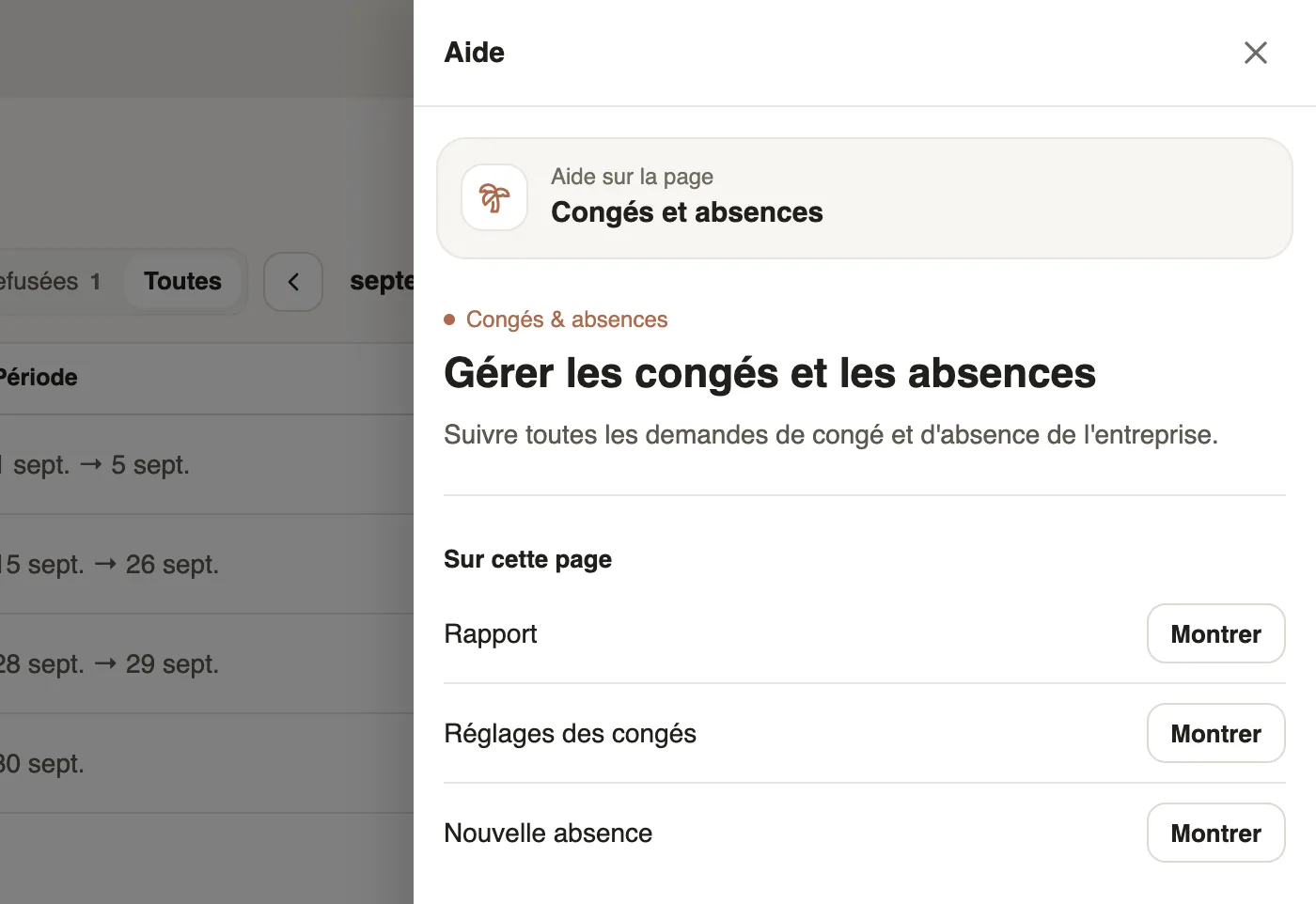
Steps
- At the top of the screen, click … guide (Dashboard guide, Absences guide…), or press the ? key.
- Under On this page, click Show: the matching button lights up on the screen.
- Read the article, then follow the Going further links; Back returns to the previous article.
- Close with the cross or the Esc key.
Good to know
- The Learn more links, in windows and screens, open the same panel on the right article.
- Open in a new tab shows the article on the documentation site.
- The help follows the app's language.
Go further
Getting started with WeplanifyIn Weplanify, the web is for managers and the mobile app is for employees: here is where to start, from creating the account to the first published schedule.Find your way in Weplanify: menu and top barIn Weplanify, the left menu sorts the screens into four sections, and the top bar gathers the search, the help, the notifications and your account.