
Choose what the approver can do at a step
In Weplanify, decide for each step whether the approver must give a reason to refuse and whether they can send the request back to its author for changes.
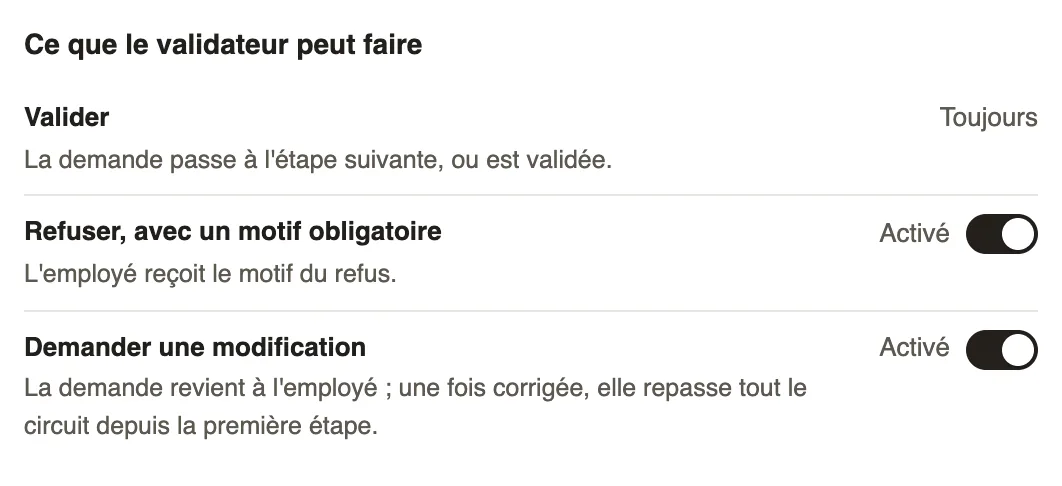
In Weplanify, the What the approver can do part of a step sets the possible decisions for forms, expense claims and advances. Approve is always possible.
Steps
- Open the circuit: the form's Validation tab, or Settings → Approvals for expense claims and advances. Click the step.
- Turn on Reject, with a mandatory reason: a refusal without a reason becomes impossible, and the employee receives the reason.
- Leave Ask for changes on so the approver can send the request back to its author; turn it off to allow only Approve or Refuse.
- Click Save.
Good to know
- A request sent back becomes "To correct" for its author ("Clarification asked" in the form's answers). Once corrected, it goes through the whole circuit again from the first step.
- The approver writes what needs to change; their note and the changed answers show in the request's discussion (decide on a request).
- This part does not exist for leave: a reason is always required to refuse.
Go further
Approve, refuse or send a request back for changesIn Weplanify, open a request waiting for you, discuss it if needed, then approve it, refuse it or ask its author to change it before deciding again.Configure an approval circuitIn Weplanify, build the approval steps of a leave request, an expense, an advance or a form: the order, the name, the approver and when each step applies.