
Handle requests from the dashboard
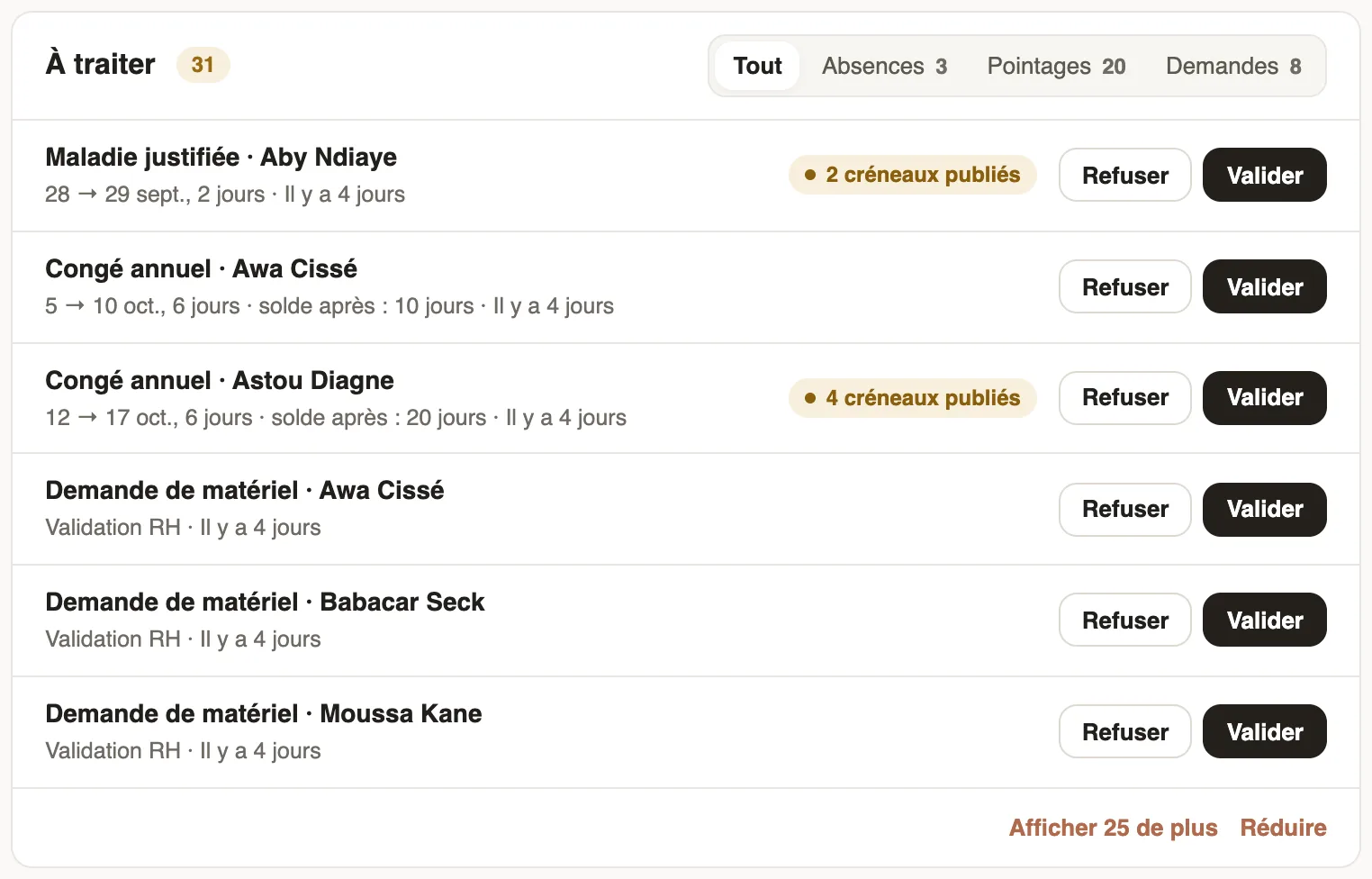
In Weplanify, the dashboard's To do list gathers absences, requests and clock-ins waiting for you: approve, decline or fix them without leaving the page.
In Weplanify, the dashboard's To do list gathers what is waiting for your decision: absences and requests you approve, clock-ins without an exit and expired documents. All your requests, expense claims and advances included, are also in Requests → To handle.
Steps
- The number next to To do counts everything waiting for you; See all unfolds the list and its Absences, Time clock and Requests tabs.
- Read each line: the subject and employee, the dates, the balance after the absence, the step and how long it has been waiting.
- Click Approve or Decline. For a clock-in without an exit, Fix opens the day.
- A mistake? Click Undo in the message shown for a few seconds.
Good to know
- A badge warns you before deciding: Negative balance, shifts already published during the absence, or No approver.
- When several absences have no conflict, Approve all … accepts them at once.
- Click a line's title to open its detail. Only the steps you approve show up (approval circuits); to read, discuss and decide in detail: approve, refuse or send back a request.
Go further
Handle the requests waiting for youIn Weplanify, Requests → To handle gathers the leave, expense claims, advances and forms waiting for your decision, with the overdue ones first.Configure an approval circuitIn Weplanify, build the approval steps of a leave request, an expense, an advance or a form: the order, the name, the approver and when each step applies.Approve, refuse or send a request back for changesIn Weplanify, open a request waiting for you, discuss it if needed, then approve it, refuse it or ask its author to change it before deciding again.Approve or reject an absence requestIn Weplanify, approve or reject an absence request from To handle or from its panel, which shows the effect on pay and on the balance before you decide.The Weplanify dashboardIn Weplanify, the dashboard sums up your activity: the period's figures, costs, items to handle, payroll progress and today's attendance at a glance.