
DocumentationApprovals & automations
Request approval circuits
In Weplanify, a leave request, an expense claim, an advance or a form answer moves from one approver to the next, following its circuit, until the decision.
In Weplanify, a request can follow an approval circuit: a series of steps where a designated person decides. Each circuit is set where its request lives:
- a form: Requests → Forms, the form, Validation tab;
- leave: Leave and absences, Leave settings menu → Approval circuit;
- expense claims and advances: Settings → Approvals.
Steps
- The employee sends the request from the mobile app or from Requests → Make a request.
- The approver of the first step is notified: the request lands in their Requests → To handle.
- They approve, refuse or ask for a change. An approval moves the request to the next step; a refusal stops it and the reason goes to the employee.
- After the last approval, the request is accepted: the absence, expense or advance is created, or the answer takes its final state.
Good to know
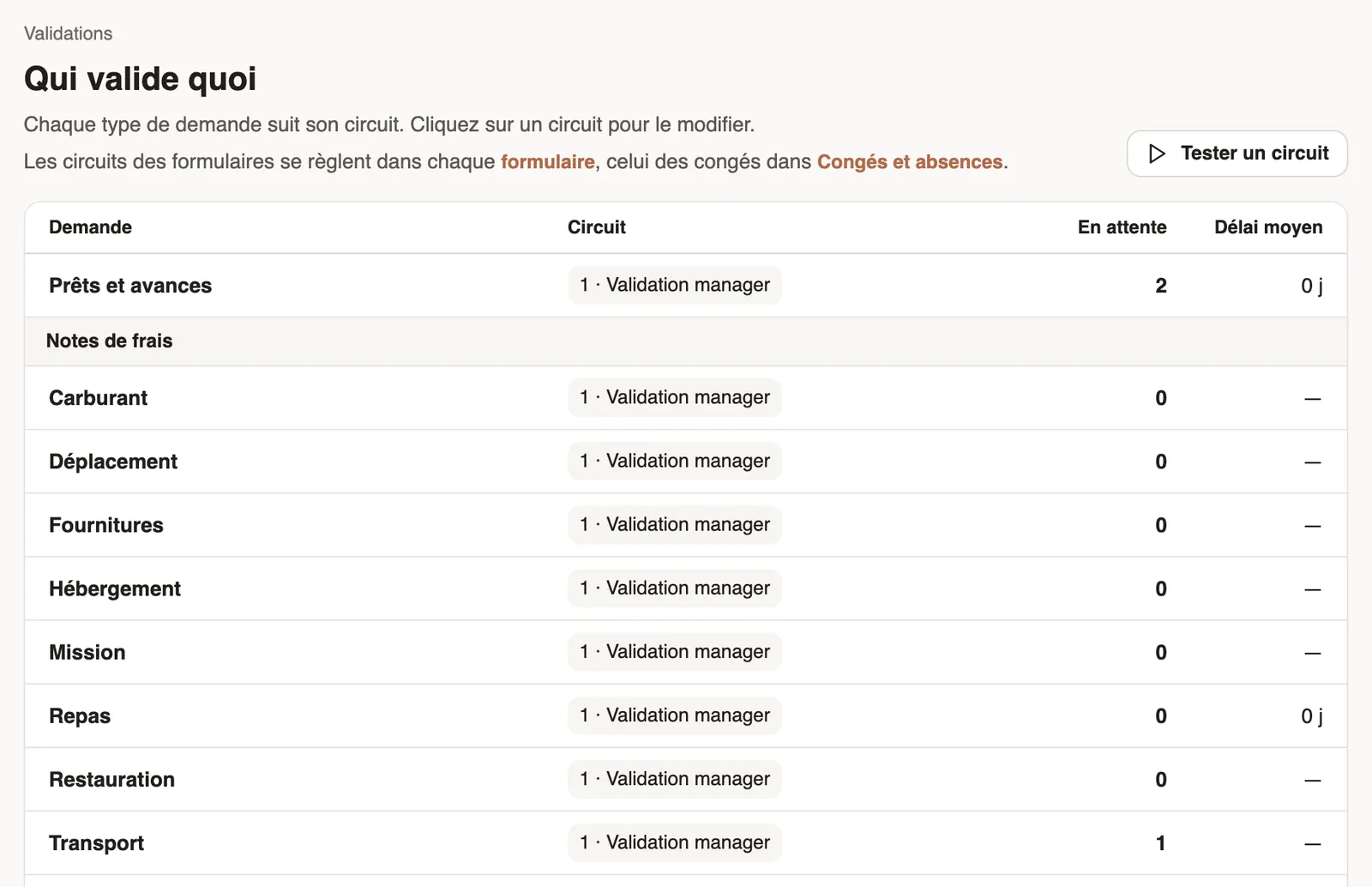
- Everywhere, the editor is the same: configure a circuit. The Who approves what view of Settings → Approvals shows the expense claim and advance circuits, pending requests and the average delay.
- Surveys, quizzes, anonymous forms and applications have no circuit; an application moves through the recruitment board.
- To check before use: test the circuit; to avoid stuck requests: remind an approver who does not answer.
Go further
Handle the requests waiting for youIn Weplanify, Requests → To handle gathers the leave, expense claims, advances and forms waiting for your decision, with the overdue ones first.Configure an approval circuitIn Weplanify, build the approval steps of a leave request, an expense, an advance or a form: the order, the name, the approver and when each step applies.Decide on pending expense claims and advancesIn Weplanify, decide on expense claims and advance requests from To handle: see their effect on pay, then grant them, refuse them or have them corrected.Submit an advance request for another employeeIn Weplanify, let a manager or a timekeeper submit an advance or loan request on an employee's behalf; the request then follows the usual circuit.Approve, refuse or send a request back for changesIn Weplanify, open a request waiting for you, discuss it if needed, then approve it, refuse it or ask its author to change it before deciding again.Make a request or fill in a form on mobileIn Weplanify, employees make their requests from the app: an expense, an advance, a schedule change, a report or any other form, then follow them.Test an approval circuit before using itIn Weplanify, pick an employee and describe a request (duration, site, amount) to see, step by step, who will approve it, without sending anything.Remind an approver who does not answerIn Weplanify, automatically remind a silent approver, then hand the request to the substitute or move on to the next step after a delay you choose.