
Create an expense type
In Weplanify, an expense type (fuel, meals, road tolls) decides who pays, how the amount is computed, what must be attached and who approves it.
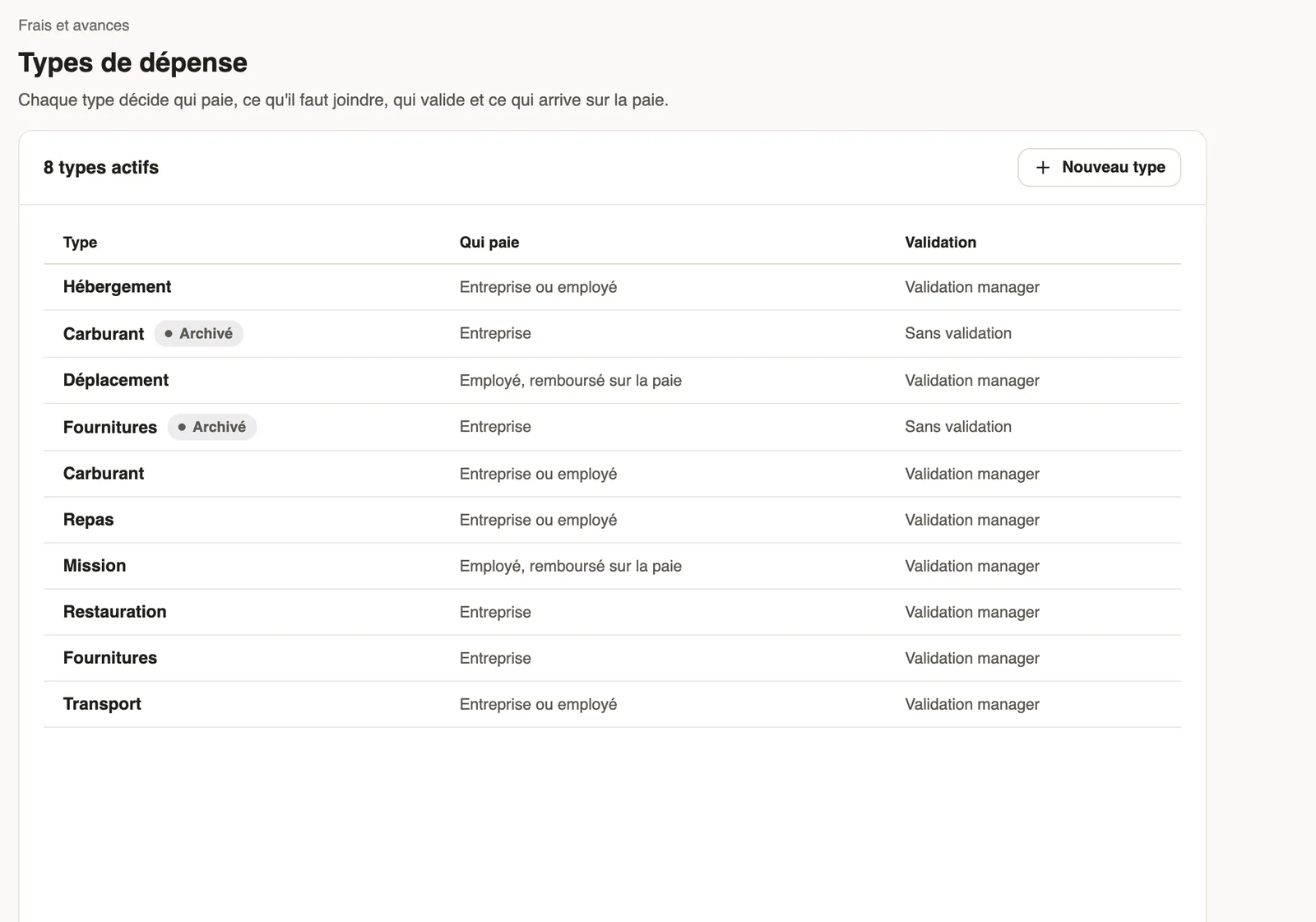
In Weplanify, an expense type describes a family of purchases and how to enter it; each type has its own approval circuit. Types are set in Settings → Expense types.
Steps
- Open Settings → Expense types and click New type.
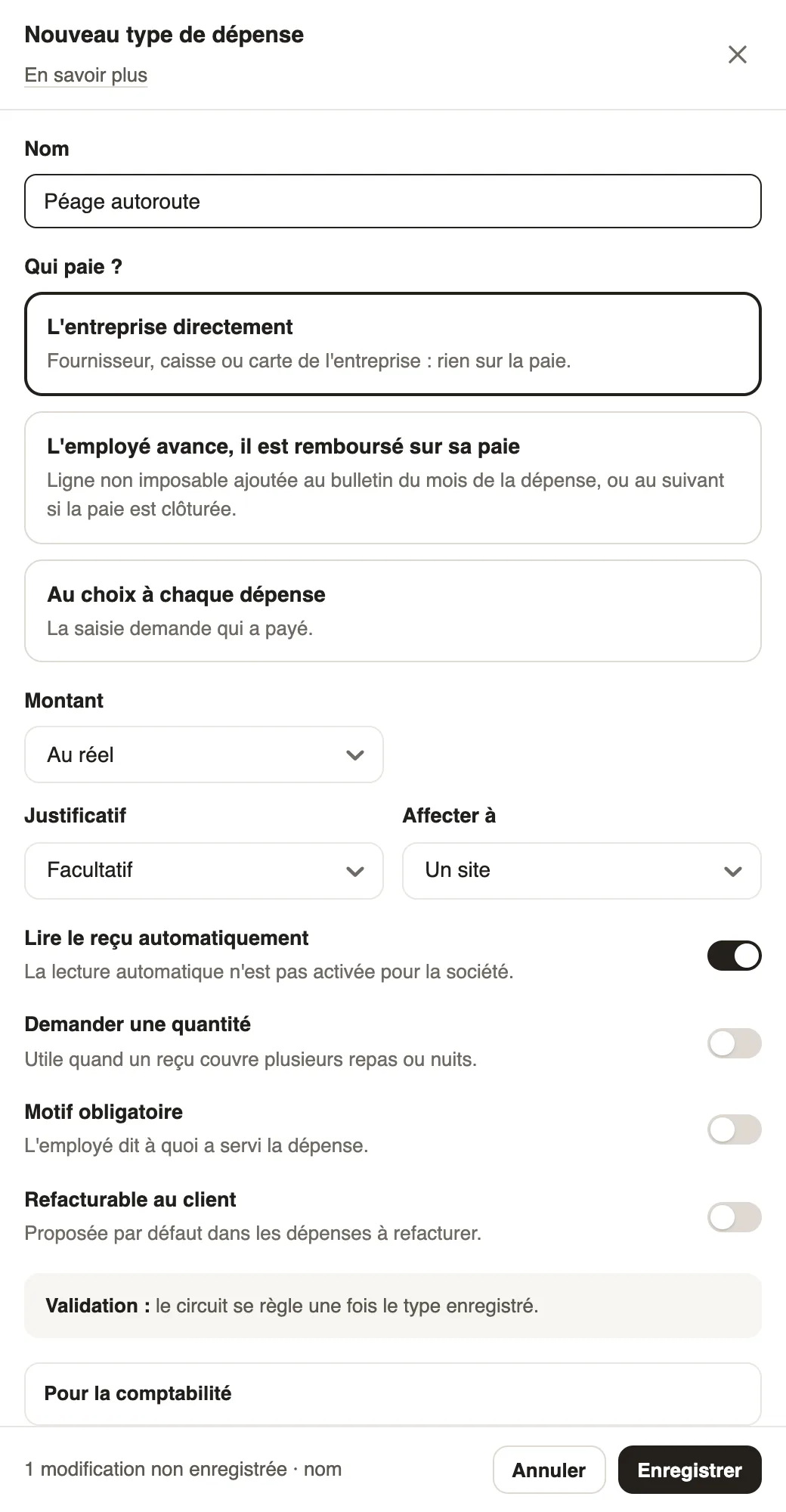
- Enter the Name and choose Who pays?: the company directly, the employee (repaid on their pay) or chosen on each expense.
- Choose the Amount: actual amount, flat rate (rate × quantity) or with a cap per unit.
- Set the Receipt (optional or required), Assign to (a site, a department, a client…) and the options: read the receipt automatically, ask for a quantity, reason required, rebillable to the client.
- Click Save.
Good to know
- The approval circuit is set once the type is saved, in Settings → Approvals → Expense claims.
- A duplicate type was merged: the old one stays visible, marked "Archived".
- Accounts and extra questions: set accounting and questions.
Go further
Set the accounting and questions of an expense typeIn Weplanify, give an expense type its category, its expense and counterpart accounts and VAT, and add your own questions to the entry form.Configure an approval circuitIn Weplanify, build the approval steps of a leave request, an expense, an advance or a form: the order, the name, the approver and when each step applies.Your company settings in WeplanifyIn Weplanify, settings are sorted by theme in a menu on the left: company, approvals, expenses, time and attendance, leave, payroll and account.Follow the company's expensesIn Weplanify, the Expenses screen gathers purchases paid by the company and costs advanced by employees: to approve, to reimburse and to pay.Record an expenseIn Weplanify, record an expense starting from the receipt: its type, who paid, the amount, date and site concerned, then see what will happen next.Repay an expense claim on the payslipIn Weplanify, repay an employee, through their payslip, the money they advanced for the company: meals, taxi rides, fuel or a business trip.Weplanify forms: requests, reports and surveysIn Weplanify, every company form sits in a single list, sorted by category, showing what is waiting for your decision and what is running late.Set up payroll accounting accountsIn Weplanify, choose the accounting account of each payroll line to produce a balanced payroll entry, ready to import into your accounting software.Submit an advance request for another employeeIn Weplanify, let a manager or a timekeeper submit an advance or loan request on an employee's behalf; the request then follows the usual circuit.