
Decide on pending expense claims and advances
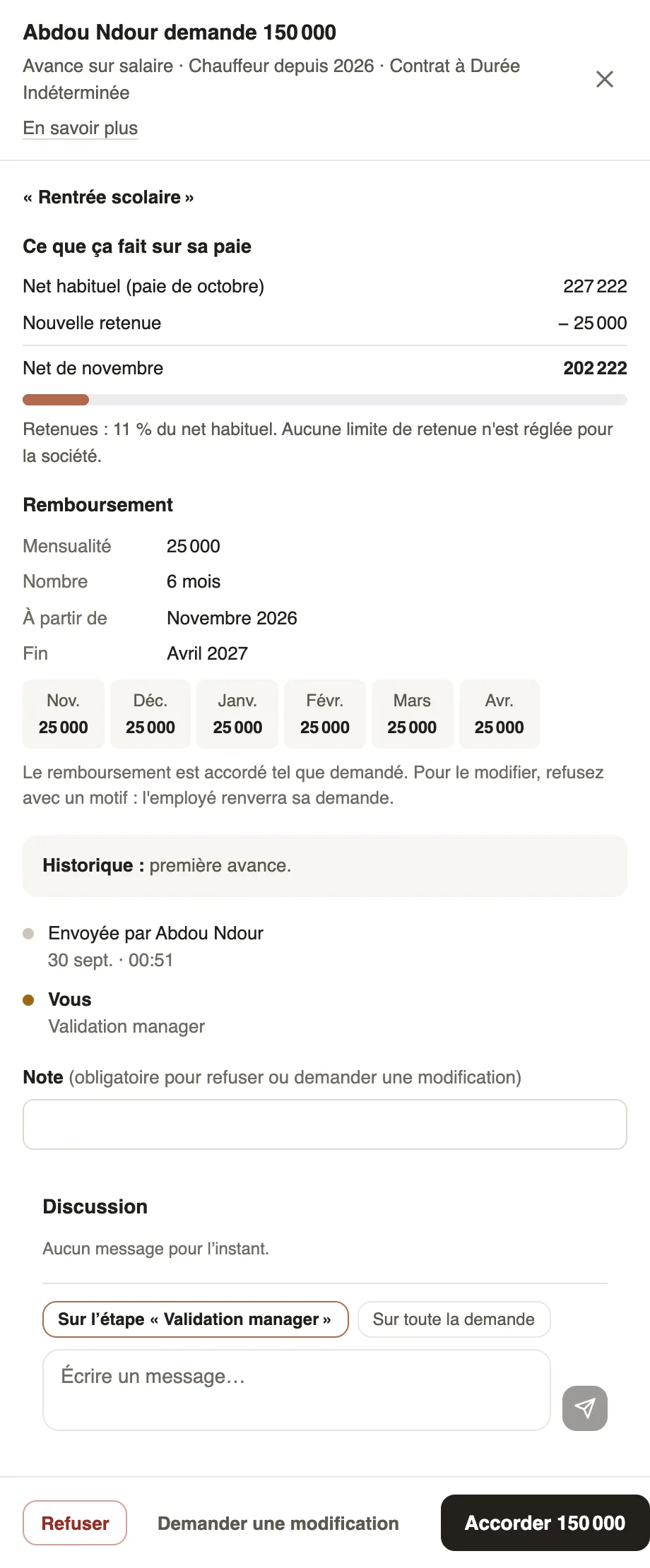
In Weplanify, decide on expense claims and advance requests from To handle: see their effect on pay, then grant them, refuse them or have them corrected.
In Weplanify, expense claims and advance requests waiting for your decision land in Requests → To handle, Expenses and Advances tabs. They are still listed in Expenses (To approve tab) and Advances & loans (Requests tab).
Steps
- Open Requests → To handle and click the request.
- Read the panel: for an advance, what it does to pay (usual net, new deduction, net of the month) and the repayment; for an expense claim, "If you approve:" and the receipt.
- Follow the path: "You" marks your step, "With" followed by a name shows who must answer.
- Click Grant for an advance, Approve for an expense claim. To Refuse or Ask for a change, first write a note.
Good to know
- A pending request has no effect on payroll: the advance or the expense claim is only created on approval.
- The repayment is granted as requested; to change it, ask for a change: the employee corrects and sends the request again.
- The note is sent to the employee; to talk before deciding, use the panel's Discussion.
Go further
Handle the requests waiting for youIn Weplanify, Requests → To handle gathers the leave, expense claims, advances and forms waiting for your decision, with the overdue ones first.Check the month's variable elementsIn Weplanify, the Variable elements step sums up the bonuses, benefits in kind, advance deductions and expense claims that will be on the month's payslips.Repay an expense claim on the payslipIn Weplanify, repay an employee, through their payslip, the money they advanced for the company: meals, taxi rides, fuel or a business trip.Grant an advance or a loanIn Weplanify, grant a salary advance or a loan repaid every month by a deduction on the payslip, and see its effect on the employee's pay right away.