
Handle the requests waiting for you
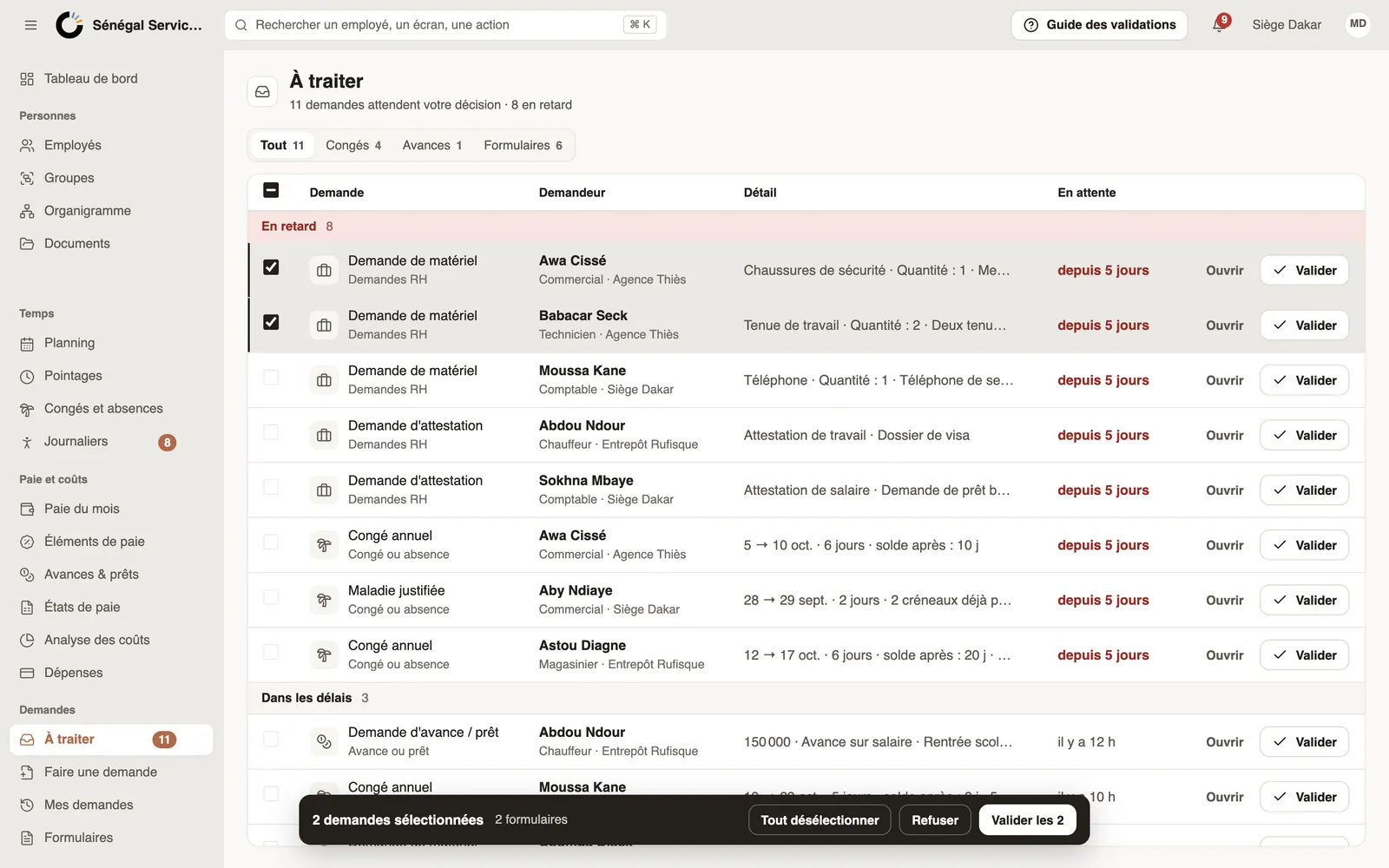
In Weplanify, Requests → To handle gathers the leave, expense claims, advances and forms waiting for your decision, with the overdue ones first.
In Weplanify, Requests → To handle lists everything waiting for your decision: leave, expense claims, advances and form answers. The number next to To handle, in the menu, counts these requests.
Steps
- Open Requests → To handle: Overdue requests show first, then those On time.
- Filter with the All, Leave, Expenses, Advances and Forms tabs.
- Read each line: the request, the requester, the detail (dates and balance after a leave, amount, answers) and how long it has been waiting.
- Click Approve, or Open to read the detail before deciding.
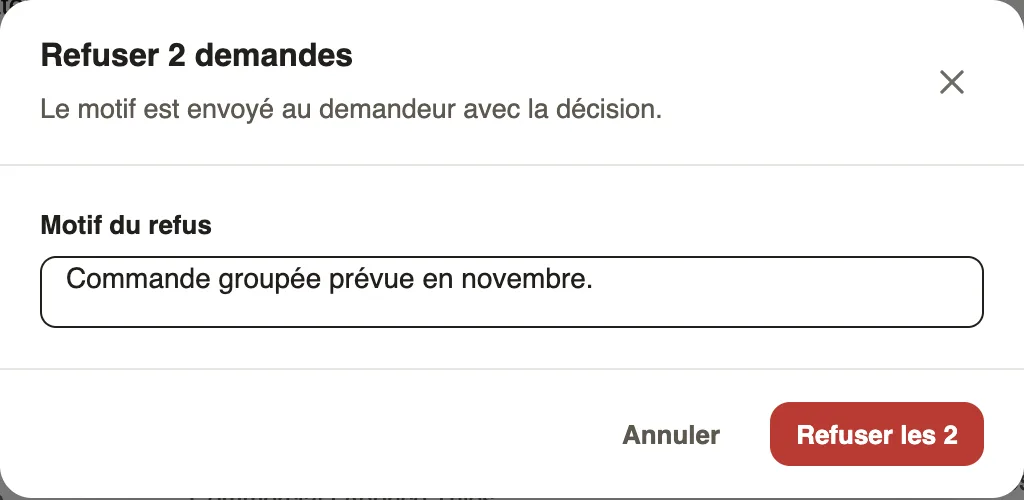
- For several requests, tick them: the bottom bar offers Approve all …, with their number, or Refuse, with one reason for all.
- A mistake? Click Undo in the message: the decision is only sent after 10 seconds.
Good to know
- A request is overdue when it has been waiting for more than 24 hours, or longer than its step's reminder delay (if nobody answers).
- Only the steps you approve show up; "for" followed by a name marks a request submitted for another employee.
- The dashboard keeps its To do list, which adds clock-ins without an exit and expired documents.
Go further
Approve, refuse or send a request back for changesIn Weplanify, open a request waiting for you, discuss it if needed, then approve it, refuse it or ask its author to change it before deciding again.Remind an approver who does not answerIn Weplanify, automatically remind a silent approver, then hand the request to the substitute or move on to the next step after a delay you choose.Submit an advance request for another employeeIn Weplanify, let a manager or a timekeeper submit an advance or loan request on an employee's behalf; the request then follows the usual circuit.Handle requests from the dashboardIn Weplanify, the dashboard's To do list gathers absences, requests and clock-ins waiting for you: approve, decline or fix them without leaving the page.Choose who approves absencesIn Weplanify, the leave circuit says who receives each absence request, in which order, under which conditions, and who stands in for an absent approver.Approve or reject an absence requestIn Weplanify, approve or reject an absence request from To handle or from its panel, which shows the effect on pay and on the balance before you decide.Request approval circuitsIn Weplanify, a leave request, an expense claim, an advance or a form answer moves from one approver to the next, following its circuit, until the decision.Decide on pending expense claims and advancesIn Weplanify, decide on expense claims and advance requests from To handle: see their effect on pay, then grant them, refuse them or have them corrected.