
Create an absence or leave
In Weplanify, enter an employee's absence or leave in three choices: who, what and when; the balance after the absence shows before you save.
In Weplanify, a manager can enter an employee's absence; the employee can also request it from their phone.
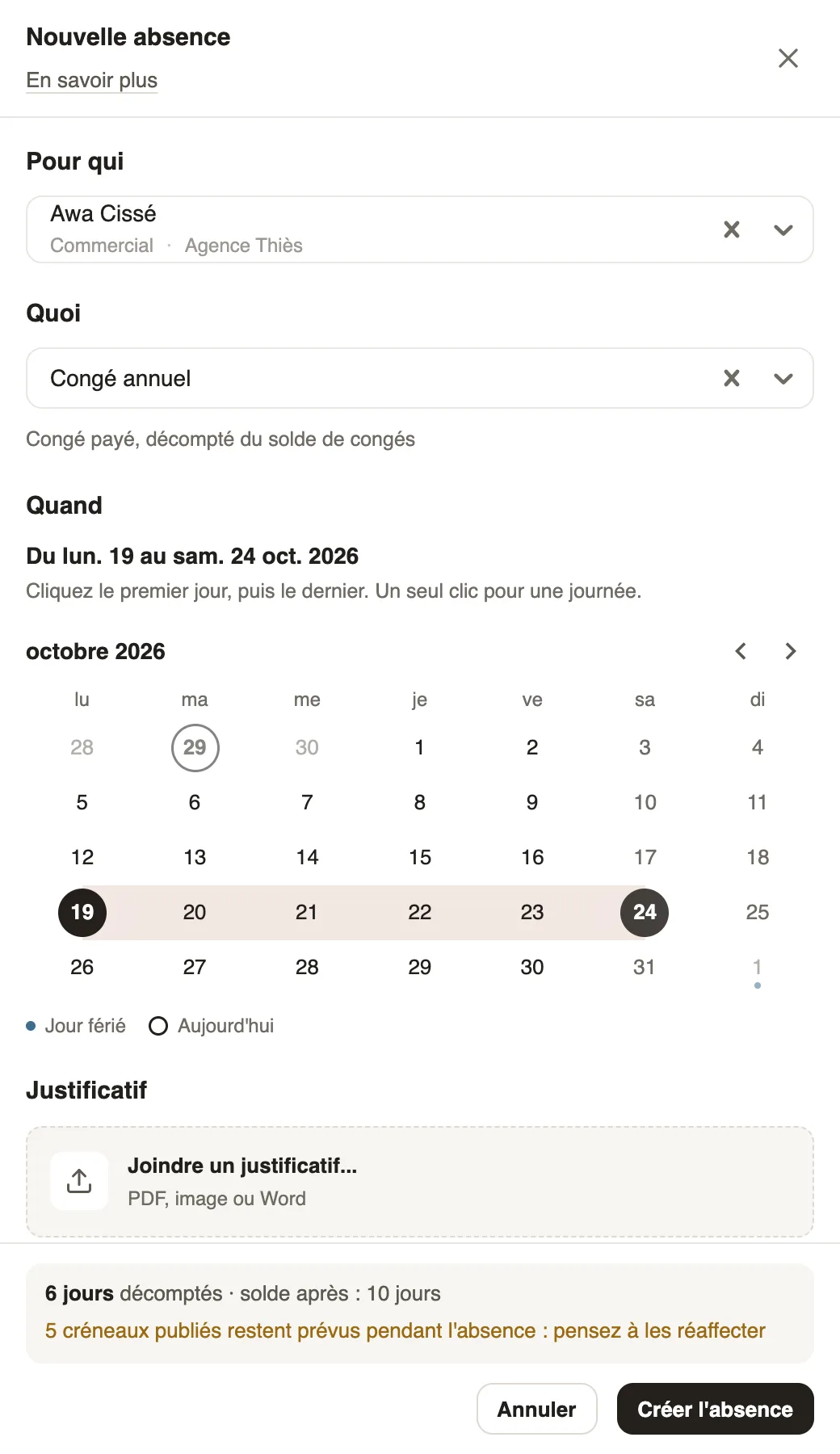
Steps
- Click New absence.
- Who: choose the employee.
- What: choose the absence type; its effect shows below (paid, deducted from the balance…).
- When: click the first day, then the last; a single click for one day. Public holidays are marked with a dot.
- Add a Supporting document (medical certificate…) and a note if needed, then Create absence.
Good to know
- The bottom of the panel gives the number of days counted and the balance after the absence (how days are counted).
- If published slots fall during the absence, a message invites you to reassign them in the planning.
- The request then follows the approval circuit. It can also be done from the planning: create an absence from the slots.
Go further
Absence typesIn Weplanify, each absence type says whether it is paid, unpaid or deducted from the leave balance: it is the type that decides the effect on payroll.How absence days are countedIn Weplanify, the number of days of an absence depends on its type: calendar days for paid or unpaid absence, working days for leave taken from the balance.The team planningIn Weplanify, the planning says who works, when and where, week after week; the slots stay as drafts until you publish them to your employees.Approve or reject an absence requestIn Weplanify, approve or reject an absence request from To handle or from its panel, which shows the effect on pay and on the balance before you decide.Create an absence from the planningIn Weplanify, record that a scheduled employee will be absent straight from their slots, without leaving the planning or typing the dates again.Manage leave and absencesIn Weplanify, the Leave and absences screen gathers the whole team's requests, as a list or a calendar, with the requests to approve shown first.The usual week (recurring planning)In Weplanify, an employee's usual week comes back on its own every week, shifted days off included, without typing the same slots over again.