
DocumentationDashboard
The Weplanify dashboard
In Weplanify, the dashboard sums up your activity: the period's figures, costs, items to handle, payroll progress and today's attendance at a glance.
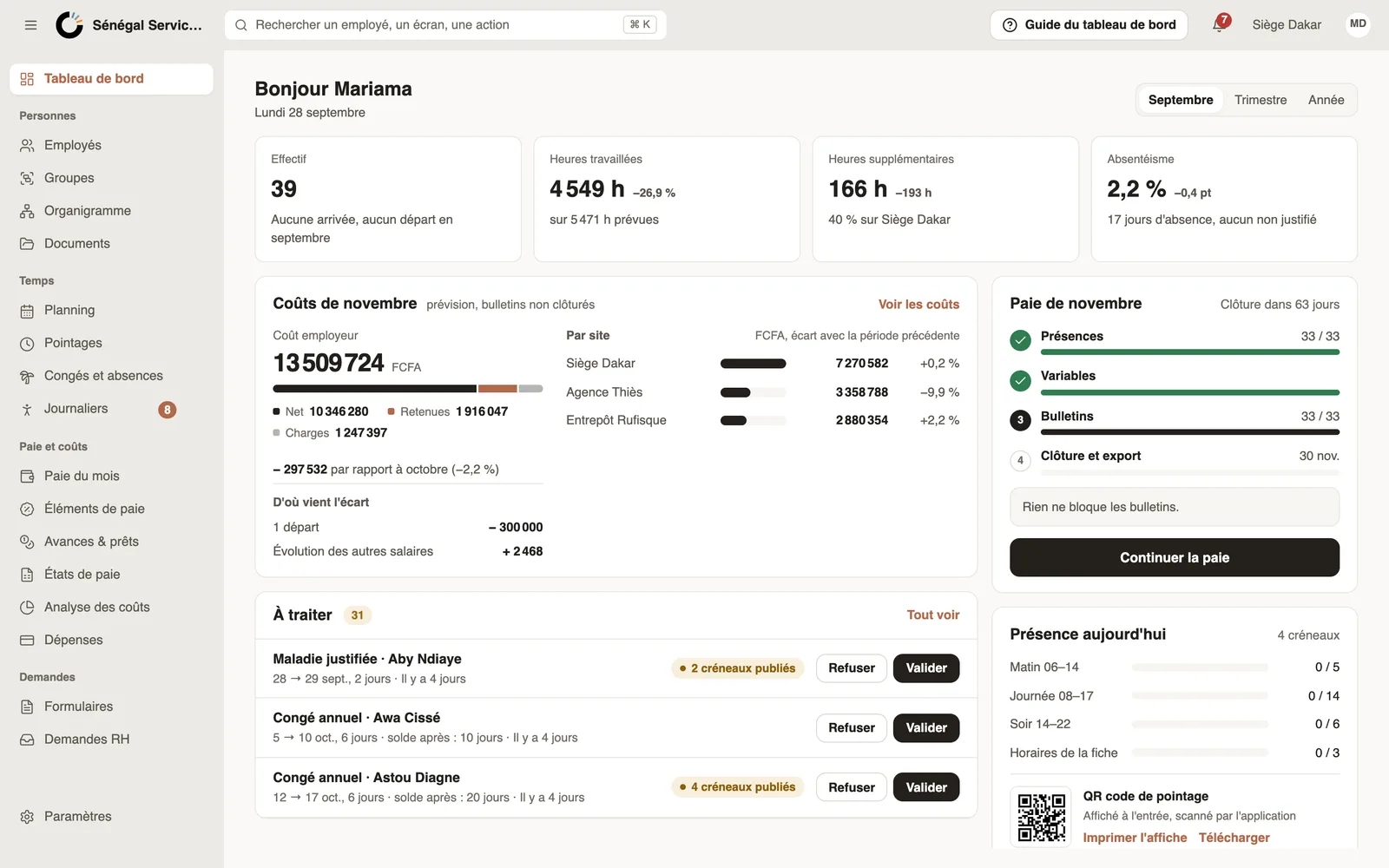
In Weplanify, the dashboard is the home page. It opens on "Hello" and today's date, then gathers what needs your attention.
What the page contains
- The four figures at the top, including hours worked and planned.
- The Costs card and the monthly payroll card, if you have payroll access.
- The To do list: absences, requests and clock-ins waiting for you.
- Today's attendance and the clock-in QR code.
Good to know
- With payroll access, pick the period at the top right: the month, the quarter or the year.
- Without payroll access, the Monthly report and New absence buttons replace the period choice.
- Figures are limited to your scope: the whole company for an administrator, their groups for a manager (roles). An employee sees their own dashboard.
- Until the getting started list is complete, it also shows here.
Go further
The dashboard Costs cardIn Weplanify, the dashboard Costs card gives the payroll's employer cost, the change from the previous period, what explains it and the cost of each site.Handle requests from the dashboardIn Weplanify, the dashboard's To do list gathers absences, requests and clock-ins waiting for you: approve, decline or fix them without leaving the page.An employee's dashboardIn Weplanify, an employee invited to the web sees their own dashboard: their leave balance, their next absence and the follow-up of this year's requests.Understand the dashboard figuresIn Weplanify, the four cards at the top of the dashboard sum up the period: headcount, hours, absenteeism, or today's attendance and requests to approve.Follow the monthly payroll from the dashboardIn Weplanify, the dashboard Payroll card shows where the month's payroll stands, step by step, what blocks the payslips and the time left before closing.Hours worked and planned hours on the dashboardIn Weplanify, the dashboard compares the hours clocked over the period with the hours planned in the schedule, and shows where overtime is being done.Print the clock-in QR codeIn Weplanify, print from the dashboard the clock-in QR code poster, to put up at the site entrance so that employees can clock in with their phone.See who has arrived today from the dashboardIn Weplanify, the dashboard's Attendance today card counts live, shift by shift, the employees who have already arrived out of all those expected.Employee, manager, administrator: who sees what in WeplanifyIn Weplanify, each person has a role that sets what they see: their own data, the employees of the groups they manage, or the whole company at once.The dashboard Getting started listIn Weplanify, the dashboard Getting started list shows what is left to do to get going, and each of its lines ticks itself once the step is done.Your subscription and paymentsIn Weplanify, see your plan and your next billing date, change your plan, and find the history of your payments and your invoices in one place.