
Absence types
In Weplanify, each absence type says whether it is paid, unpaid or deducted from the leave balance: it is the type that decides the effect on payroll.
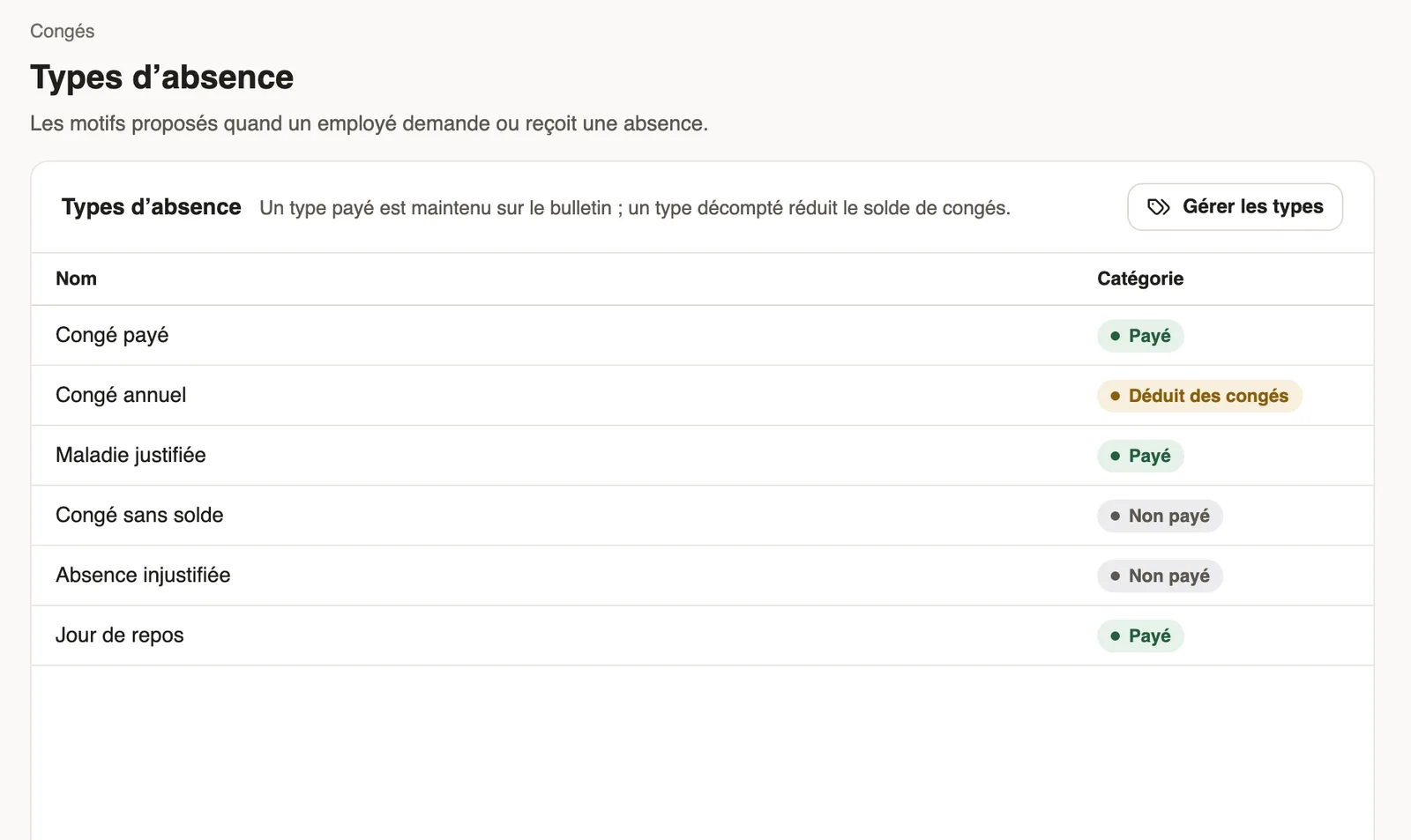
In Weplanify, absence types are the reasons offered when an employee requests or receives an absence. They are set in Settings → Leave → Absence types.
Steps
- Open Settings → Absence types, or the settings button of the Leave and absences screen.
- Click Manage types, then New.
- Give a name (for example "Justified sickness"), choose the Category, then Create.
The three categories
- Paid: the employee is away but still paid (justified sickness, family event…).
- Unpaid: the days are deducted from the salary (unpaid leave, unjustified absence).
- Deducted from leave: the days are taken from the leave balance (annual leave).
Good to know
- Deleting a type only deactivates it: old absences keep their name.
- How many days are deducted: see how days are counted.
Go further
Leave balancesIn Weplanify, each employee has a leave counter: earned since the return date, taken, and available balance, shown on their record and in the report.How absence days are countedIn Weplanify, the number of days of an absence depends on its type: calendar days for paid or unpaid absence, working days for leave taken from the balance.Manage leave and absencesIn Weplanify, the Leave and absences screen gathers the whole team's requests, as a list or a calendar, with the requests to approve shown first.Create an absence or leaveIn Weplanify, enter an employee's absence or leave in three choices: who, what and when; the balance after the absence shows before you save.Request leave from your phoneRequest leave or an absence in the Weplanify app, attach a supporting document, see your balance and track approval.Your company settings in WeplanifyIn Weplanify, settings are sorted by theme in a menu on the left: company, approvals, expenses, time and attendance, leave, payroll and account.Choose how leave is handled in payrollIn Weplanify, choose how a departure on leave is paid: salary maintained, allowance on departure, or deduction then add-back on the payslips.Prepare the month's time and absencesIn Weplanify, the Time and absences step gives each employee's paid days, leave, absences and overtime, taken from the source chosen for their site.Create an absence from the planningIn Weplanify, record that a scheduled employee will be absent straight from their slots, without leaving the planning or typing the dates again.