
Hours worked and planned hours on the dashboard
In Weplanify, the dashboard compares the hours clocked over the period with the hours planned in the schedule, and shows where overtime is being done.
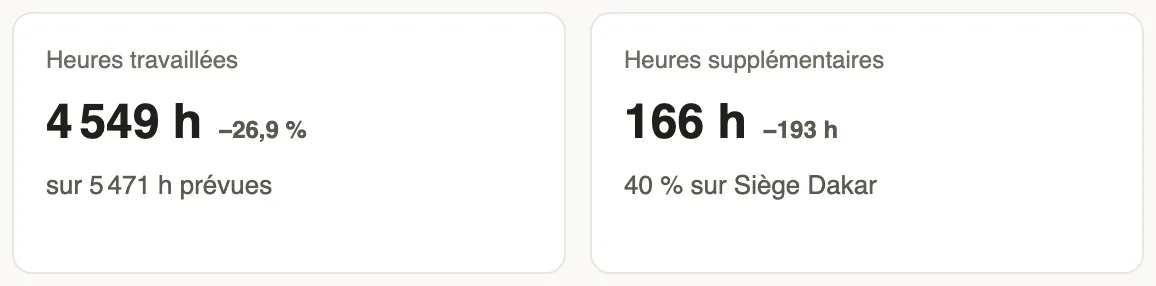
In Weplanify, two dashboard cards deal with hours: Hours worked and Overtime. They follow the period chosen at the top right.
How to read them
- Hours worked: the hours clocked "out of" the hours planned in the schedule. A shortfall points to late arrivals, early departures or absences.
- The % change compares the hours clocked with the previous period.
- Overtime: the period's total, the change in hours from the previous period and the share done at the site with the most.
- Click a card to open the time clock report, day by day and employee by employee.
Good to know
- Without a schedule over the period, the card only shows the hours clocked.
- Overtime follows your overtime settings.
- These cards only show with payroll access (see the dashboard figures).
Go further
The team planningIn Weplanify, the planning says who works, when and where, week after week; the slots stay as drafts until you publish them to your employees.The monthly time clock report and Excel exportIn Weplanify, the time clock report sums up the month: hours worked against planned, lateness, overtime, absences, and what to fix before payroll.Turn on overtime trackingIn Weplanify, turn on overtime counting, then set the weekly threshold, the way overtime hours are approved, and the range of the night hours.Understand the dashboard figuresIn Weplanify, the four cards at the top of the dashboard sum up the period: headcount, hours, absenteeism, or today's attendance and requests to approve.The Weplanify dashboardIn Weplanify, the dashboard sums up your activity: the period's figures, costs, items to handle, payroll progress and today's attendance at a glance.