
Manage jobs and sub-jobs
In Weplanify, create the list of jobs with their colour and their sub-jobs: they are used on employee records, for day labourers and in the planning.
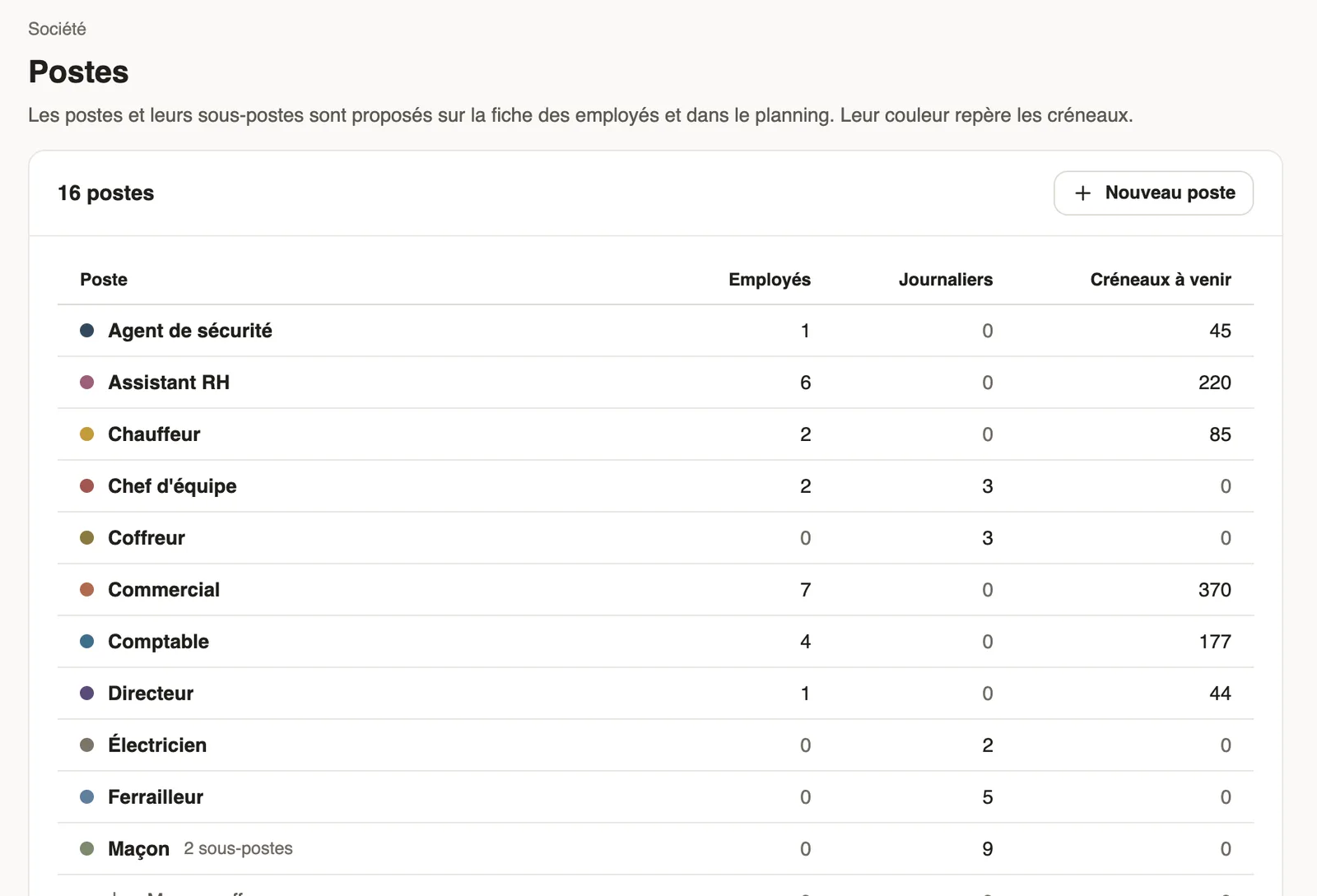
In Weplanify, the Settings → Company → Jobs page lists each job with the number of employees, day labourers and upcoming shifts that use it.
Steps
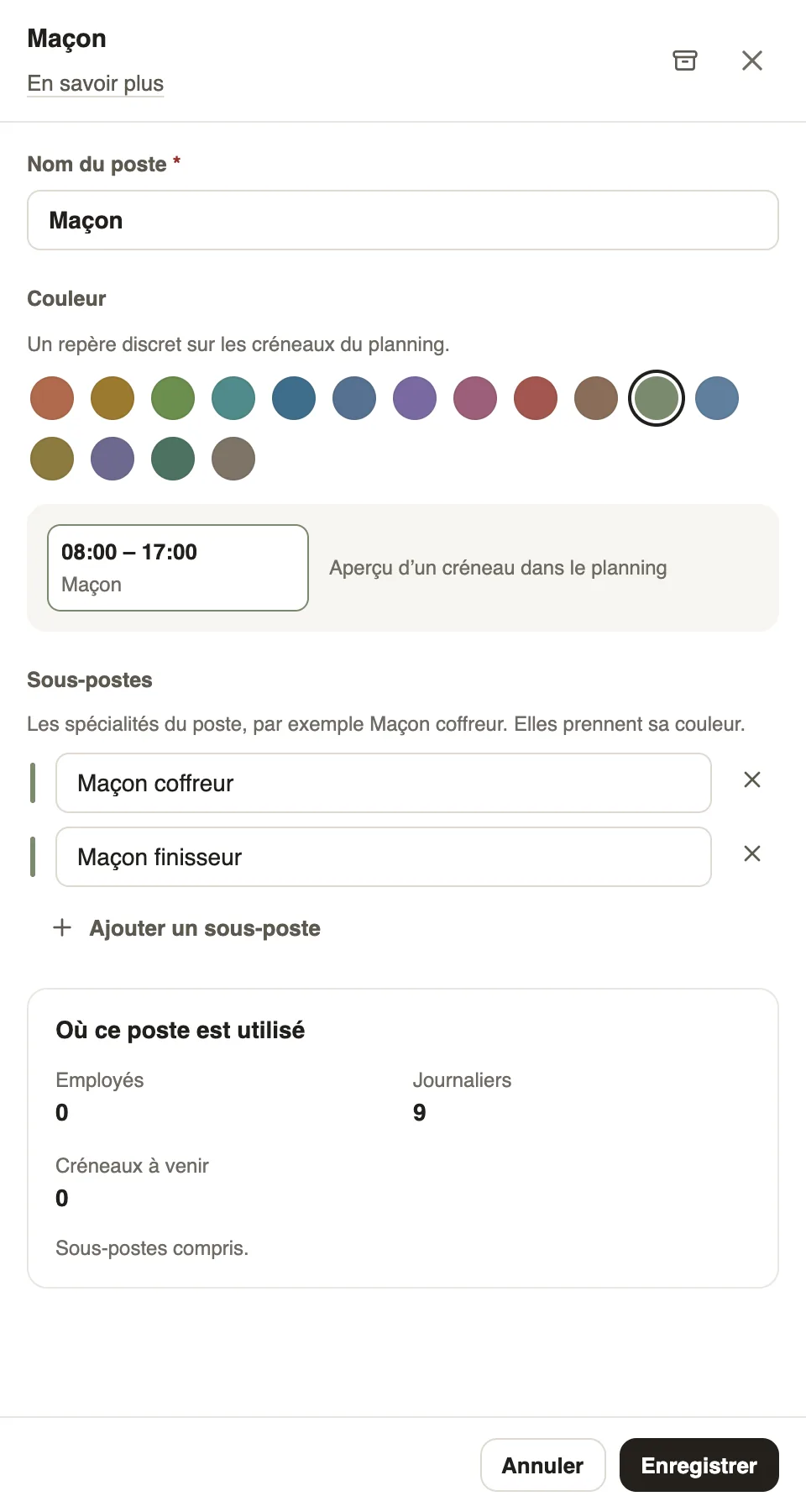
- Click New job, or a job to edit it.
- Enter the Job name and choose its Colour: the preview shows a planning slot.
- Under Sub-jobs, click Add a sub-job (for example Formwork mason, Finishing mason): they take its colour.
- Click Save.
Good to know
- Where this job is used counts employees, day labourers and upcoming shifts, sub-jobs included.
- The job is chosen on each employee record and each slot; it is recognised by its name on import.
- Same list as in the planning: planning jobs.
Go further
The employee recordIn Weplanify, the employee record brings together everything about a person in five tabs, with sections that you edit one at a time, separately.Create a slot in the planningIn Weplanify, a slot says who works, on which days, at what time, on which site and in which job; it is created as a draft, for one or several employees.Import your employees from ExcelIn Weplanify, create or update dozens of employees at once from an Excel or CSV file, each of them being recognised by their own phone number.Manage the planning's jobsIn Weplanify, keep the list of jobs (driver, storekeeper…) used in slots up to date; each job's colour outlines its slots so the grid is easy to read.Your company settings in WeplanifyIn Weplanify, settings are sorted by theme in a menu on the left: company, approvals, expenses, time and attendance, leave, payroll and account.Getting started with WeplanifyIn Weplanify, the web is for managers and the mobile app is for employees: here is where to start, from creating the account to the first published schedule.Manage your employees in WeplanifyIn Weplanify, each employee has a record used everywhere: planning, time clock, leave and payroll. Here is how to create it and keep it up to date.