
Follow a collection and approve papers
In Weplanify, check the papers uploaded for a collection, approve them or refuse them with a reason, and upload a paper on an employee's behalf.
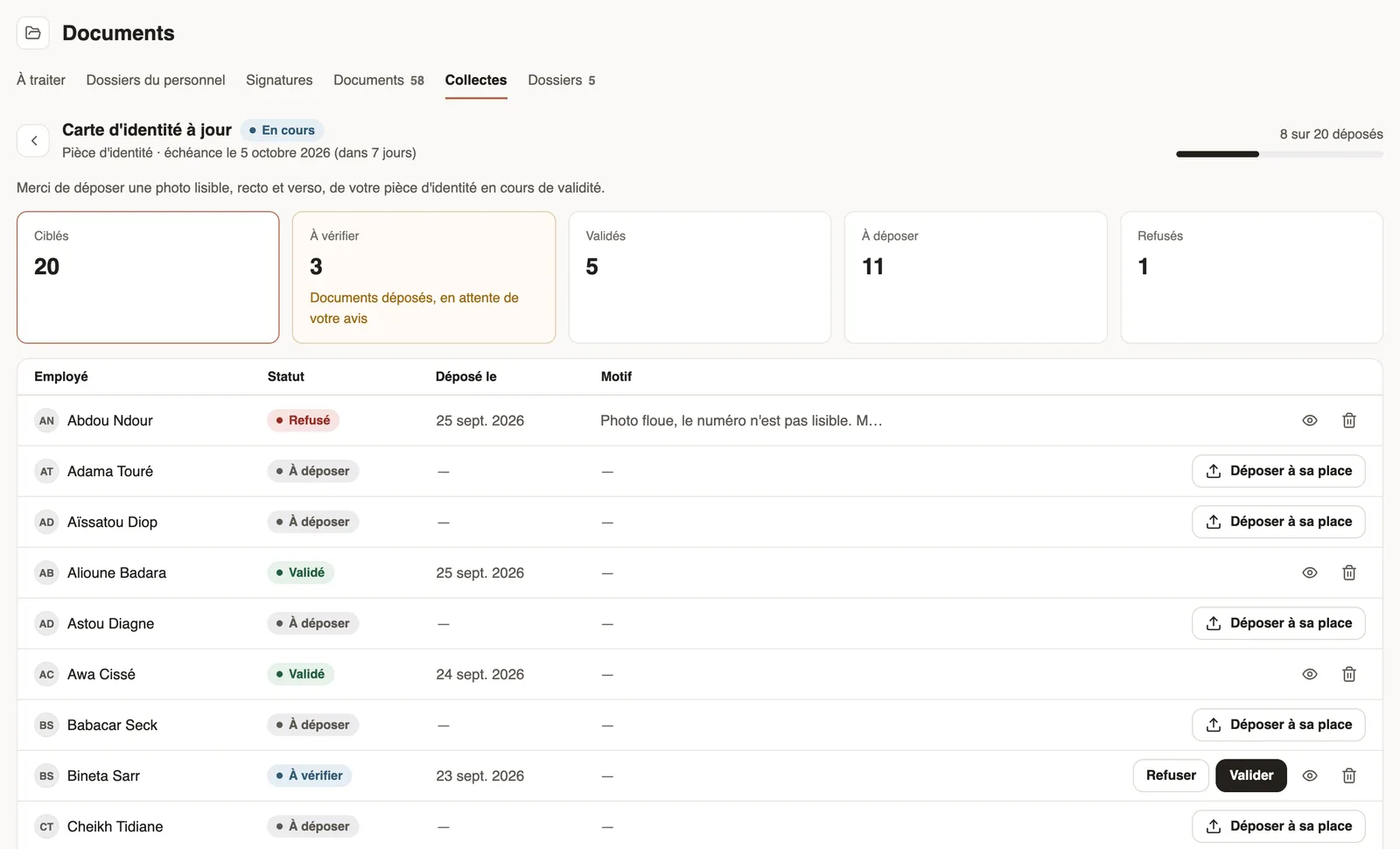
In Weplanify, the detail of a collection shows who uploaded their paper, what is left to check and what is still missing.
Steps
- In the Collections tab, click the collection.
- Read the Targeted, To review, Approved, To upload and Rejected counters; click a counter to filter the list.
- On a To review row, open the paper with the eye icon.
- Click Approve if it is compliant.
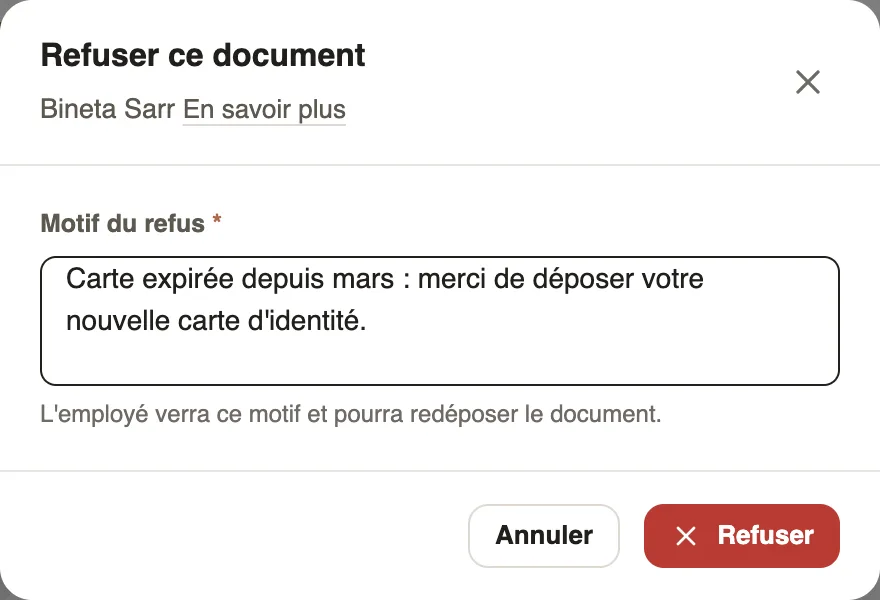
- Otherwise, click Reject, write the Rejection reason and confirm: the employee sees it and can upload another paper.
Go further
Handle pending documents: the To do tabIn Weplanify, the To do tab lists papers to approve, signatures still pending, expired papers to request again and the collections in progress.Document statuses and expiryIn Weplanify, understand the Valid, Expiring soon and Expired statuses of a document, and those of a paper requested by collection: To upload, To check.HR documents in WeplanifyIn Weplanify, the Documents module files HR papers, spots incomplete staff files, gets PDFs signed and collects documents from your employees.Request a document from your employees (collection)In Weplanify, a collection requests the same paper (ID card, bank details, medical certificate…) from a group of employees, with a deadline to meet.