
DocumentationMobile app
The Weplanify mobile app for your employees
What your employees do from their phone with Weplanify: clock in, see their schedule, request leave, fill in a form, read their payslips.
In Weplanify, every employee has a mobile app, in French or English. It opens on their day: their shift, their work timer and what's waiting for them.
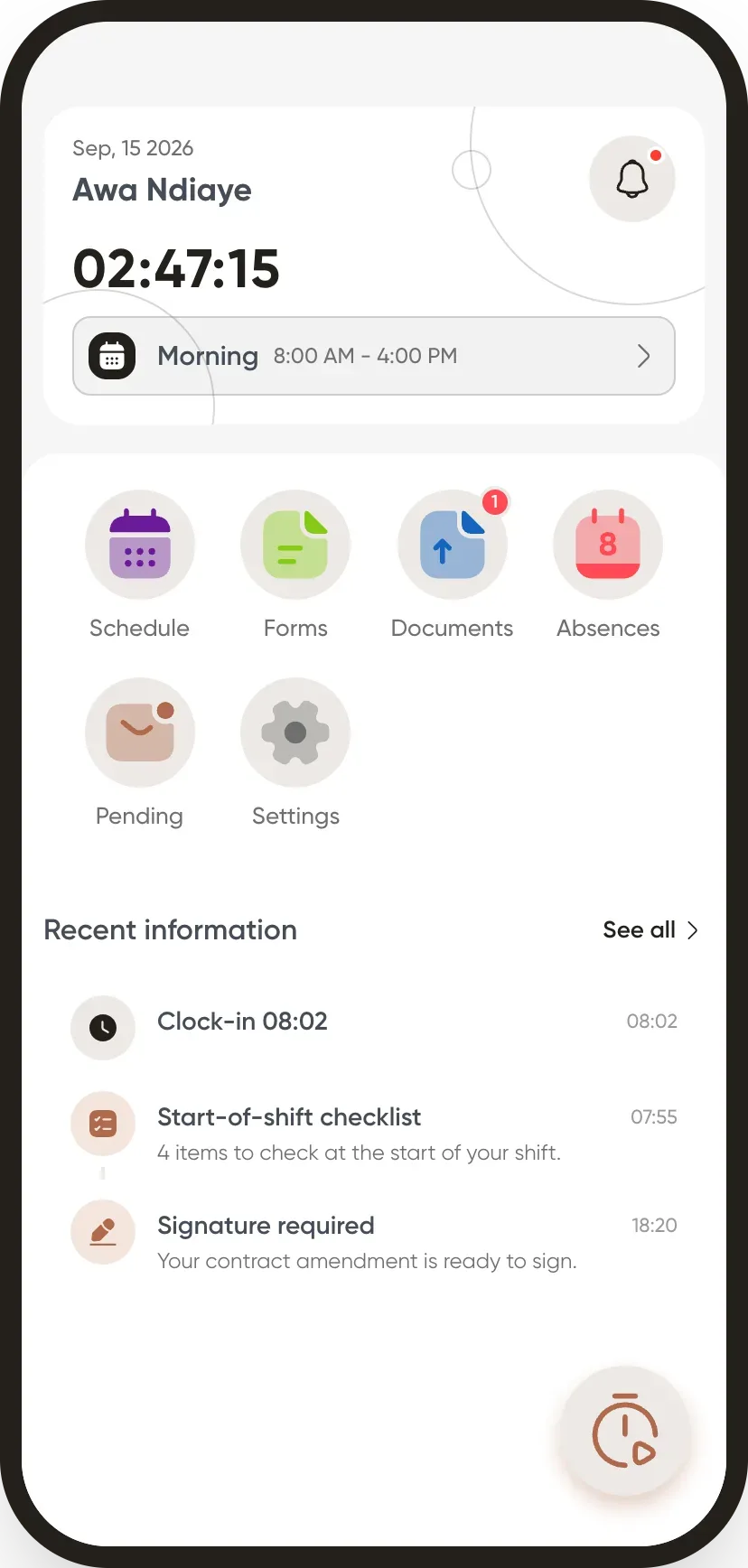
What the employee does
- Sign in with their phone number, no password.
- Clock in on arrival and departure.
- View their schedule and tick off tasks.
- Request leave and track its approval.
- Fill in a form, an expense claim or an advance request.
- Upload requested documents and find their payslips.
Depending on their role
- A manager approves requests from their team.
- A timekeeper clocks in the employees of their site and manages day labourers.
- A shared phone can become a clock-in terminal.
Good to know
- Notifications keep the employee informed: schedule published, leave approved, form to fill in, reminder before their shift.
- From their profile, the employee finds their QR badge, chooses their language and dark mode.
- For an employee to use the app, their record must include their phone number.
Go further
Request leave from your phoneRequest leave or an absence in the Weplanify app, attach a supporting document, see your balance and track approval.Sign in to the mobile appHow an employee signs in to the Weplanify app with their phone number and a text code, and what to do if the code doesn't arrive.Documents and payslips on mobileUpload the documents HR requests from the Weplanify app, follow their review and find your payslips.Make a request or fill in a form on mobileIn Weplanify, employees make their requests from the app: an expense, an advance, a schedule change, a report or any other form, then follow them.Manage day labourers from mobileRecord the day labourers who came to work on a site from the Weplanify app, with their position and daily rate.View your schedule on mobileSee your week in the Weplanify app: hours, break, position and location for each day, and your shift's task list.Clock in from your phoneClock in and out with the Weplanify app, by geolocation on site or by scanning the QR code posted at the workstation.Clock in your site's employees (timekeeper)Let a site manager mark expected employees present or absent on their site from the Weplanify app.Turn a phone into a clock-in terminalLet several employees clock in on a single Weplanify phone or tablet, by QR badge or facial recognition.Approve your team's requests on mobileIn Weplanify, managers approve, reject or send back for changes their team's requests from their phone, and discuss them with the requester.Add an employee in WeplanifyIn Weplanify, an employee is created in four short steps; the name and phone number are enough, the rest can be completed later on their record.Getting started with WeplanifyIn Weplanify, the web is for managers and the mobile app is for employees: here is where to start, from creating the account to the first published schedule.An employee's dashboardIn Weplanify, an employee invited to the web sees their own dashboard: their leave balance, their next absence and the follow-up of this year's requests.