
Analyse costs by site, job or department
In Weplanify, the cost analysis adds up the month's salaries, day labourers and expenses, then splits them by site, by job or by department, month by month.
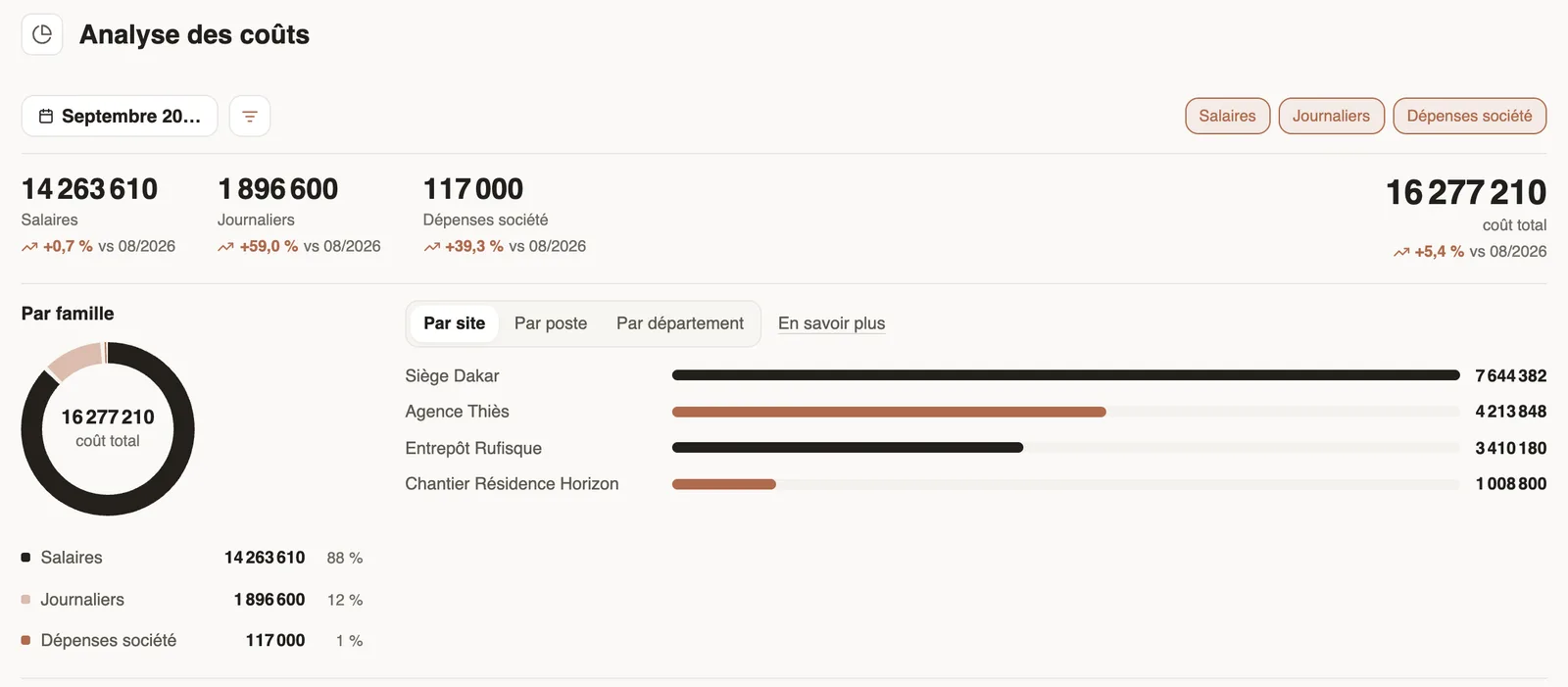
In Weplanify, the Cost analysis screen (Payroll and costs menu) brings together three cost families: Salaries (from payslips), Day labourers and Company expenses, compared with the previous month.
Steps
- Open Payroll and costs → Cost analysis, or click See costs on the dashboard Costs card.
- Pick the month.
- Click the Salaries, Day labourers and Company expenses chips to include or remove a family.
- Choose the axis: By site, By job or By department. The bars give the ranking; the table below gives every line, with a search.
- The filter button, next to the month, narrows the analysis to a group of people: department, site, job, group, manager or contract type.
Good to know
- Salaries only show once the month's payslips are computed. An employee's salary is split between their sites and jobs according to their scheduled hours; by department, it counts in full.
- Day labourers come from the Day labourers module; a repaid expense claim counts as an expense, not as salary.
- With a filter, company expenses with no employee concerned are left out (see filter by employee).
- The screen is reserved for people with payroll access.
Go further
The dashboard Costs cardIn Weplanify, the dashboard Costs card gives the payroll's employer cost, the change from the previous period, what explains it and the cost of each site.Check, approve and print payslipsIn Weplanify, the Payslips step shows the month's payslips: totals, each person's gross and net, preview, recompute, approval and printing in one PDF.The cost of day labourIn Weplanify, the day labourers' History tab gives the month's cash out by site and by job, compared with the previous month, and every day.Filter a list by site, group, job or contractIn Weplanify, the same filter bar narrows a list or a report down to a group of people: site, department, job, group, manager or contract type.Declare your clientsIn Weplanify, create your clients to attach to them the sites where your teams work for them, with their contact and their accounting account.Follow the company's expensesIn Weplanify, the Expenses screen gathers purchases paid by the company and costs advanced by employees: to approve, to reimburse and to pay.