
Sign in to Weplanify on the web and on mobile
In Weplanify, managers sign in on the web with their email address, and employees sign in to the mobile app with their phone number and a code.
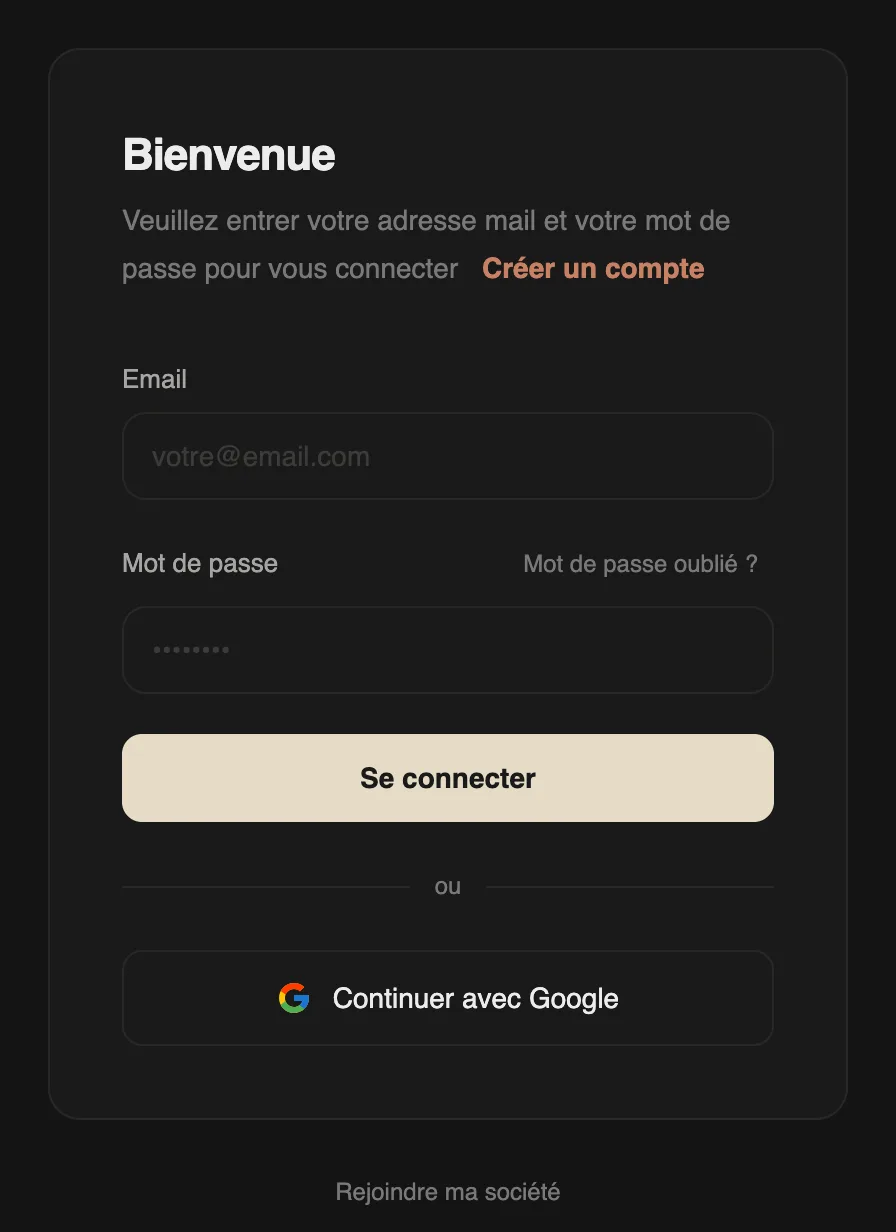
In Weplanify, the web opens with an email address and a password; the mobile app opens with the employee's phone number.
Steps
- On the web, enter your email and password, then Sign in; or Continue with Google.
- Lost password: click Forgot password? and follow the link received by email.
- First sign-in of an invited employee: Join my company, their work email, then Get the link to create their password.
- On mobile, the employee enters their number and receives a code by text message (signing in to the app).
Good to know
- To open the web to an employee, invite them from their record.
- If the text message does not arrive, give them the day's emergency sign-in code.
- A new company is created with Create an account (the wizard).
Go further
Sign in to the mobile appHow an employee signs in to the Weplanify app with their phone number and a text code, and what to do if the code doesn't arrive.Invite an employee to the web versionIn Weplanify, invite an employee, often a manager, to the web version: they receive an email link to create their password and then sign in.The emergency login codeIn Weplanify, help out an employee who does not receive the mobile app sign-in text message with today's code, valid across the whole company.Create your Weplanify workspace with the wizardIn Weplanify, the setup wizard creates your company in five steps: company, business and jobs, working hours, modules, then getting started.