
Turn a phone into a clock-in terminal
Let several employees clock in on a single Weplanify phone or tablet, by QR badge or facial recognition.
In Weplanify, a phone or tablet placed at the entrance can be used as a terminal: each employee shows their badge or face to it.
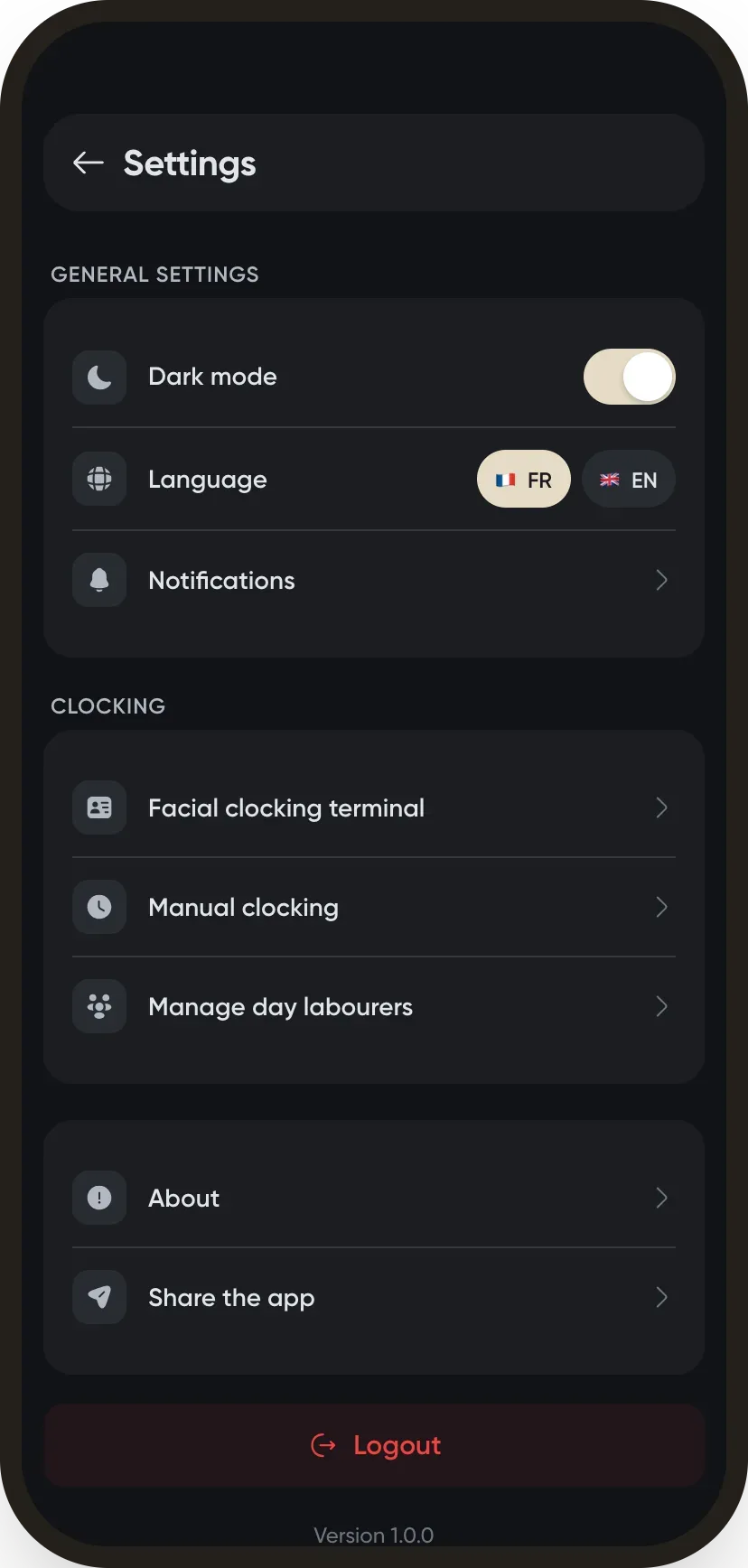
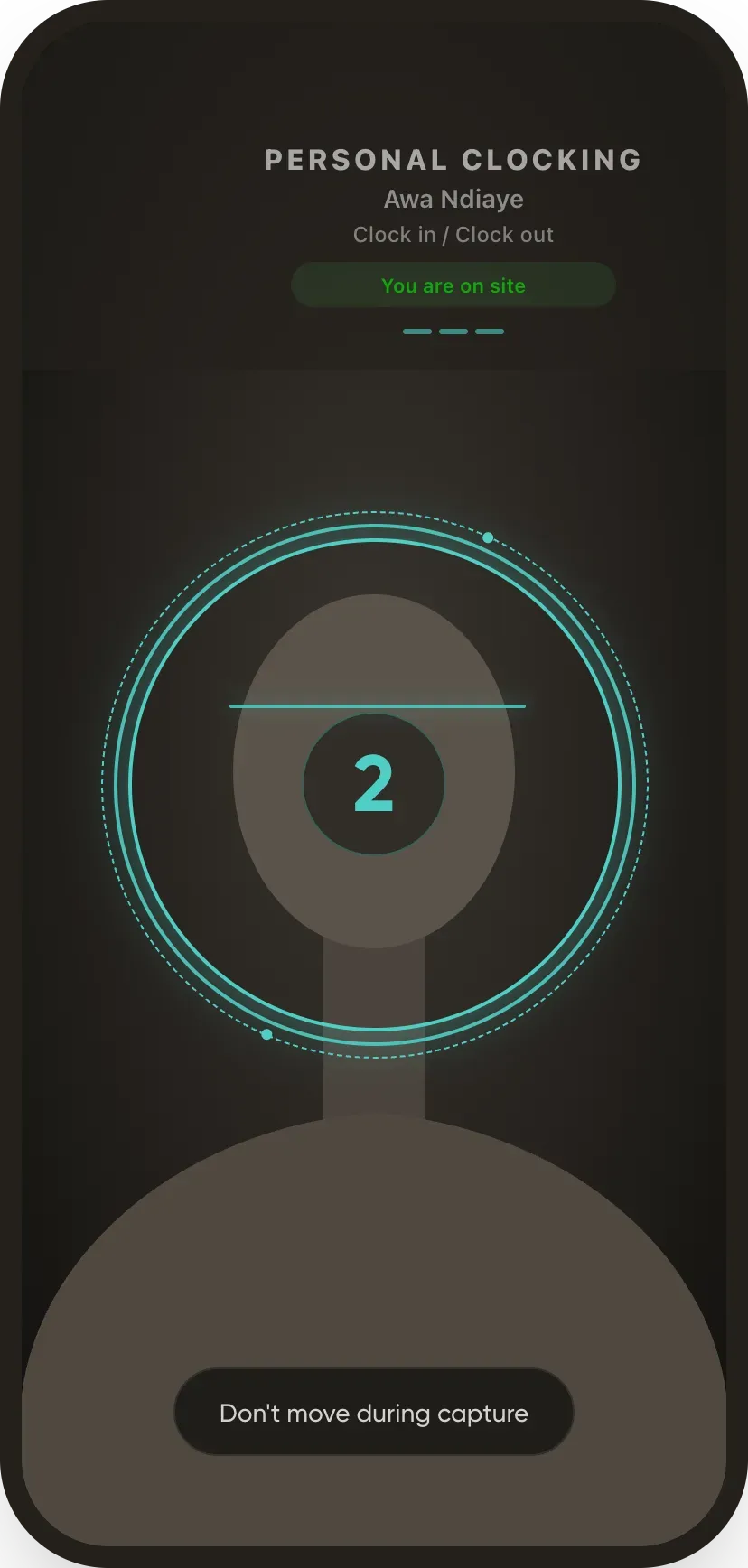
Steps
- Sign in with an authorised account, then open Settings.
- In the Attendance section, choose the clock-in terminal (badge or facial recognition).
- Each employee shows their QR badge (from their record) or their face to the device.
Good to know
- With facial recognition, the photo goes to the server, where the check happens: nothing is compared or stored on the phone.
- Facial recognition processes biometric data: check your country's rules before using it. QR codes and geolocation raise no such question.
- Badges can be produced with the badge generator.
Go further
An employee's clock-in settingsIn Weplanify, the Time tracking and leave section of the record sets how the employee clocks in and what, for them alone, differs from company rules.Clocking in with facial recognitionIn Weplanify, facial recognition compares the photo taken at clock-in with the employee's profile photo; here is what to do when the check fails.Have your agents' QR badges madeIn Weplanify, give your badge supplier a single link to download the clock-in QR codes of all your agents, without exporting them one by one.The Weplanify mobile app for your employeesWhat your employees do from their phone with Weplanify: clock in, see their schedule, request leave, fill in a form, read their payslips.