
Approve your team's requests on mobile
In Weplanify, managers approve, reject or send back for changes their team's requests from their phone, and discuss them with the requester.
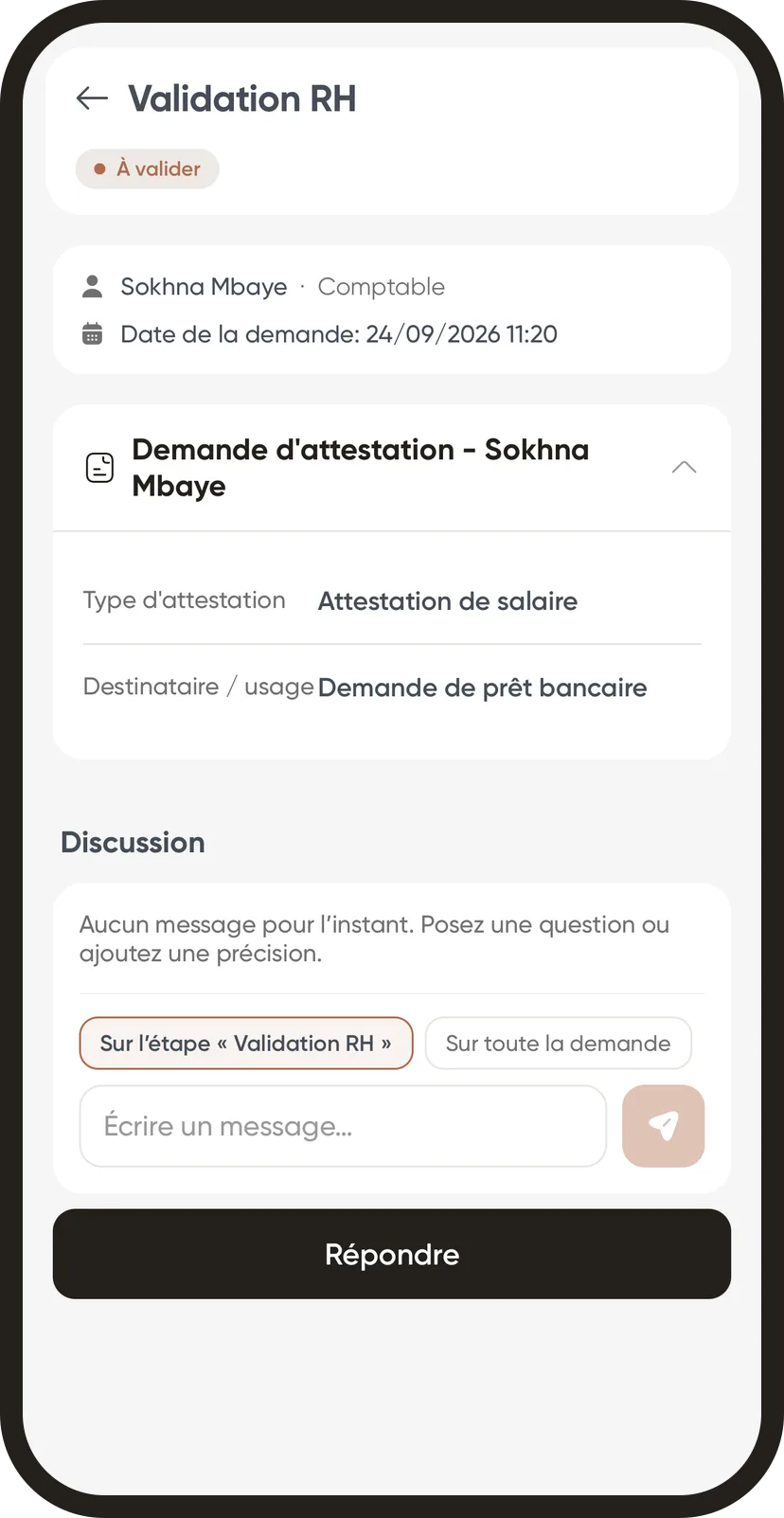
In Weplanify, managers get on their phone the requests waiting for their decision. Each request has its Discussion thread to ask a question before deciding.
Steps
- On the home screen, tap To approve. Filter by Urgent or Normal if needed, then open a request.
- Read the details. To ask a question, write under Discussion, choose On the "…" step or On the whole request, then send.
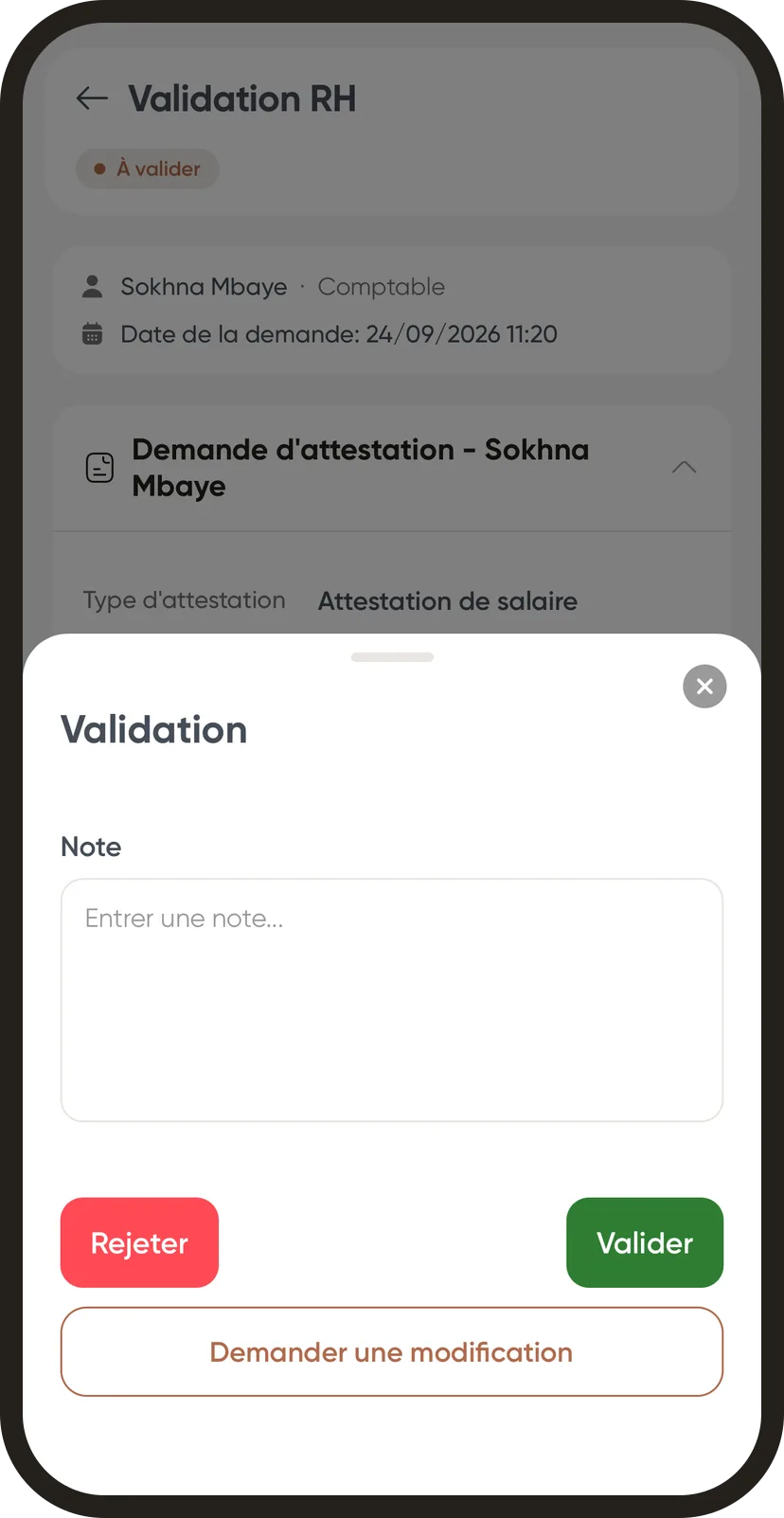
- Tap Respond, add a note if needed, tap Approve or Reject and confirm with I am sure.
- To have the request corrected, tap Ask for a change, write What needs to change, then tap Send back to the requester.
Good to know
- After a change request, the requester sees their request as To fix. Once corrected, it goes through the whole workflow again from the first step, and the thread shows what changed.
- The requester sees the same thread in My requests. Messages and decisions follow each other there; Reply, under a message, quotes it.
- Ask for a change is not offered for leave.
- These are the same requests as on the web: approve a request. Who approves what is set in the approval workflow.
Go further
Approve, refuse or send a request back for changesIn Weplanify, open a request waiting for you, discuss it if needed, then approve it, refuse it or ask its author to change it before deciding again.Configure an approval circuitIn Weplanify, build the approval steps of a leave request, an expense, an advance or a form: the order, the name, the approver and when each step applies.The Weplanify mobile app for your employeesWhat your employees do from their phone with Weplanify: clock in, see their schedule, request leave, fill in a form, read their payslips.