
Search and filter the employee list
In Weplanify, the employee list can be searched by name, filtered by group or criterion, shown as a table or as cards, and it also lists the managers.
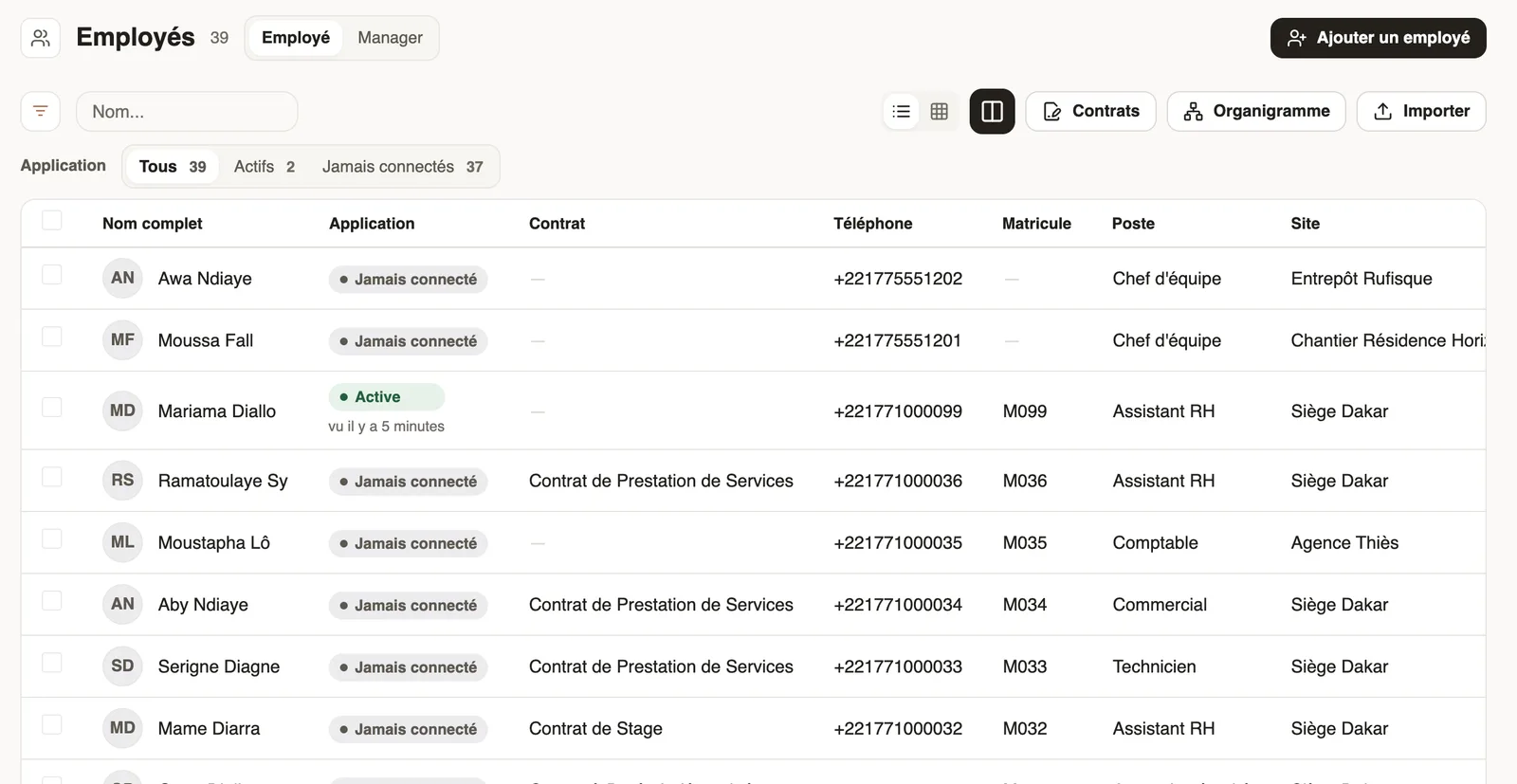
In Weplanify, the employee list shows all your staff, 25 per page, with their app use, contract, phone, staff number, job and site.
Steps
- Type a name in Name…, or click the Filters button to filter by group or add a criterion.
- Switch between table and cards, and choose the columns shown; custom fields marked "Show on list" can appear there.
- Click a row to open the record.
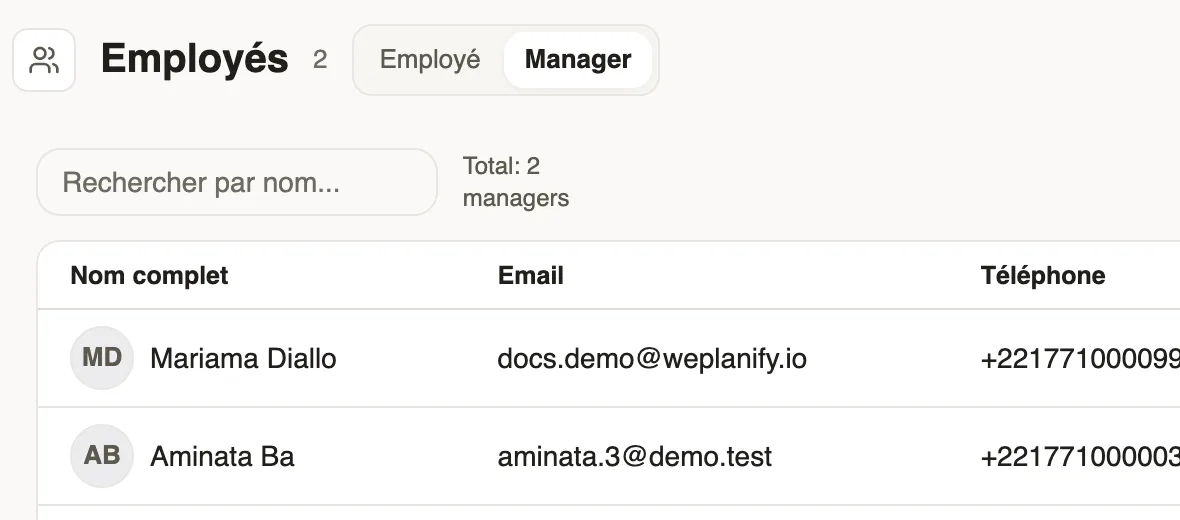
- The Manager tab lists managers and administrators, with their role and the groups they manage (access).
Good to know
- The App bar filters who uses the app (who uses the app).
- A manager only sees the employees of their groups.
- To change several employees at once: bulk editing.
Go further
Add your own fields to the employee recordIn Weplanify, add to every employee record the information that is specific to your business: uniform size, driving licence, blood group, etc.The employee recordIn Weplanify, the employee record brings together everything about a person in five tabs, with sections that you edit one at a time, separately.Give an employee a role and accessIn Weplanify, make an employee a manager or an administrator from the Access tab of their record: role, groups they manage and what they can do.See who uses the app and cut someone's accessIn Weplanify, see for each employee whether they use the mobile app, send them the link, or cut their access without touching their record at all.Edit or delete several employees at onceIn Weplanify, tick several employees to give them all the same value at once (site, job, team, working hours…) or to delete them all together.Manage your employees in WeplanifyIn Weplanify, each employee has a record used everywhere: planning, time clock, leave and payroll. Here is how to create it and keep it up to date.