
Control payroll before approving payslips
In Weplanify, the Control step lists what can make a payslip wrong: blocking points, variations to check and information, with the cause of each change.
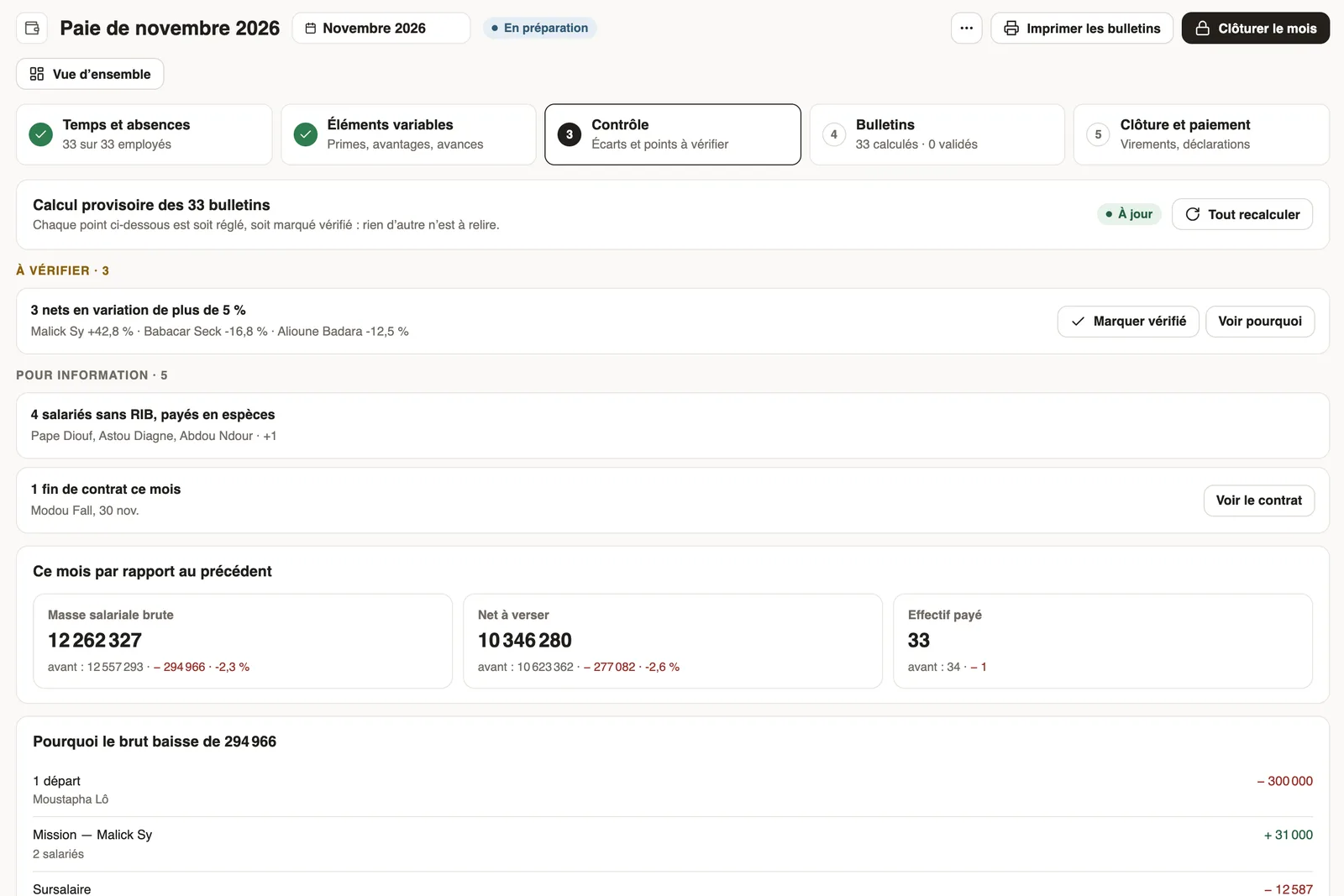
In Weplanify, the Control step gathers in one list everything that can make a payslip wrong. Each point is either settled or marked verified: nothing else needs rereading.
Steps
- In the monthly payroll, open the Control step; if payslips are not up to date, click Recompute all.
- Settle blocking points first (a contract without a salary, a rule that cannot be computed).
- For each point to check, click See why or open the row, then Mark verified if all is normal.
- Read the comparison with last month: payroll, net to pay, headcount, and why gross pay changes, cause by cause.
What is checked
- To check: missing time, pending absences, unclocked exits, expense claims to include, missing payslips, net varying by more than 5%, amount outside the set bounds.
- For information: contracts ending this month, employees without bank details paid in cash.
Good to know
- A point marked verified stays so for this month; a new case of the same kind shows up again.
- Explained variations: arrivals, departures, then element by element; their total always equals the difference.
Go further
Set safeguards on payroll amountsIn Weplanify, get an alert when a computed amount falls outside a set range, and block the payroll closing until it is corrected, if you need to.Payroll in WeplanifyIn Weplanify, the monthly payroll is prepared in five steps, from time, absences and variable elements up to the payslips, the payment and the closing.Follow the monthly payroll step by stepIn Weplanify, the Monthly payroll page shows where payroll stands: the next step, what is left to settle, the provisional figures and the five steps.