
Produce a payroll statement
In Weplanify, payroll statements sum up the month's payslips for the bank, social bodies, the tax office and your archives, with an Excel export.
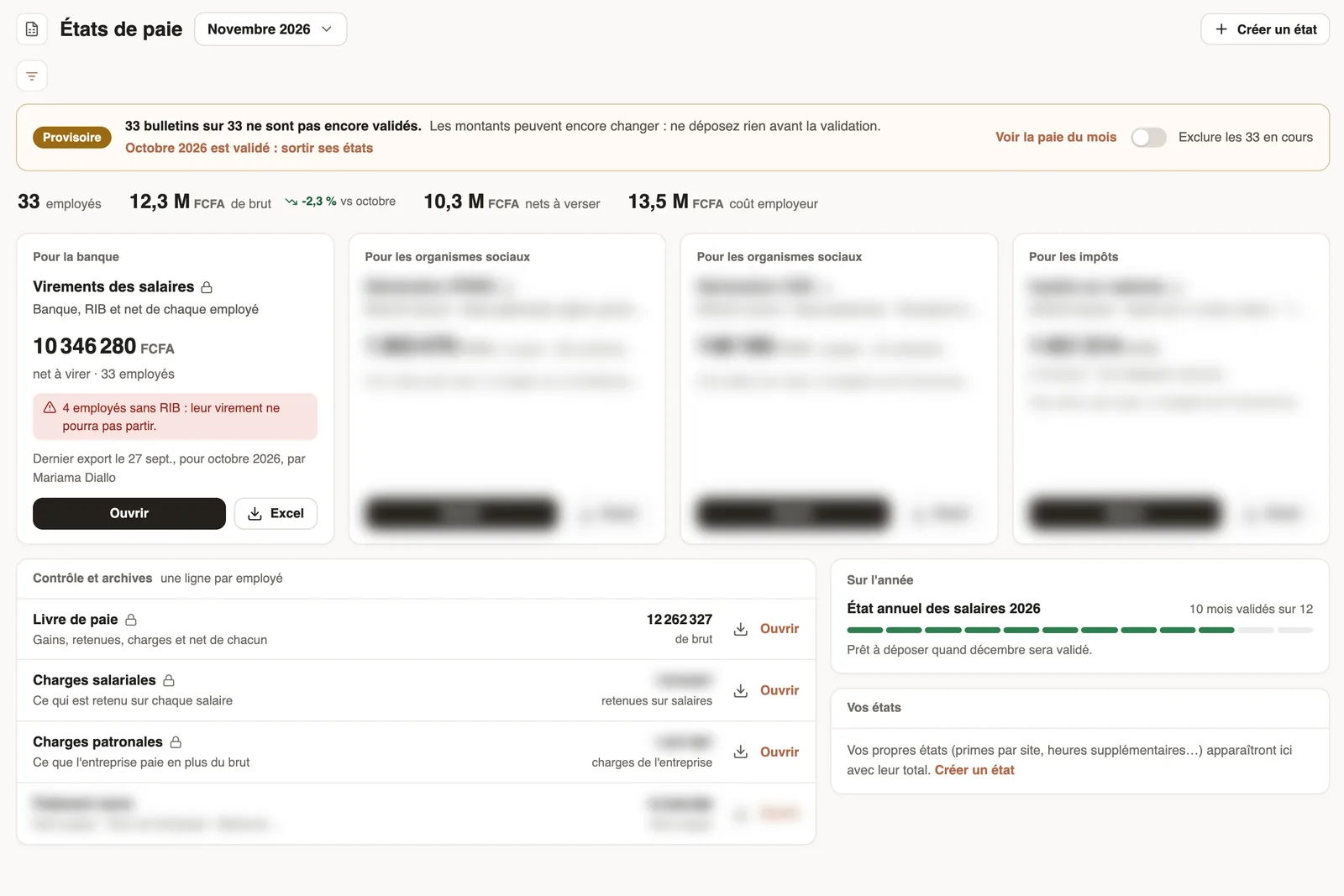
In Weplanify, the Payroll statements page files statements by recipient: for the bank, for social bodies, for taxes, then control and archives.
Steps
- Open Payroll and costs → Payroll statements and pick the month.
- Click Open to show a statement, or Excel to download it.
- For the bank, the salary transfer statement gives each person's bank, bank details and net; it flags employees without bank details.
- For a statement of your own (bonuses by site, overtime…), click Create a statement: it then shows in Your statements.
Good to know
- As long as payslips are not approved, a Provisional banner is shown: file nothing before approval.
- Statements for social bodies and taxes depend on your country's rule: one value per box, to copy onto the form.
- For the year-end declaration: the annual statement.
Go further
Prepare the annual salary statementIn Weplanify, the annual statement gives each employee's totals for the year, taken from approved payslips, ready for the year-end declaration.Payroll in WeplanifyIn Weplanify, the monthly payroll is prepared in five steps, from time, absences and variable elements up to the payslips, the payment and the closing.Close the month, pay salaries and declareIn Weplanify, closing locks the payroll month, publishes payslips to employees and prepares the next month; the step then helps you pay and declare.