
The contribution and tax rates applied
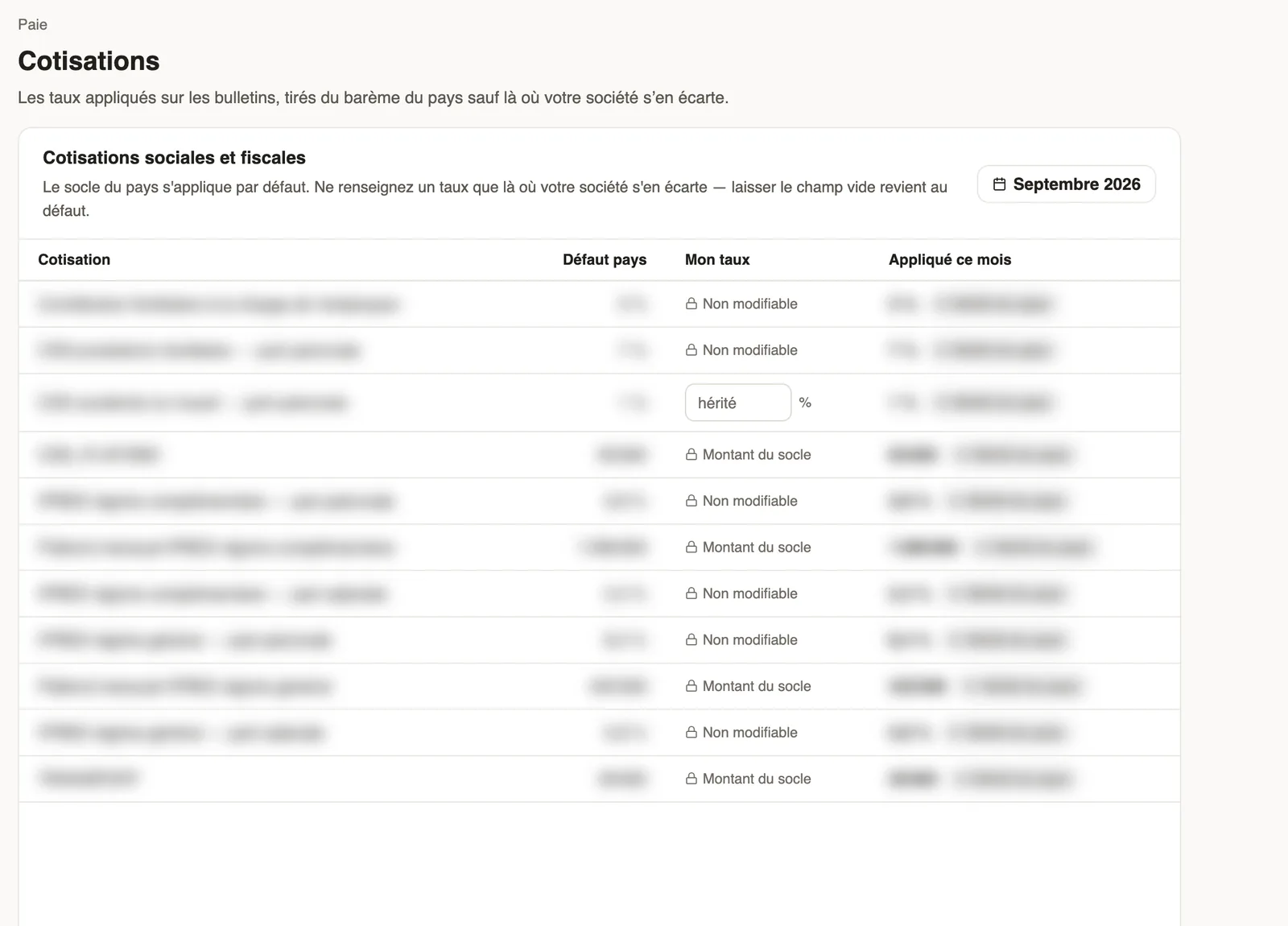
In Weplanify, the Contributions page shows your country's rates applied on payslips, and those your company may change from a given month onwards.
In Weplanify, contributions and taxes are computed with the scale of the branch's country, kept up to date by Weplanify. The Contributions page shows them and lets you depart from them where allowed.
Steps
- Open Settings → Payroll → Contributions (or See the rates from the pay elements).
- Pick the month at the top right.
- Read each row: Country default, My rate and the rate Applied this month.
- Where the field can be edited, enter your rate; leave it empty to go back to the country's rate.
Good to know
- "Not editable" and "Set by the country base": these values come from your country's rule and cannot be changed.
- Each rate entered is dated and applies from the chosen month; a closed payroll never changes.
- What a bonus adds to the tax or contribution base is set on the bonus (create a bonus).
Go further
Create a bonus, a benefit or a deductionIn Weplanify, create a bonus in five questions: what it is, how much, for whom, when, and whether it is subject to taxes and to contributions.Payroll settingsIn Weplanify, the Payroll group of settings gathers payroll setup, paid leave handling, contributions, pay elements and the accounting export.Set up the company's payrollIn Weplanify, payroll settings are in Settings → Payroll: installation, leave, contributions, control bounds and the accounts used by the accounting export.Pay elements: bonuses, benefits, advances and deductionsIn Weplanify, the Pay elements page lists what can appear on a payslip: bonuses, benefits in kind, advances and deductions, for whom and when they apply.