
The detail of a clock-in day
In Weplanify, a day's detail shows the arrival and exit against the plan, where each clock-in came from, the summary of hours and who fixed what.
In Weplanify, clicking a row of the list opens the Clock-in of … panel.
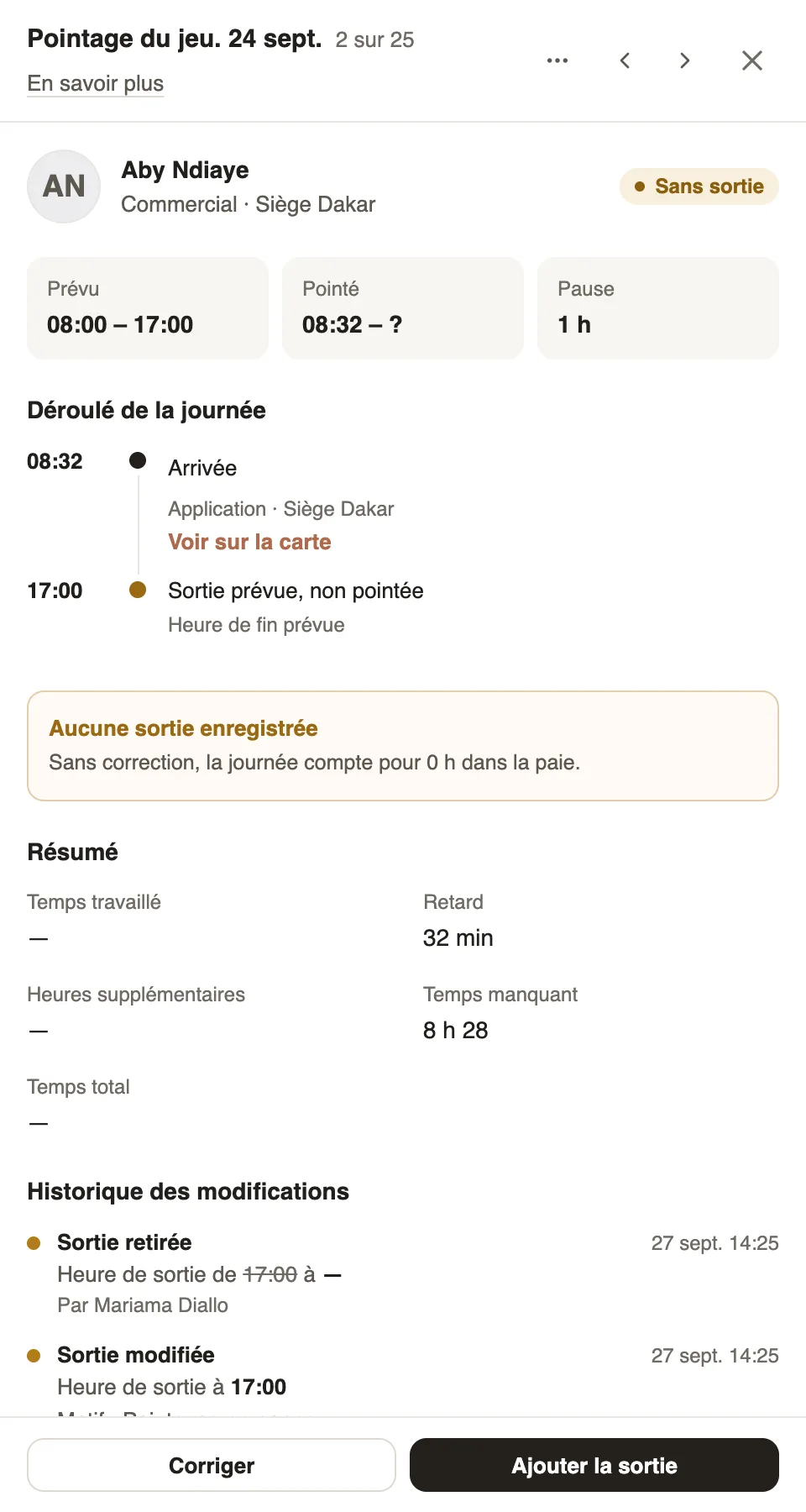
What it holds
- At the top: the state (Complete, Late, No exit…), then Planned, Clocked and Break.
- The day, step by step: each arrival and exit, with its source (app, badge, facial recognition, manual entry), its site and View on map.
- Summary: time worked, lateness, overtime, missing time and total time (how they are computed).
- Change history: who changed what, when, and for what reason.
Good to know
- Without an exit, a box warns you: without a fix, the day counts as 0 h in payroll. Add the exit or Fix solve it (fix a clock-in).
- The arrows at the top move to the previous or next employee of the list.
- The ⋯ menu → Delete the day erases the day and its clock-ins: its hours no longer count, in reports or in payroll.
Go further
How lateness, missing time and overtime are computedIn Weplanify, each clocked day is compared with the planned slot: here is where lateness, missing time, time worked and overtime all come from.Fix an arrival or exit timeIn Weplanify, fix a day's arrival, exit or break from its detail, with a reason kept in the history, or add all the exits that were forgotten.Employee time clockIn Weplanify, the Time entries screen shows, day by day, each employee's arrival and exit against what was planned, and what is left to fix.Clocking in with facial recognitionIn Weplanify, facial recognition compares the photo taken at clock-in with the employee's profile photo; here is what to do when the check fails.