
The monthly time clock report and Excel export
In Weplanify, the time clock report sums up the month: hours worked against planned, lateness, overtime, absences, and what to fix before payroll.
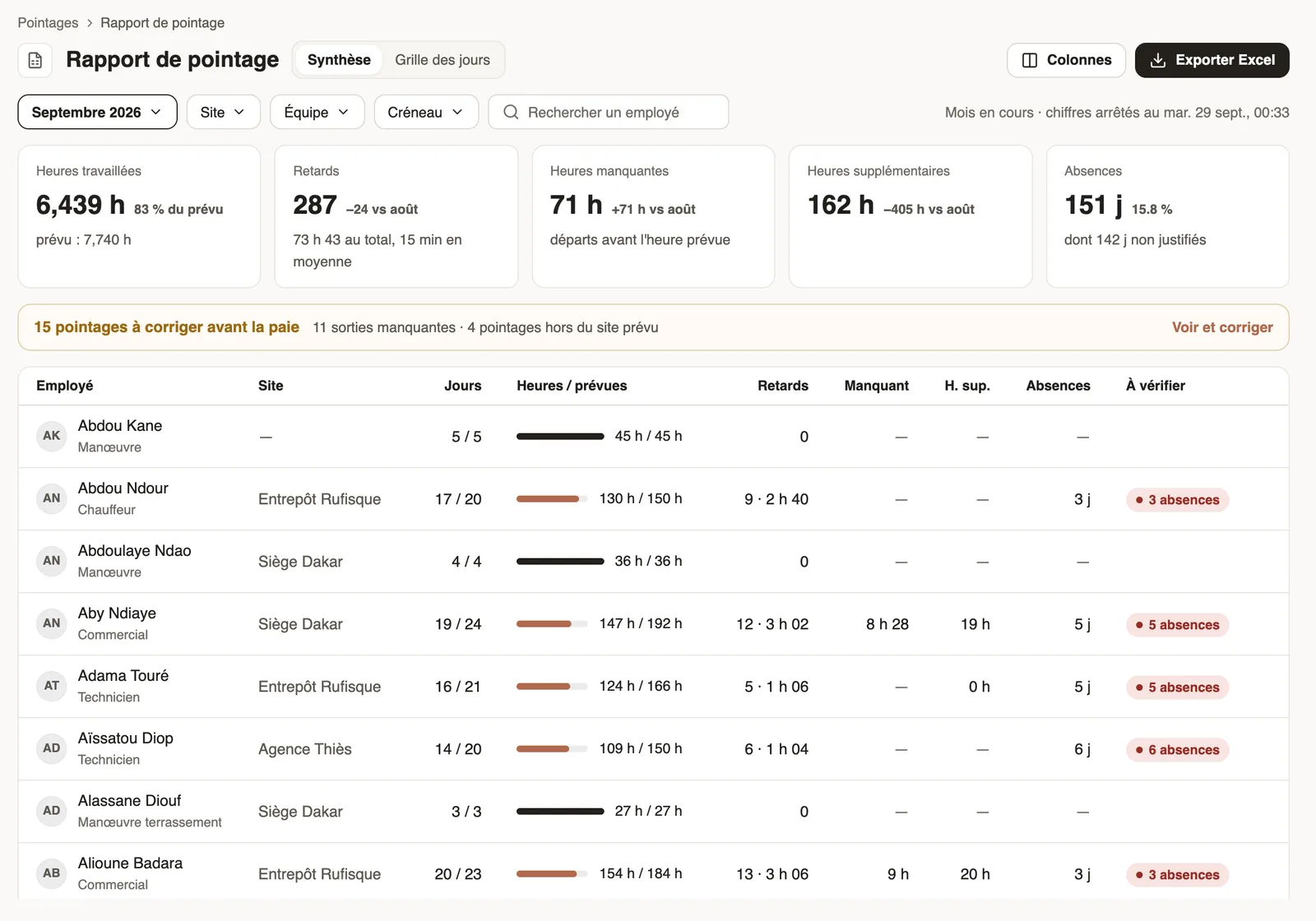
In Weplanify, the Time clock report opens from Time entries → Monthly report, or with a click on the hours of the dashboard.
Steps
- Choose the month, and if needed the site, team or shift.
- Summary: one row per employee (days, hours against planned, lateness, missing, overtime, absences, to check). Day grid: each day's hours, with the codes late, missing exit, leave and absent.
- The … clock-ins to fix before payroll banner counts missing exits and clock-ins away from the planned site: See and fix.
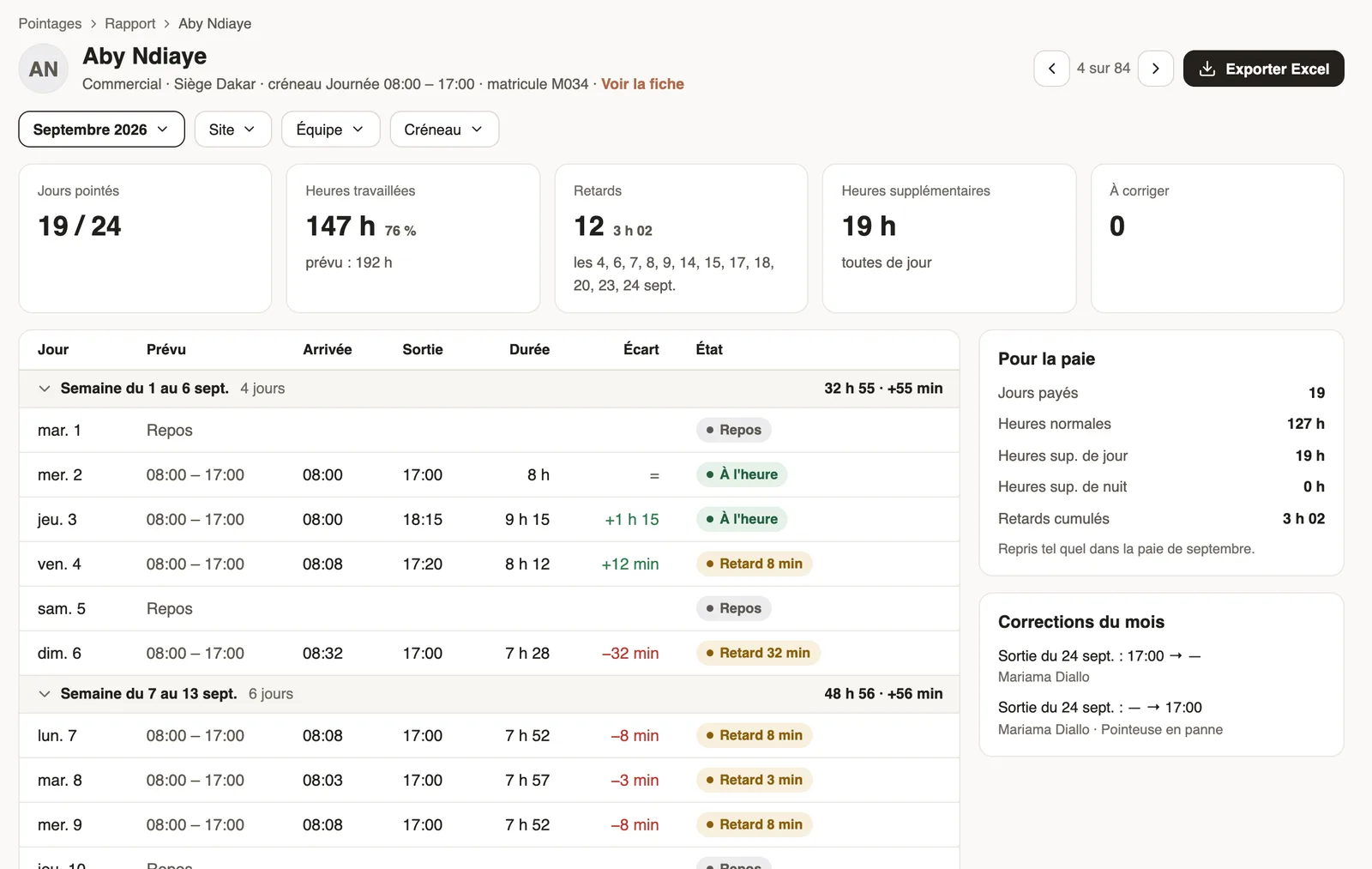
- Click an employee for their day-by-day report; Export Excel downloads the report shown.
Good to know
- For the current month, figures are frozen at the time shown at the top right.
- Columns picks the columns shown and exported.
- Overtime only shows if its tracking is on.
Go further
Understand the dashboard figuresIn Weplanify, the four cards at the top of the dashboard sum up the period: headcount, hours, absenteeism, or today's attendance and requests to approve.Turn on overtime trackingIn Weplanify, turn on overtime counting, then set the weekly threshold, the way overtime hours are approved, and the range of the night hours.Employee time clockIn Weplanify, the Time entries screen shows, day by day, each employee's arrival and exit against what was planned, and what is left to fix.Hours worked and planned hours on the dashboardIn Weplanify, the dashboard compares the hours clocked over the period with the hours planned in the schedule, and shows where overtime is being done.