
Enter a clock-in by hand
In Weplanify, enter by hand the day of an employee who forgot to clock in, or clock in a whole team on a shift from the hours of the planning.
In Weplanify, the Manual clock-in button of the Time entries screen opens a page with two choices: One person or A team.
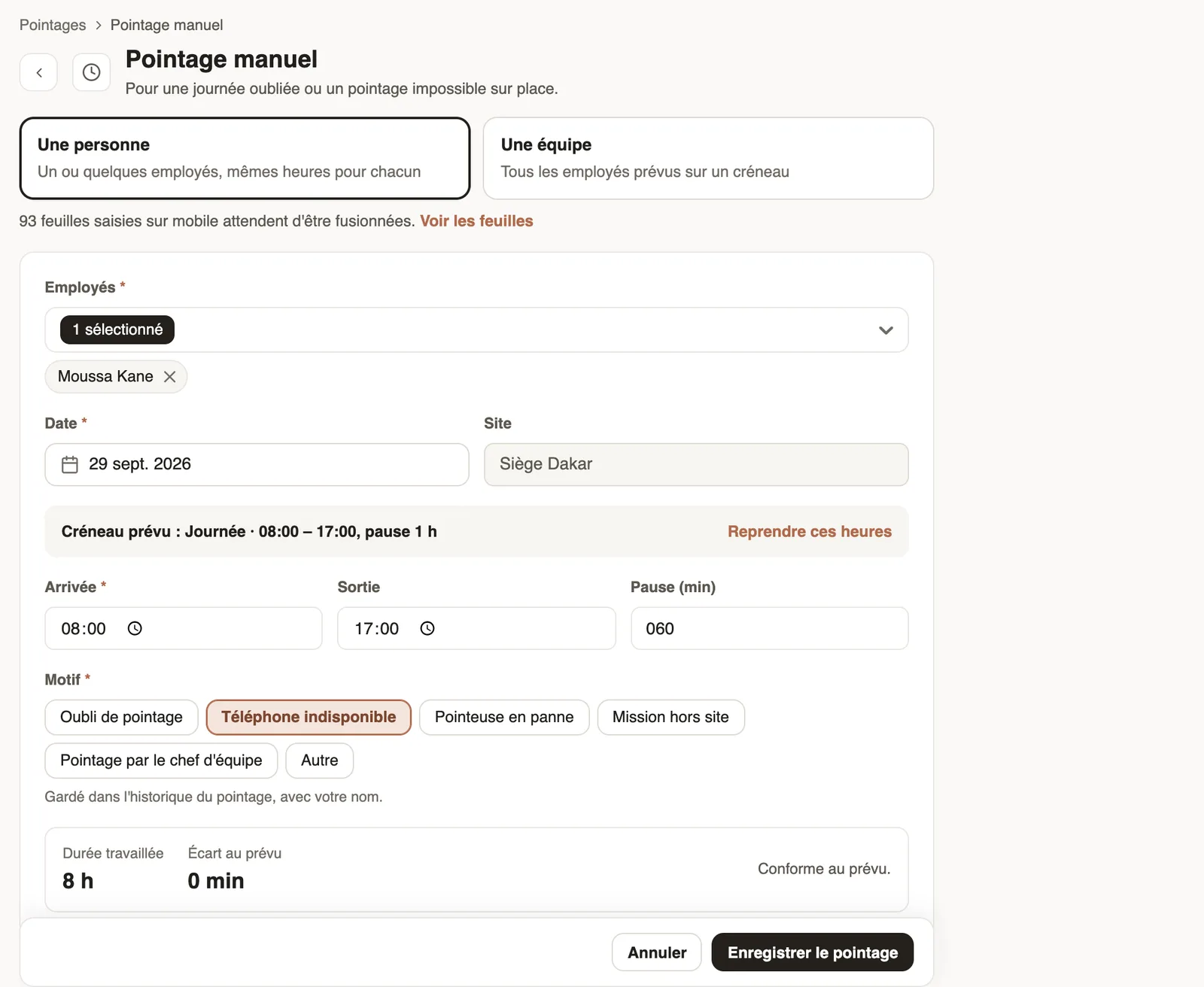
For one person
- Choose one or several employees and the date: the planned shift shows.
- Click Use these hours, or enter the arrival, exit and break.
- Choose the Reason, check the time worked and the gap to plan, then Save the clock-in.
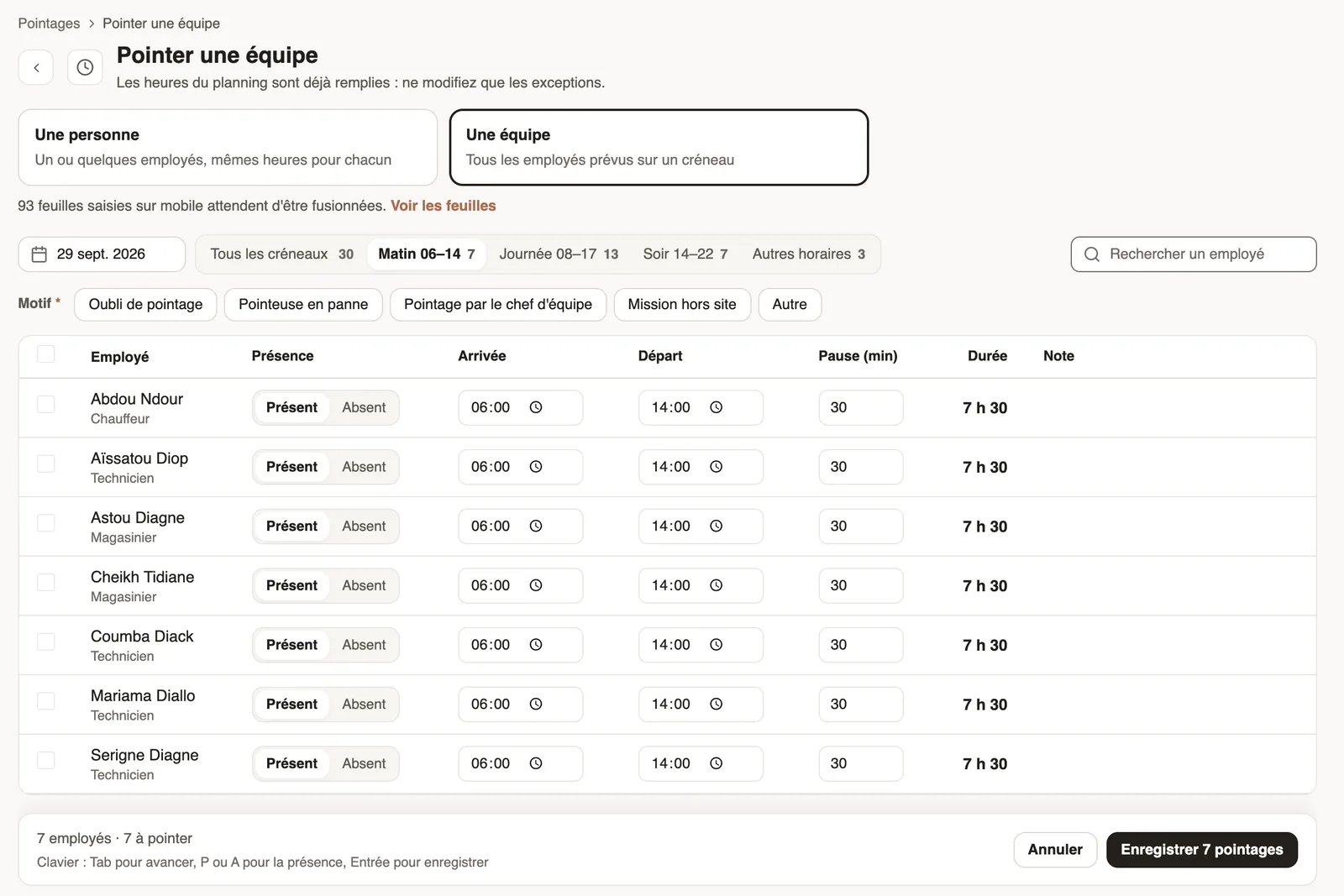
For a team
- Choose A team, the date and the shift (Morning, Day, Evening…): the planned hours are already filled in.
- Mark each employee Present or Absent and only change the exceptions; choose the reason, then save.
Good to know
- A day already clocked is not changed; an arrival already clocked is kept and only the exit is added.
- An employee on rest or on leave that day is flagged: their hours will count as worked.
- Sheets entered on mobile by a time clerk are merged separately: time sheets.
Go further
Merge the time sheets entered on mobileIn Weplanify, review the attendance sheets entered on a phone by a time clerk, then merge them to create the day's clock-ins for everyone listed.Clock in your site's employees (timekeeper)Let a site manager mark expected employees present or absent on their site from the Weplanify app.Employee time clockIn Weplanify, the Time entries screen shows, day by day, each employee's arrival and exit against what was planned, and what is left to fix.See who is present, late, without an exit or absentIn Weplanify, the tabs of the day's list sort employees into present, late, no exit, absent or rest day, with a count for each of the groups.