
The absence and balance report
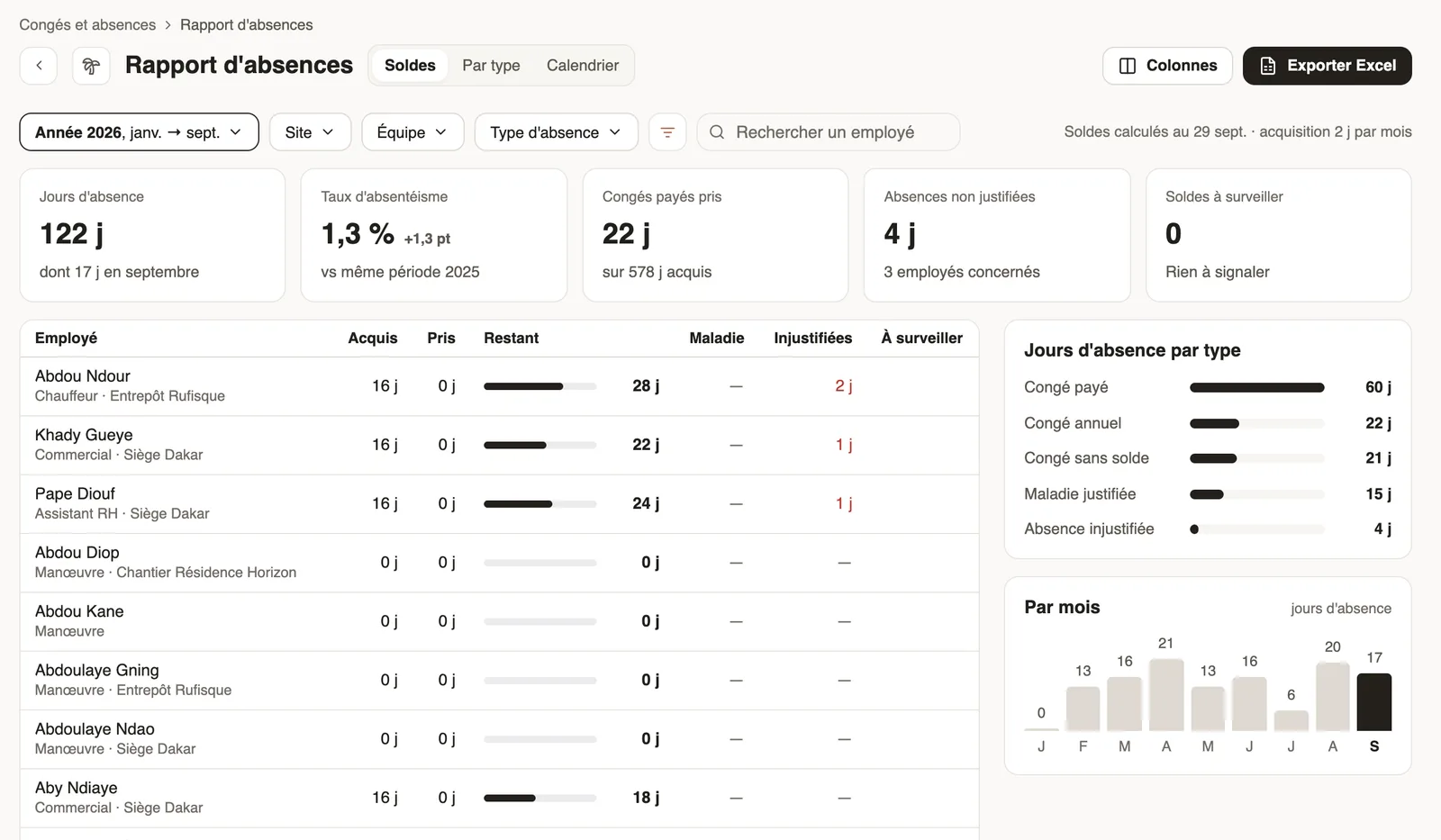
In Weplanify, the absence report gives, for the chosen period, the days of absence, the absenteeism rate and each employee's own leave balance.
In Weplanify, the Absence report opens with the Report button of the Leave and absences screen, or with a click on absenteeism on the dashboard.
Steps
- Choose the period, and if needed the site, team or absence type.
- Read the figures at the top: days of absence, absenteeism rate compared with the same period last year, paid leave taken, unjustified absences, balances to watch.
- Choose the view: Balances (earned, taken, remaining per employee), By type or Calendar.
- Columns picks the columns; Export Excel downloads the report.
Good to know
- Only approved absences are counted.
- Balances are computed on the day shown at the top (calculation details).
- The To watch column flags an unusual balance (negative, too high).
Go further
Understand the dashboard figuresIn Weplanify, the four cards at the top of the dashboard sum up the period: headcount, hours, absenteeism, or today's attendance and requests to approve.Leave balancesIn Weplanify, each employee has a leave counter: earned since the return date, taken, and available balance, shown on their record and in the report.Manage leave and absencesIn Weplanify, the Leave and absences screen gathers the whole team's requests, as a list or a calendar, with the requests to approve shown first.Set leave accrual and countingIn Weplanify, set how many leave days each employee earns per month and how leave is counted: Monday to Saturday or Monday to Friday working days.