
DocumentationLeave & absences
Manage leave and absences
In Weplanify, the Leave and absences screen gathers the whole team's requests, as a list or a calendar, with the requests to approve shown first.
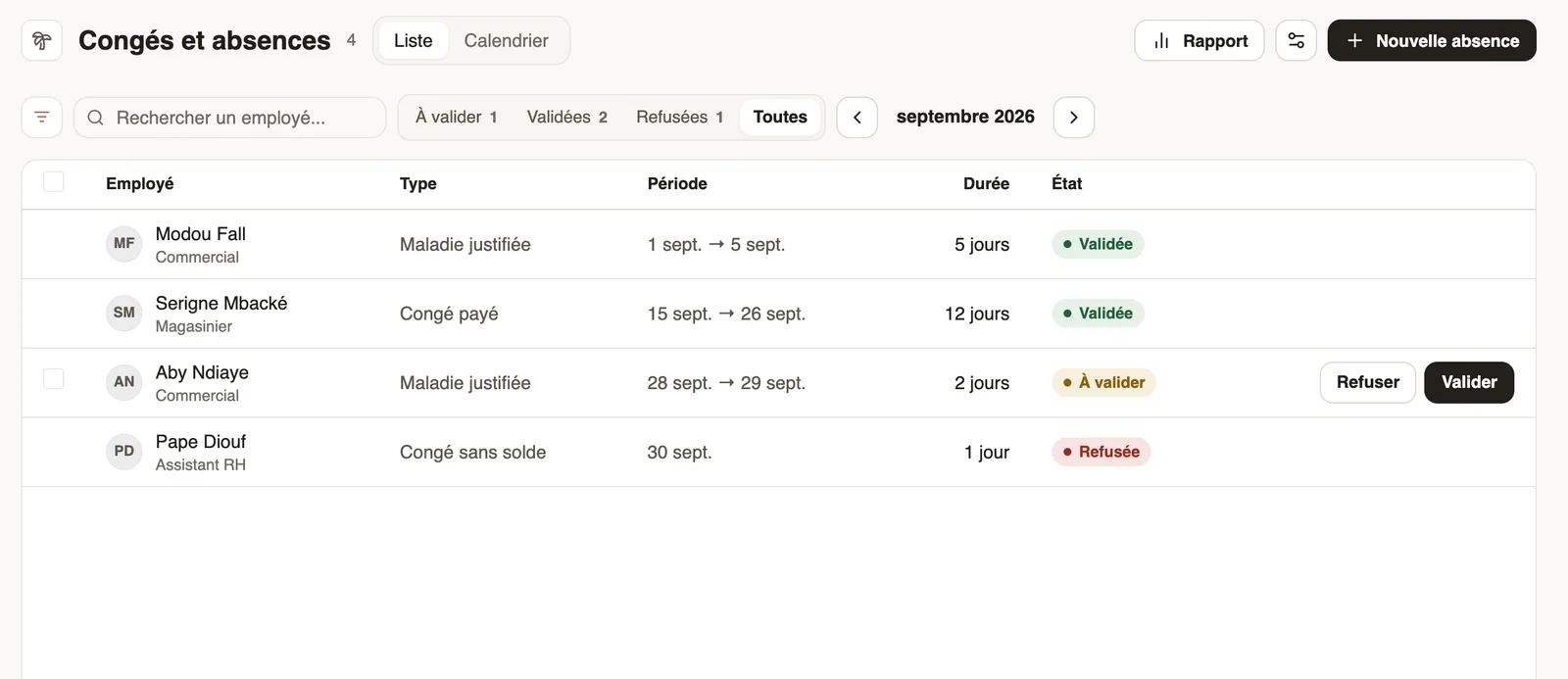
In Weplanify, the Leave and absences screen (Time menu) shows the month's absences: employee, type, period, duration and state.
Steps
- Choose the month with the arrows, then a tab: To approve, Approved, Rejected or All.
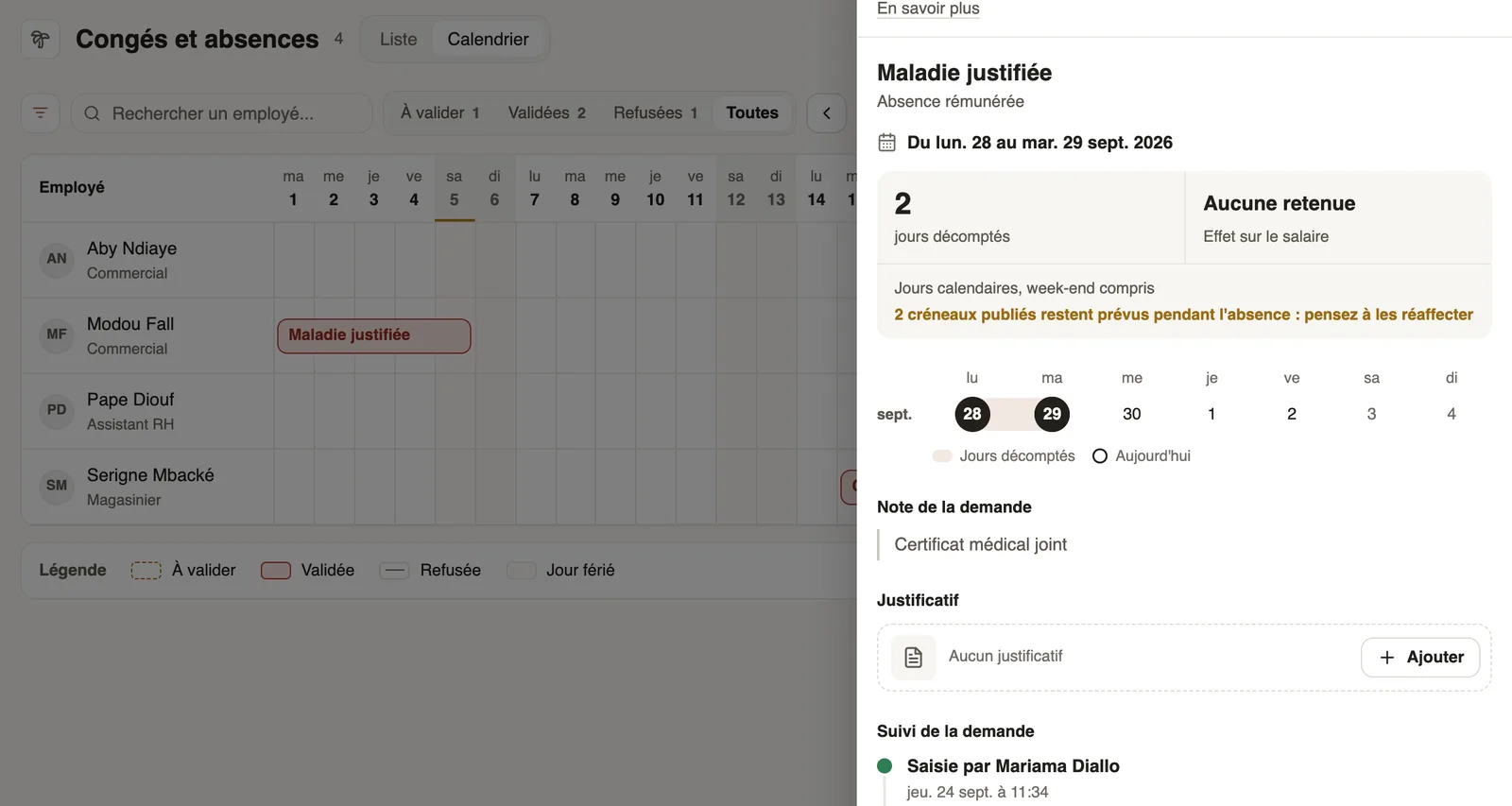
- Switch between List and Calendar (one row per employee, one bar per absence).
- Search for an employee or open the filters (site, team, group…).
- Create an absence with New absence (create an absence); approve or reject on the row (approve or reject).
Good to know
- The settings button, next to Report, leads to the approval circuit, public holidays and absence types. Report opens the absence report.
- Employees send their requests from the mobile app.
- An approved absence shows in the planning, leaves the absent list of the time clock and goes into payroll.
Go further
How absence days are countedIn Weplanify, the number of days of an absence depends on its type: calendar days for paid or unpaid absence, working days for leave taken from the balance.Choose who approves absencesIn Weplanify, the leave circuit says who receives each absence request, in which order, under which conditions, and who stands in for an absent approver.Create an absence or leaveIn Weplanify, enter an employee's absence or leave in three choices: who, what and when; the balance after the absence shows before you save.Public holidaysIn Weplanify, check and complete the year's public holidays: they are used by the planning, by leave counting, by the time clock and by payroll.The absence and balance reportIn Weplanify, the absence report gives, for the chosen period, the days of absence, the absenteeism rate and each employee's own leave balance.Leave balancesIn Weplanify, each employee has a leave counter: earned since the return date, taken, and available balance, shown on their record and in the report.Absence typesIn Weplanify, each absence type says whether it is paid, unpaid or deducted from the leave balance: it is the type that decides the effect on payroll.Approve or reject an absence requestIn Weplanify, approve or reject an absence request from To handle or from its panel, which shows the effect on pay and on the balance before you decide.Request leave from your phoneRequest leave or an absence in the Weplanify app, attach a supporting document, see your balance and track approval.The team planningIn Weplanify, the planning says who works, when and where, week after week; the slots stay as drafts until you publish them to your employees.See who is present, late, without an exit or absentIn Weplanify, the tabs of the day's list sort employees into present, late, no exit, absent or rest day, with a count for each of the groups.Prepare the month's time and absencesIn Weplanify, the Time and absences step gives each employee's paid days, leave, absences and overtime, taken from the source chosen for their site.Payroll in WeplanifyIn Weplanify, the monthly payroll is prepared in five steps, from time, absences and variable elements up to the payslips, the payment and the closing.