
Clock in your site's employees (timekeeper)
Let a site manager mark expected employees present or absent on their site from the Weplanify app.
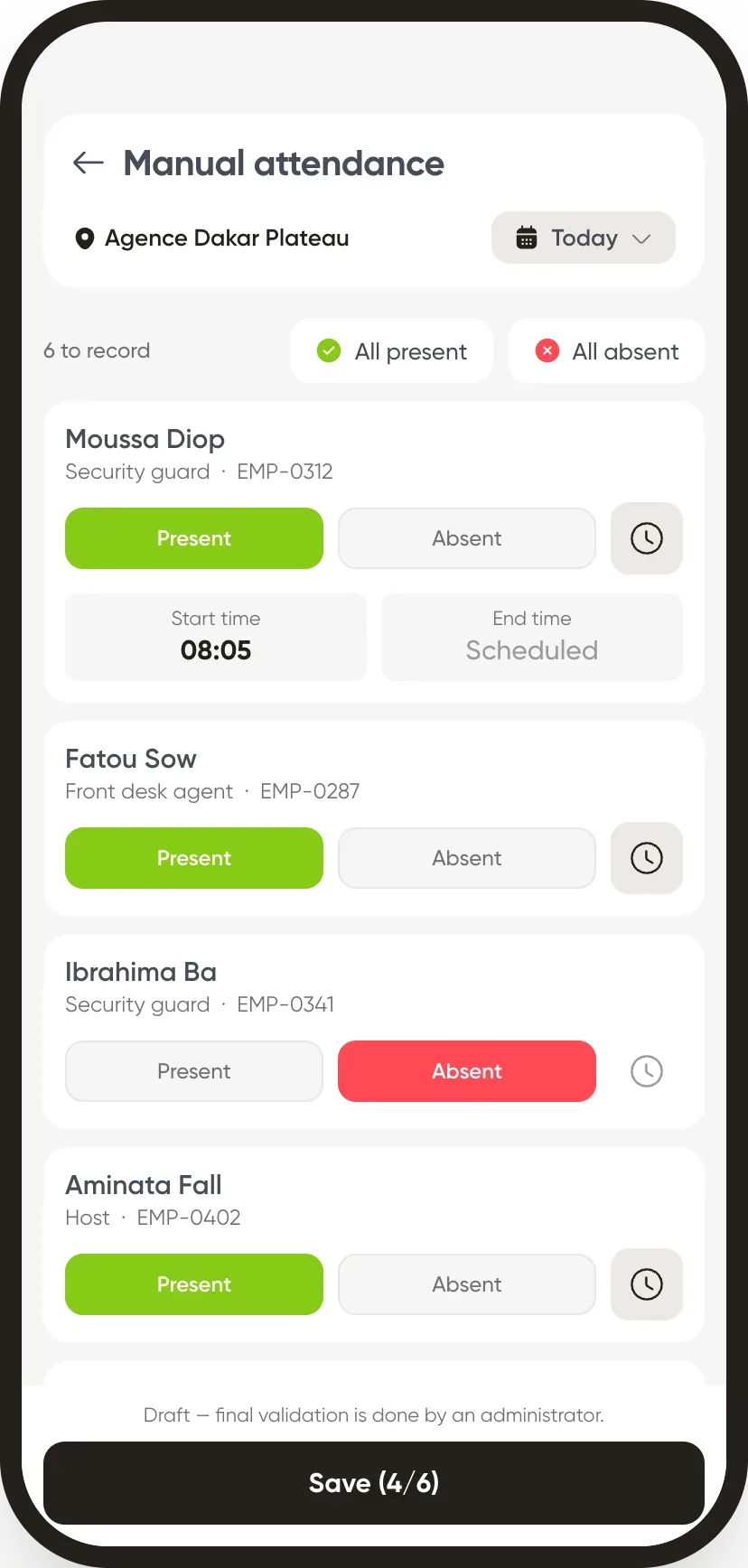
In Weplanify, a timekeeper fills in their site's attendance sheet from their phone, for employees who don't clock in themselves.
Steps
- Open Settings → Manual attendance.
- Choose the site and date: the list of expected employees appears with the number left to clock in.
- Tap Present or Absent for each, or All present; adjust the time if needed.
- Tap Save.
Good to know
- Only employees marked Attendance manager on their record see this tool.
- The sheet arrives on the web as a manual entry.
- The same timekeeper can record the day's day labourers.
Go further
An employee's clock-in settingsIn Weplanify, the Time tracking and leave section of the record sets how the employee clocks in and what, for them alone, differs from company rules.Enter a clock-in by handIn Weplanify, enter by hand the day of an employee who forgot to clock in, or clock in a whole team on a shift from the hours of the planning.Manage day labourers from mobileRecord the day labourers who came to work on a site from the Weplanify app, with their position and daily rate.The Weplanify mobile app for your employeesWhat your employees do from their phone with Weplanify: clock in, see their schedule, request leave, fill in a form, read their payslips.Merge the time sheets entered on mobileIn Weplanify, review the attendance sheets entered on a phone by a time clerk, then merge them to create the day's clock-ins for everyone listed.Choose how an employee clocks inIn Weplanify, each employee clocks in one way only, chosen on their record: by scanning the QR code, by geolocation or by facial recognition.