
A contract's statuses: suspend, terminate, activate
In Weplanify, the record's Contracts tab shows the running contract and its history, and what each action changes for the employee's payroll.
In Weplanify, the record's Contracts tab shows the running contract at the top, "Active for …", then the history.
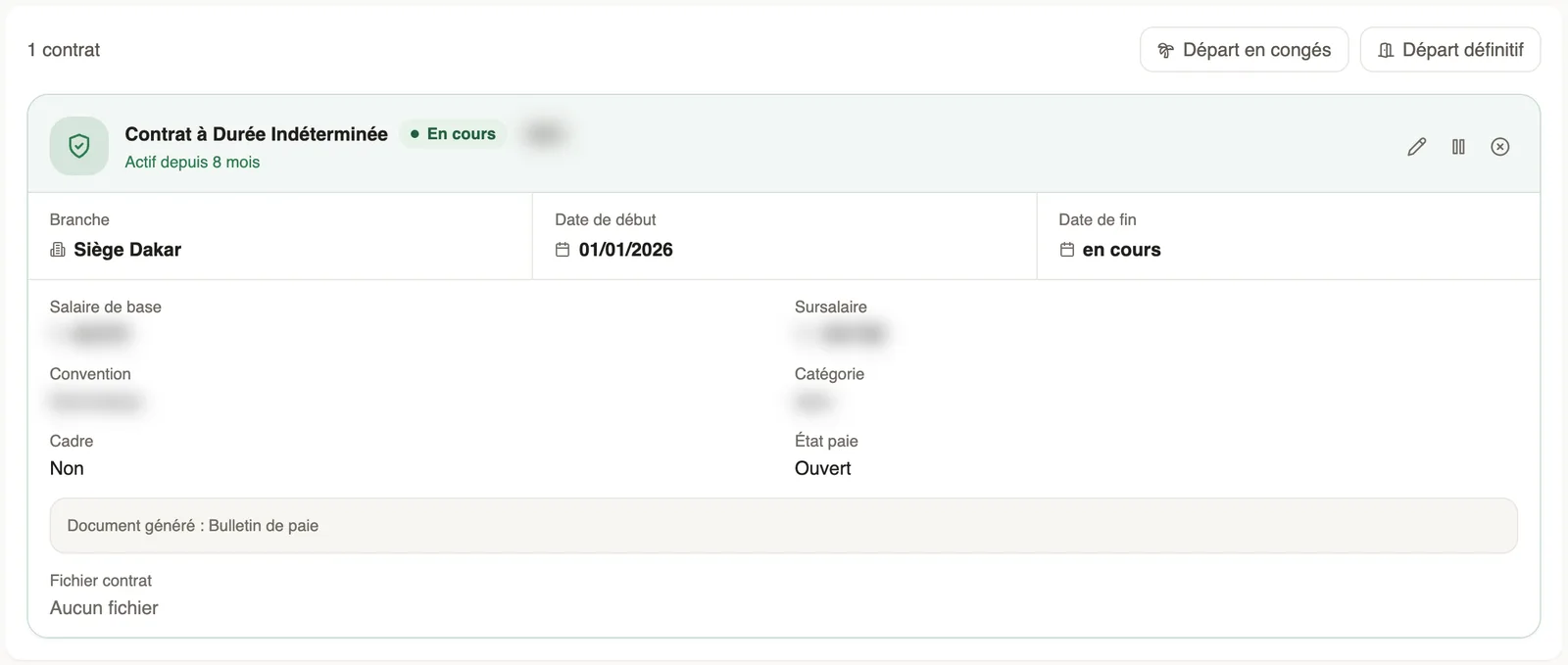
The actions
- The Edit pencil: correct the contract.
- Suspend (pause icon): the contract leaves payroll until it is reactivated. The action is immediate.
- Terminate: choose the Reason for ending, then confirm; the contract is closed.
- Activate, on a contract in the history, puts it back in force.
- Departure on leave and Final departure: see departures in payroll.
Good to know
- A suspended or closed contract is no longer included in payroll.
- For a departure with a final settlement, prefer Final departure to Terminate.
- To create a new one, first close the current one (create a contract).
Go further
Create or edit an employment contractIn Weplanify, record an employee's contract and pay so that they are included in payroll; only one contract can be running for them at a time.Declare a departure on leave or a final departureIn Weplanify, declare a departure on leave or a final departure from the employee's record, Contracts tab, so that payroll prepares what is due to them.Follow employment contractsIn Weplanify, the Contracts page lists every employee's contracts, spots those nearing their end date and lets you create or import new ones.The employee recordIn Weplanify, the employee record brings together everything about a person in five tabs, with sections that you edit one at a time, separately.