
Pin a module to the menu
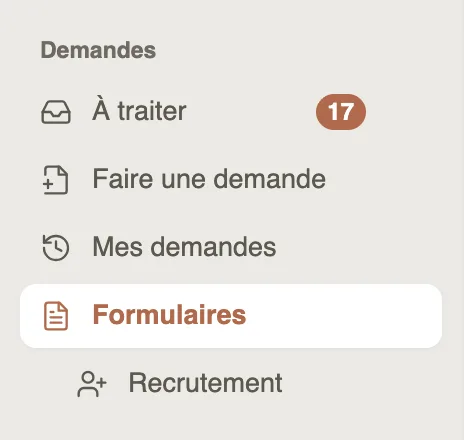
In Weplanify, pin Recruitment, Evaluations, Incidents or HR requests under Forms in the menu, to open them in a single click, with their count.
In Weplanify, Recruitment, Evaluations, Incidents and HR requests open from their card in Requests → Forms. To keep one of them at hand, pin it: it is added to the menu, right under Forms.

Steps
- Open Requests → Forms.
- Hover the module's card, HR requests, Recruitment, Incidents or Evaluations, then click Pin, at the bottom right of the card.
- The message “Recruitment” is pinned to the menu confirms it: the module shows under Forms in the menu, and the card shows Pinned to the menu.
- To remove it, click Pinned to the menu, on the card.
Good to know
- Only people who can change the company settings see the Pin button. The pin applies to the whole company: the shortcut shows in the menu of everyone who sees Forms and has access to the module, employees included.
- A pinned module shows its count when something is waiting for you, for example evaluations to fill in or incidents to take charge of.
- Your own categories are pinned the same way, from their card in Your categories, or with Pin to the menu in the category (sort into categories).
- Without a pin, the top search (⌘ K or Ctrl K) still finds Recruitment, Evaluations and Incidents.
Go further
Sort forms into categoriesIn Weplanify, categories sort your forms: their icon, their sentence, who sees them and their order in the employees' Make a request screen.The Forms home and its modulesIn Weplanify, the Forms home sorts HR requests, recruitment, incidents, reports, evaluations and surveys into cards, with what is waiting for you.Receive employees' HR requestsIn Weplanify, the HR requests home first follows your employees' requests, with those waiting listed first, then shows what they can ask for.