
Prepare a departure on leave
In Weplanify, prepare an employee's departure on leave from their record: days counted, balance, leave request and allowance, then validate the departure.
In Weplanify, a departure on leave is prepared in the employee's record, in the same place as a final departure. As soon as the dates are picked, the screen shows what the departure will change.
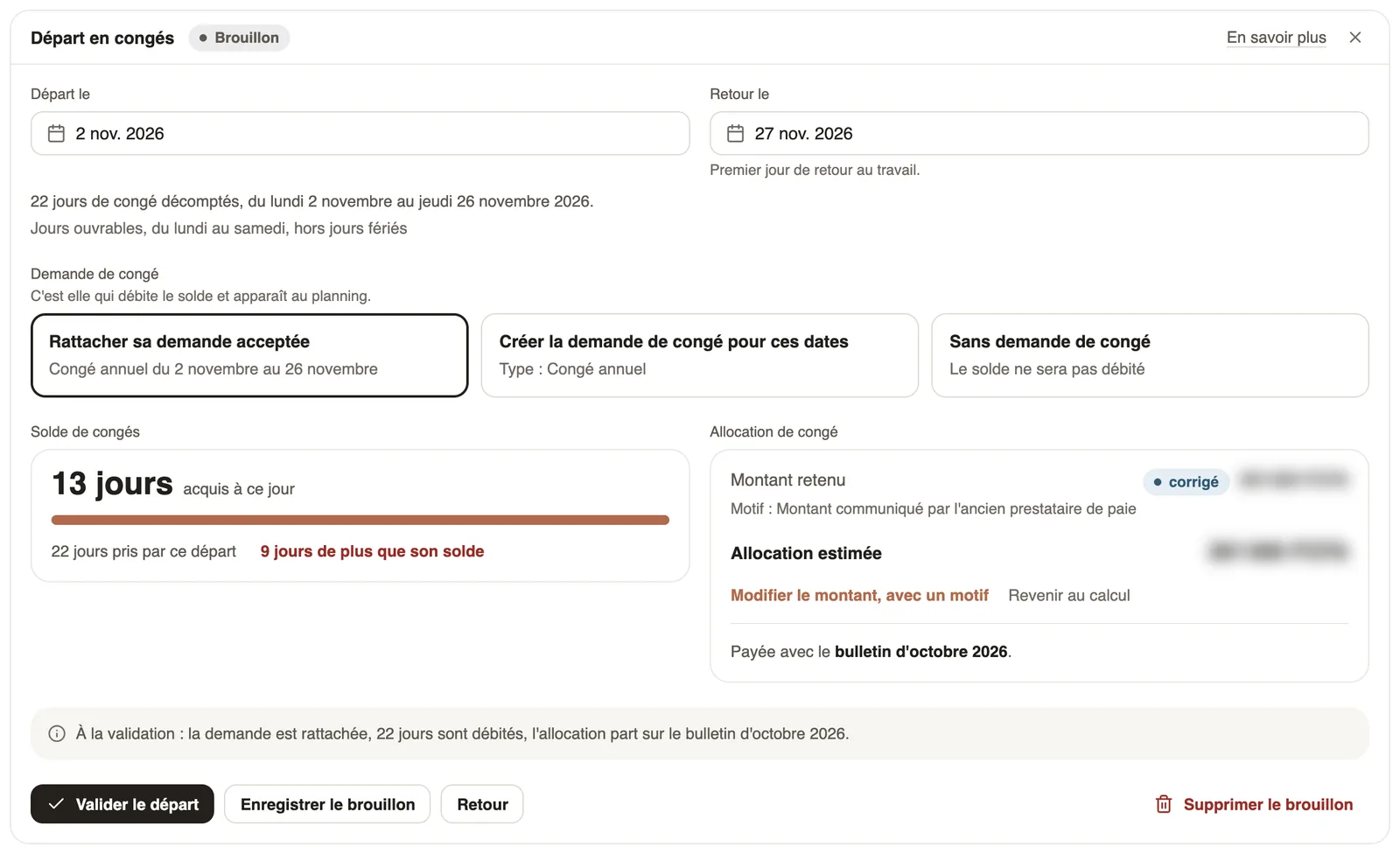
Steps
- Open the employee's record, Contracts tab, then click Departure on leave.
- Pick Leaves on and Returns on, the first day back at work: the leave days counted show up right away.
- Under Leave request, pick a card: Link their accepted request, Create the leave request for these dates or No leave request.
- Check the Leave balance and the Leave allowance.
- Click Validate the departure, or Save draft to come back to it later.
What the screen shows
- Leave balance: the days earned to date, the days taken by this departure and what is left on return; going over shows in red.
- Leave request: it is what debits the balance and shows on the schedule; without a request, the balance is not debited.
- Leave allowance: the amount estimated with your country's rule and the mode chosen in Leave & indemnity, and the payslip that carries it. If your company keeps paying the salary, no allowance is added to the payslip.
- The On validation sentence sums up what is about to happen.
Correct the amount
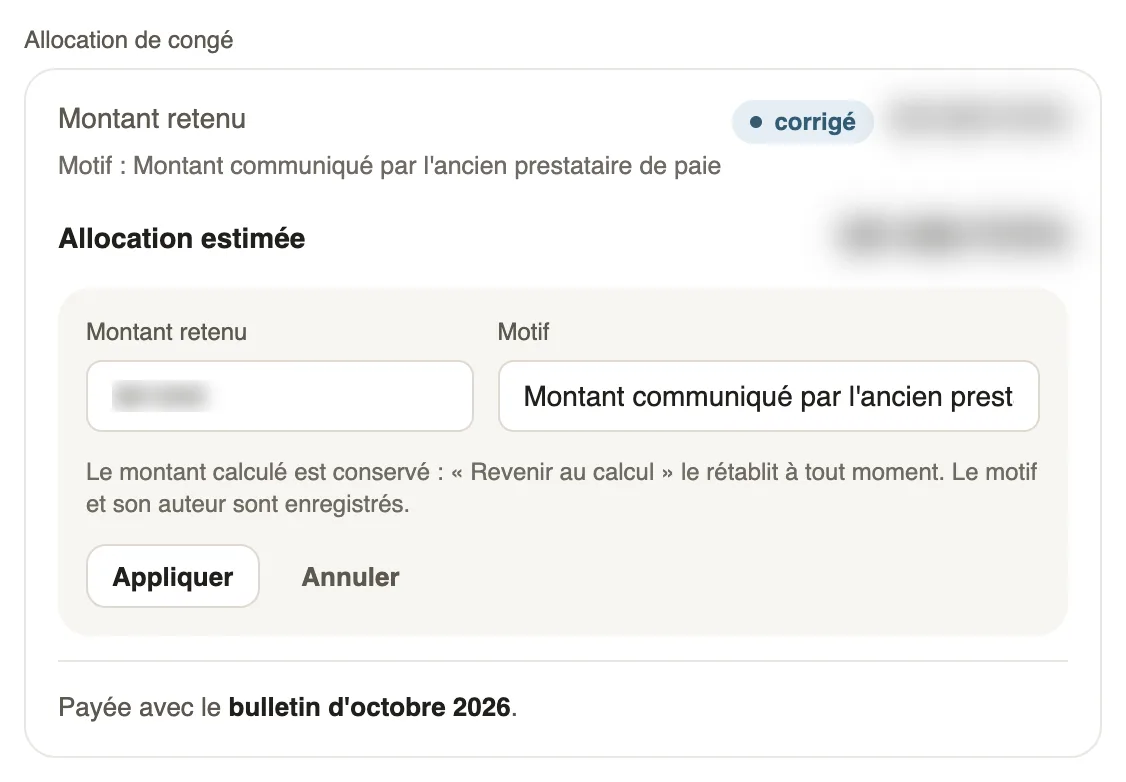
- Click Change the amount, with a reason. If the amount cannot be computed because some payslips are missing, the link reads Enter the amount, with a reason.
- Enter the Amount retained and the Reason, then click Apply.
- The amount shows with the corrected tag and its reason; Back to the computation removes the correction.
On validation
- The request is linked or created, and its days are debited from the balance.
- The allowance goes on the payslip shown, in the monthly payroll.
- Fix the dates takes the departure back to draft.
From a leave request
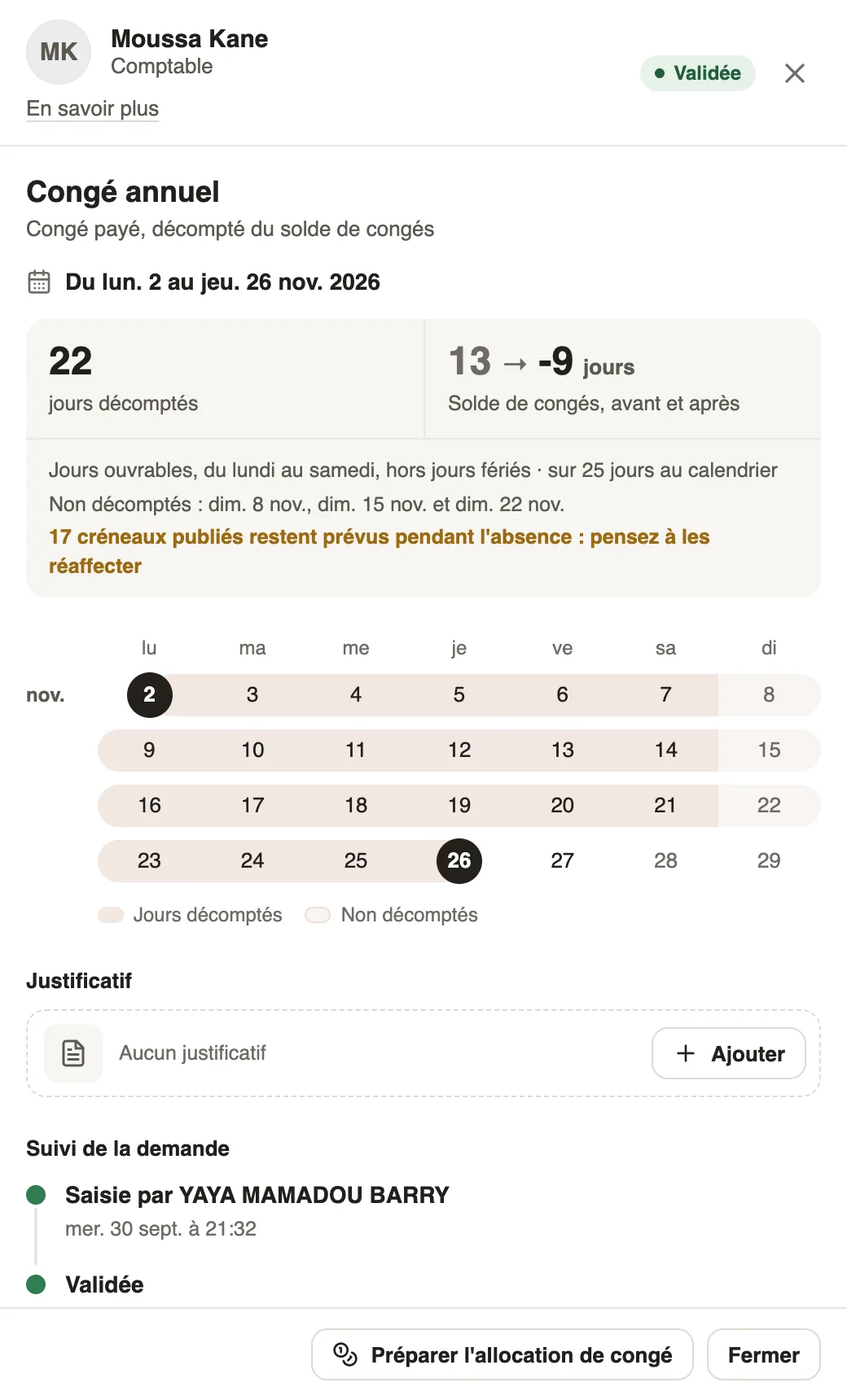
On an accepted leave request (approve an absence), the Prepare the leave allowance button opens the employee's record, Contracts tab, with the dates and the request already chosen.
Good to know
- Without the right to change payroll, the departure can be viewed, but not prepared or validated.
- A final departure is declared in the same place: declare a departure.
Go further
Choose how leave is handled in payrollIn Weplanify, choose how a departure on leave is paid: salary maintained, allowance on departure, or deduction then add-back on the payslips.Follow the monthly payroll step by stepIn Weplanify, the Monthly payroll page shows where payroll stands: the next step, what is left to settle, the provisional figures and the five steps.Approve or reject an absence requestIn Weplanify, approve or reject an absence request from To handle or from its panel, which shows the effect on pay and on the balance before you decide.Declare a departure on leave or a final departureIn Weplanify, declare a departure on leave or a final departure from the employee's record, Contracts tab, so that payroll prepares what is due to them.