
Import payroll history at installation
In Weplanify, import the payroll totals paid before you started using it, so that annual totals, the annual statement and allowances start out right.
In Weplanify, the opening history is used when you start payroll during the year: months already paid elsewhere are added to the totals.
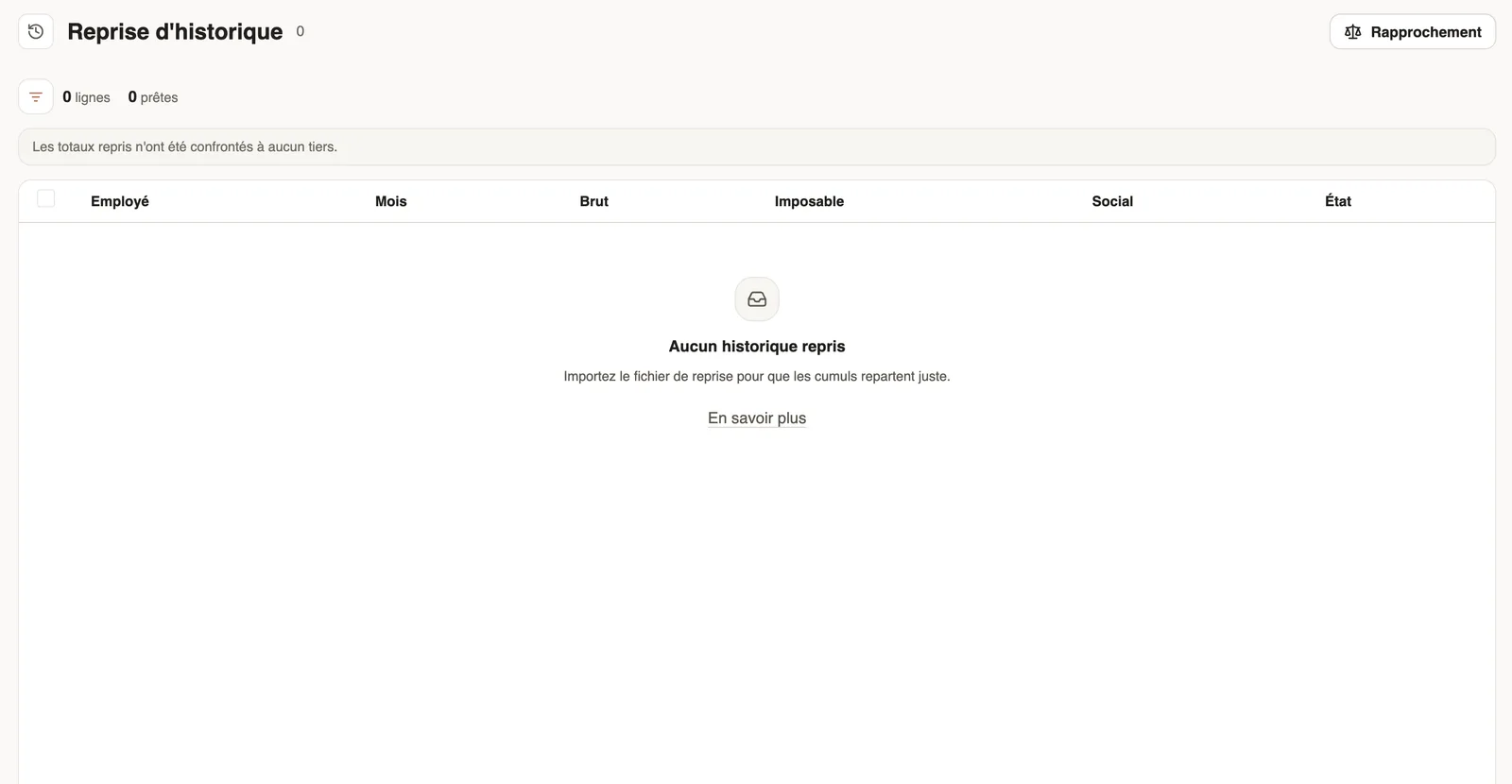
Steps
- Open Settings → Payroll → General, Opening history row, then Open.
- Import the history file: one row per employee and per month, with gross, taxable and social amounts (Excel import).
- Check the rows, confirm them, then apply them.
- With the Reconciliation with declared totals, compare the imported totals with the totals already declared.
Good to know
- A row changed after being applied is flagged to apply again.
- Imported totals are used by the annual statement and to compute departure allowances.
Go further
Import an Excel file into WeplanifyIn Weplanify, the import wizard goes through four steps, file, mapping, check and import, and writes nothing into your data before the very last one.Prepare the annual salary statementIn Weplanify, the annual statement gives each employee's totals for the year, taken from approved payslips, ready for the year-end declaration.Declare a departure on leave or a final departureIn Weplanify, declare a departure on leave or a final departure from the employee's record, Contracts tab, so that payroll prepares what is due to them.Payroll settingsIn Weplanify, the Payroll group of settings gathers payroll setup, paid leave handling, contributions, pay elements and the accounting export.Set up the company's payrollIn Weplanify, payroll settings are in Settings → Payroll: installation, leave, contributions, control bounds and the accounts used by the accounting export.