
Fix an arrival or exit time
In Weplanify, fix a day's arrival, exit or break from its detail, with a reason kept in the history, or add all the exits that were forgotten.
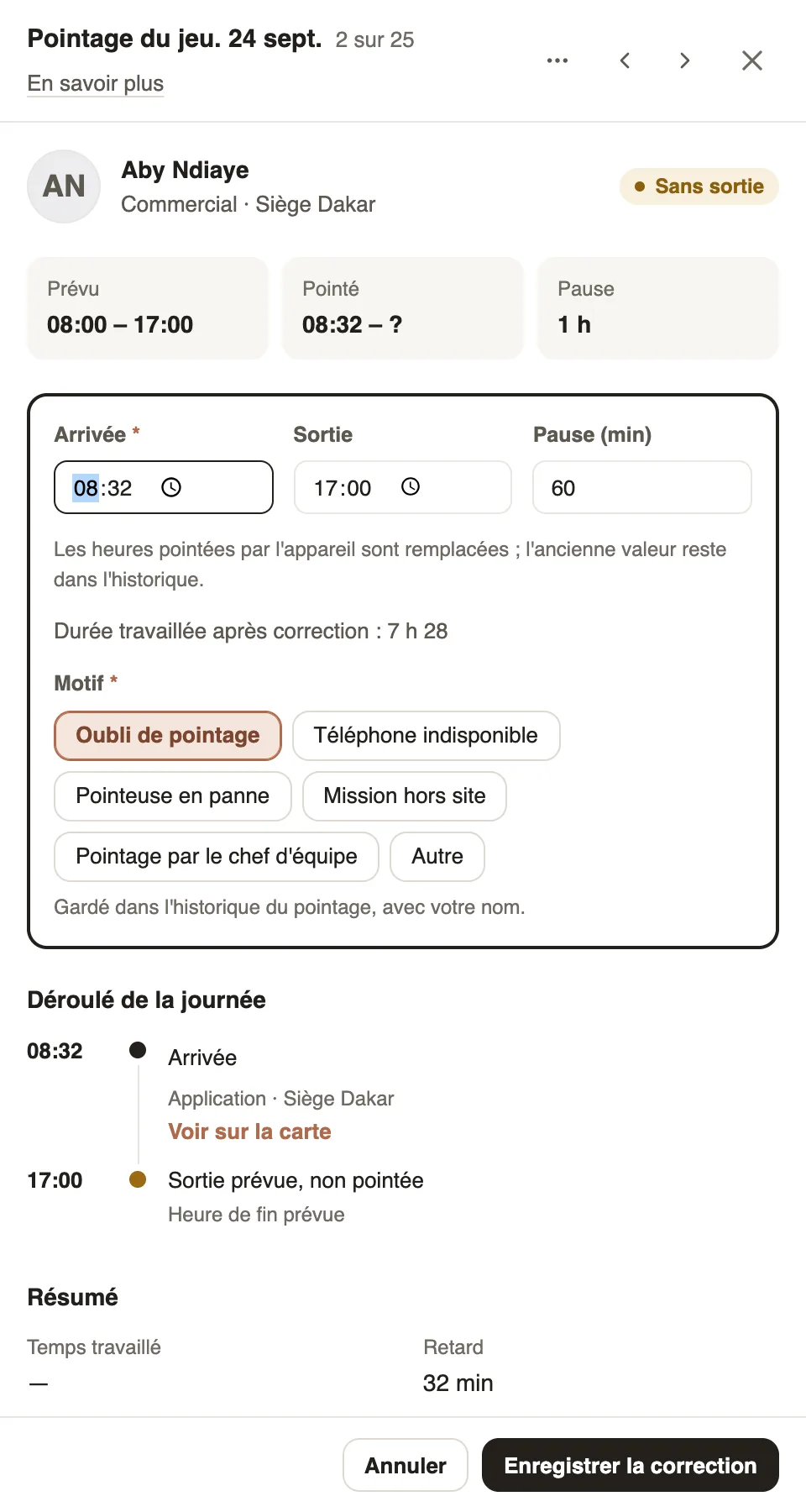
In Weplanify, a fix replaces the time clocked by the device; the old value, the reason and your name stay in the history.
Steps
- In the list, click the employee: the day's detail opens.
- Click Fix.
- Change the Arrival, the Exit or the Break (min); the time worked after the fix shows.
- Choose the Reason: forgot to clock in, phone unavailable, clock-in device down, off-site assignment, clocked in by the team lead, or other.
- Click Save the fix.
Good to know
- For a forgotten exit, Add the exit keeps the clocked arrival; from the No exit tab, tick several employees to add all the exits at once.
- Reserved for administrators and for managers who manage the time clock.
- Totals are recomputed and used by the monthly payroll.
Go further
The detail of a clock-in dayIn Weplanify, a day's detail shows the arrival and exit against the plan, where each clock-in came from, the summary of hours and who fixed what.See who is present, late, without an exit or absentIn Weplanify, the tabs of the day's list sort employees into present, late, no exit, absent or rest day, with a count for each of the groups.Prepare the month's time and absencesIn Weplanify, the Time and absences step gives each employee's paid days, leave, absences and overtime, taken from the source chosen for their site.Finish the day labourers' day in the eveningIn Weplanify, the site manager finishes the day in the evening: who left early, who was absent. The day then becomes ready to be validated too.Employee time clockIn Weplanify, the Time entries screen shows, day by day, each employee's arrival and exit against what was planned, and what is left to fix.How lateness, missing time and overtime are computedIn Weplanify, each clocked day is compared with the planned slot: here is where lateness, missing time, time worked and overtime all come from.Clocking in with facial recognitionIn Weplanify, facial recognition compares the photo taken at clock-in with the employee's profile photo; here is what to do when the check fails.