
Clocking in with facial recognition
In Weplanify, facial recognition compares the photo taken at clock-in with the employee's profile photo; here is what to do when the check fails.
In Weplanify, facial recognition checks that the person clocking in is really the employee: the photo taken at clock-in is compared with their profile photo.
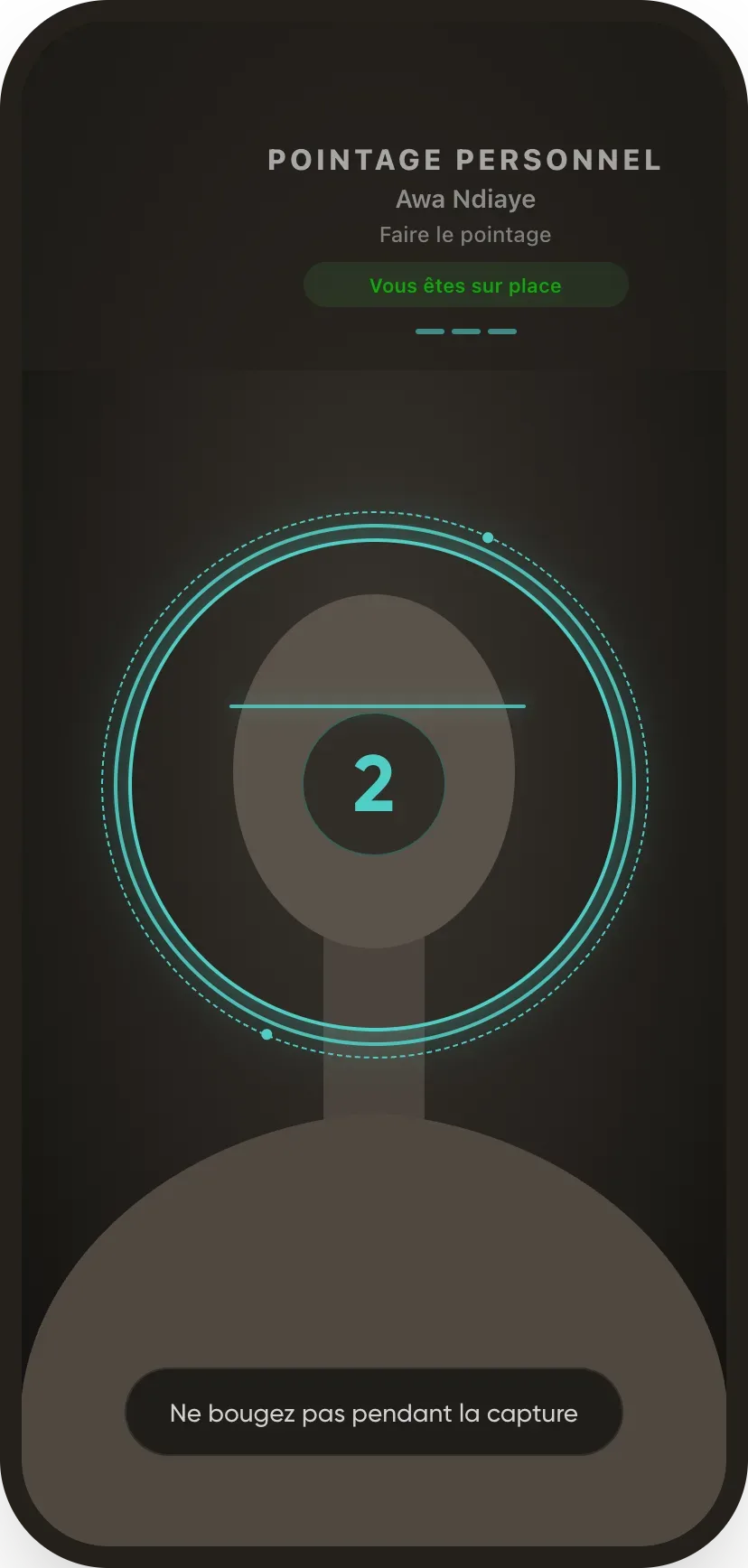
Steps
- On the employee record, Time tracking and leave section, choose the Facial recognition clock-in type.
- Add a sharp, front-facing, recent profile photo: it is the reference photo.
- The employee clocks in from their phone or a shared terminal; the clock-in is saved at once, the check follows within seconds.
When the check fails
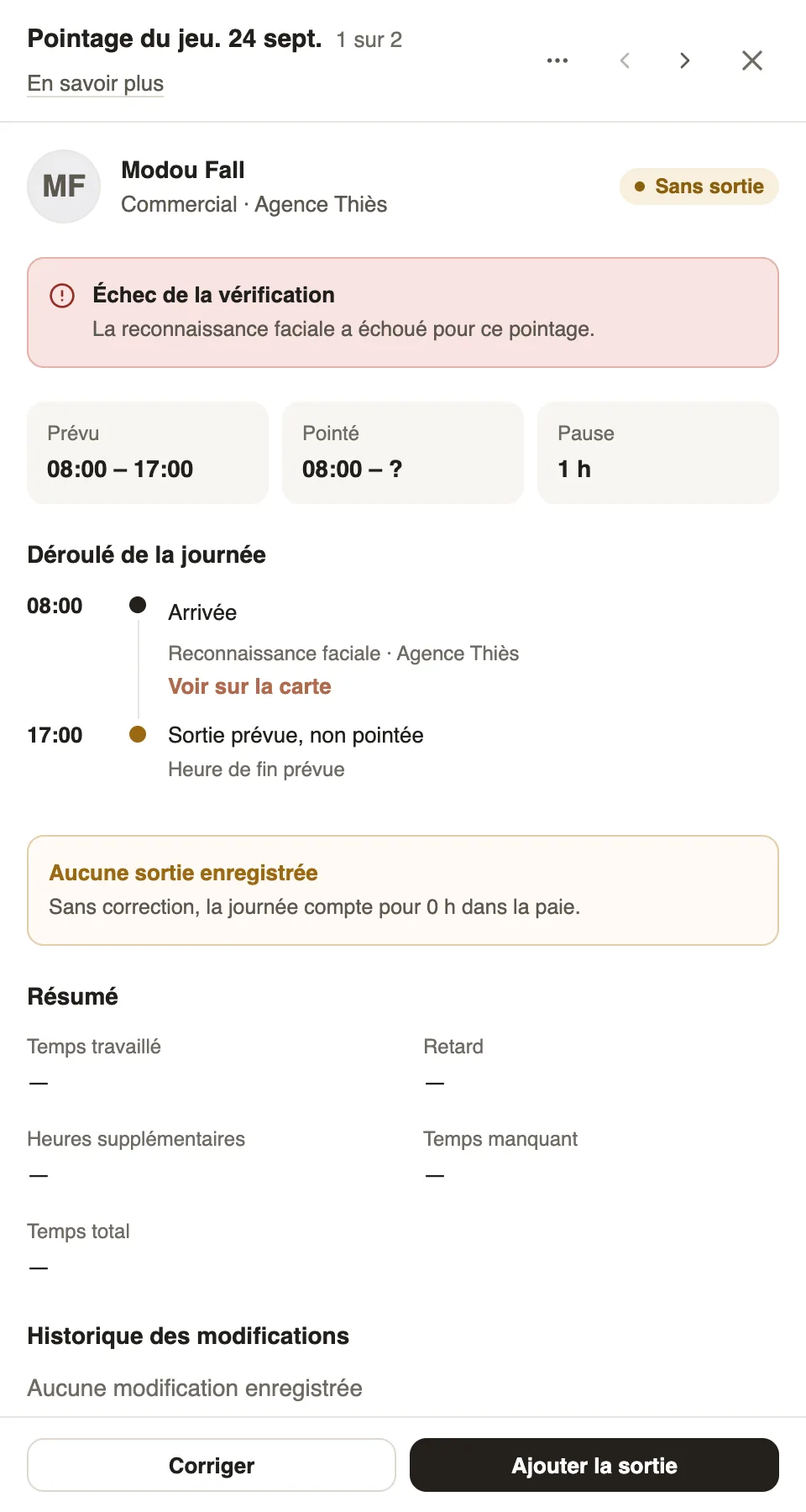
- In the day's list, the employee's avatar is circled in red; the source reads "Face recognition".
- The detail shows Verification failed.
- If it really is the employee (lighting, old photo), update their profile photo; otherwise, fix or delete the day.
Good to know
- Without a profile photo, facial clock-in is refused on a terminal.
- The check runs on the server, not on the phone; the position is recorded as for any clock-in.
- Facial recognition processes biometric data: check your country's rules and inform your employees.
Go further
An employee's clock-in settingsIn Weplanify, the Time tracking and leave section of the record sets how the employee clocks in and what, for them alone, differs from company rules.Clock in from your phoneClock in and out with the Weplanify app, by geolocation on site or by scanning the QR code posted at the workstation.Turn a phone into a clock-in terminalLet several employees clock in on a single Weplanify phone or tablet, by QR badge or facial recognition.See who is present, late, without an exit or absentIn Weplanify, the tabs of the day's list sort employees into present, late, no exit, absent or rest day, with a count for each of the groups.The detail of a clock-in dayIn Weplanify, a day's detail shows the arrival and exit against the plan, where each clock-in came from, the summary of hours and who fixed what.Fix an arrival or exit timeIn Weplanify, fix a day's arrival, exit or break from its detail, with a reason kept in the history, or add all the exits that were forgotten.Choose how an employee clocks inIn Weplanify, each employee clocks in one way only, chosen on their record: by scanning the QR code, by geolocation or by facial recognition.