
Choose who approves absences
In Weplanify, the leave circuit says who receives each absence request, in which order, under which conditions, and who stands in for an absent approver.
In Weplanify, the leave circuit is set in the Leave and absences screen, Leave settings menu → Approval circuit. The editor is the same for every circuit: configure a circuit.
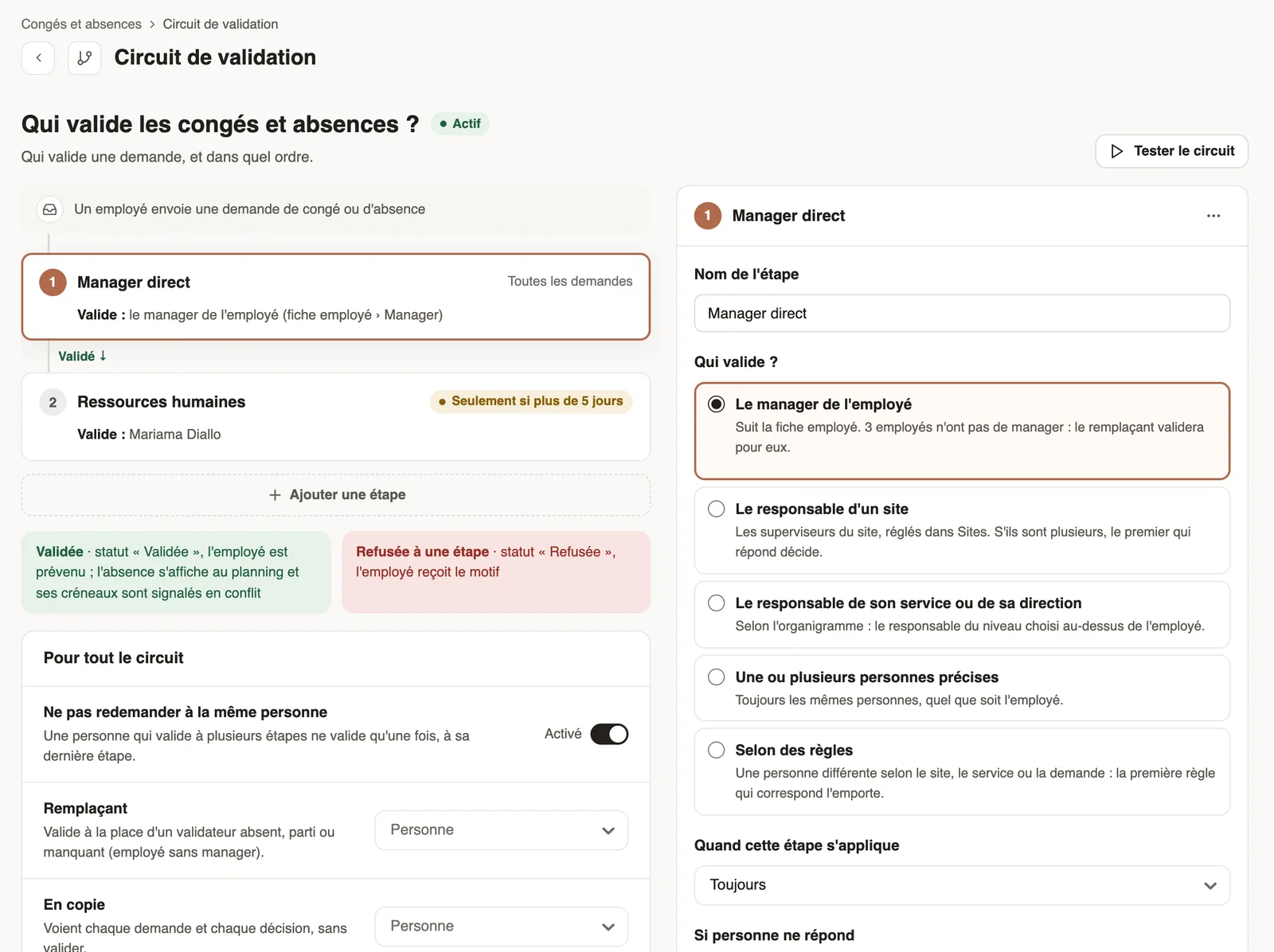
Steps
- Open Time → Leave and absences, then the Leave settings menu → Approval circuit: each step shows in order, with who approves and when it applies.
- Click a step to choose who approves: the employee's manager, the manager of a site or the head of their department, specific people, or based on rules.
- Set When this step applies (if the duration exceeds a few days, for some absence types), If nobody answers and the Final decision; Add a step if needed.
- Choose a Substitute, click Test the circuit for an employee, then Save.
Good to know
- An employee without a manager is approved by the substitute: the screen counts these employees.
- Each approver finds the requests in Requests → To handle; for leave, a reason is always required to refuse.
- An approved request shows in the planning, its slots flagged as conflicts; a rejected request gives the employee the reason.
Go further
Configure an approval circuitIn Weplanify, build the approval steps of a leave request, an expense, an advance or a form: the order, the name, the approver and when each step applies.Choose who approves a step of the circuitIn Weplanify, choose who approves a step: the manager, the head of a site or a department, specific people, or a different person depending on rules.Handle the requests waiting for youIn Weplanify, Requests → To handle gathers the leave, expense claims, advances and forms waiting for your decision, with the overdue ones first.Manage leave and absencesIn Weplanify, the Leave and absences screen gathers the whole team's requests, as a list or a calendar, with the requests to approve shown first.Approve or reject an absence requestIn Weplanify, approve or reject an absence request from To handle or from its panel, which shows the effect on pay and on the balance before you decide.Request leave from your phoneRequest leave or an absence in the Weplanify app, attach a supporting document, see your balance and track approval.Getting started with WeplanifyIn Weplanify, the web is for managers and the mobile app is for employees: here is where to start, from creating the account to the first published schedule.The dashboard Getting started listIn Weplanify, the dashboard Getting started list shows what is left to do to get going, and each of its lines ticks itself once the step is done.