
Public holidays
In Weplanify, check and complete the year's public holidays: they are used by the planning, by leave counting, by the time clock and by payroll.
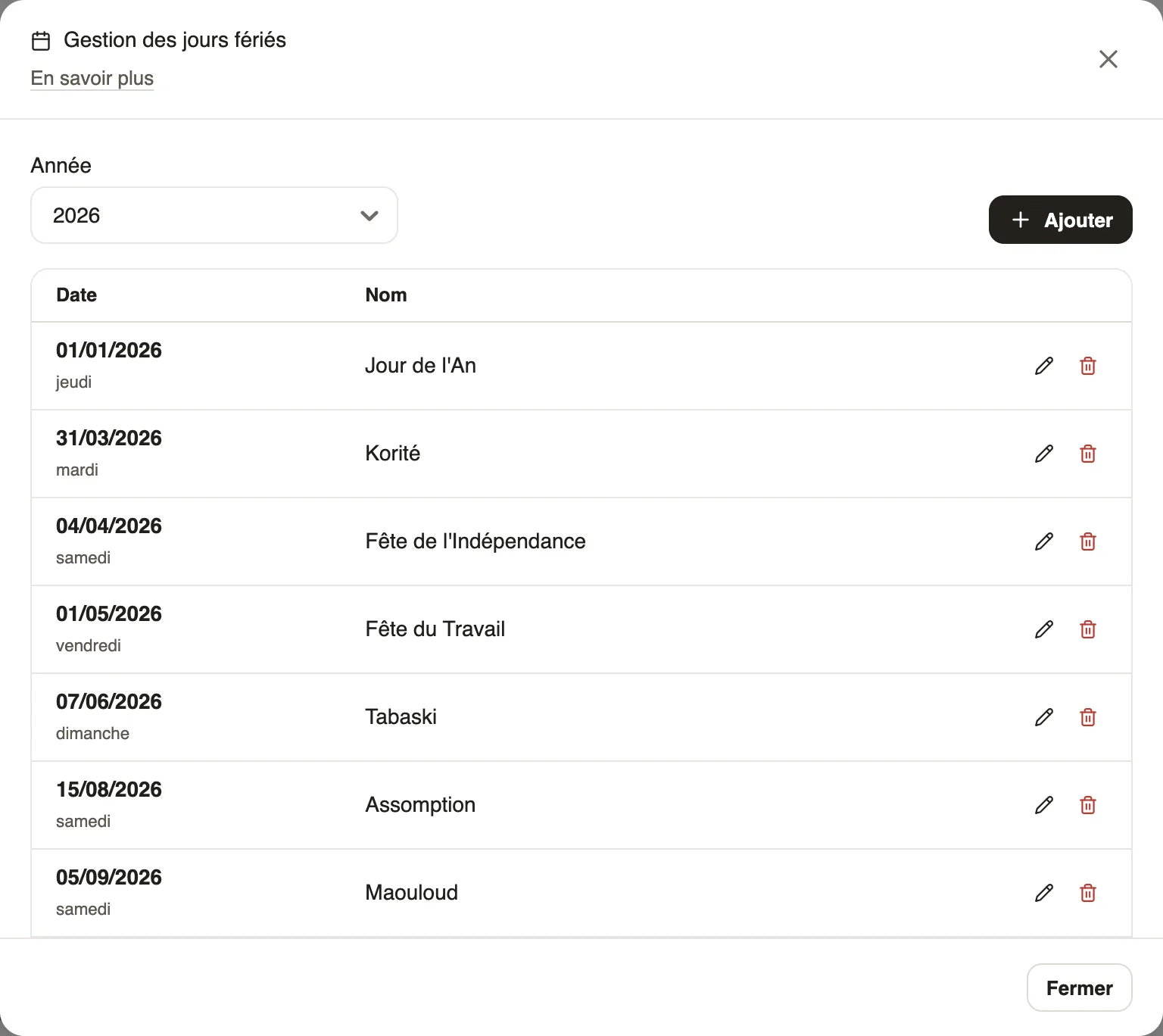
In Weplanify, the country's public holidays are loaded automatically; you adjust them in Settings → Leave → Public holidays.
Steps
- Open Settings → Public holidays, or the settings button of the Leave and absences screen.
- Check the rule Public holidays count as paid rest days and the year's list.
- Click Manage public holidays, choose the Year, then fix a date with the pencil (a holiday whose date moves every year) or delete it.
- For a day specific to the company: Add, name and date.
What a public holiday does
- In the planning, it is a rest day; it is flagged in the slot window.
- It is not deducted from leave.
- In the time clock, the employee is not counted absent if holidays are paid rest days; a site or an employee can have their own rule. In payroll, a holiday worked is paid at a higher rate.
Go further
The usual week (recurring planning)In Weplanify, an employee's usual week comes back on its own every week, shifted days off included, without typing the same slots over again.How absence days are countedIn Weplanify, the number of days of an absence depends on its type: calendar days for paid or unpaid absence, working days for leave taken from the balance.See who is present, late, without an exit or absentIn Weplanify, the tabs of the day's list sort employees into present, late, no exit, absent or rest day, with a count for each of the groups.Prepare the month's time and absencesIn Weplanify, the Time and absences step gives each employee's paid days, leave, absences and overtime, taken from the source chosen for their site.Manage leave and absencesIn Weplanify, the Leave and absences screen gathers the whole team's requests, as a list or a calendar, with the requests to approve shown first.Manage public holidaysIn Weplanify, check the year's list of public holidays, say whether they are paid rest days, and add the days that are specific to your company.Getting started with WeplanifyIn Weplanify, the web is for managers and the mobile app is for employees: here is where to start, from creating the account to the first published schedule.The dashboard Getting started listIn Weplanify, the dashboard Getting started list shows what is left to do to get going, and each of its lines ticks itself once the step is done.