
Follow the signatures of a request and send reminders
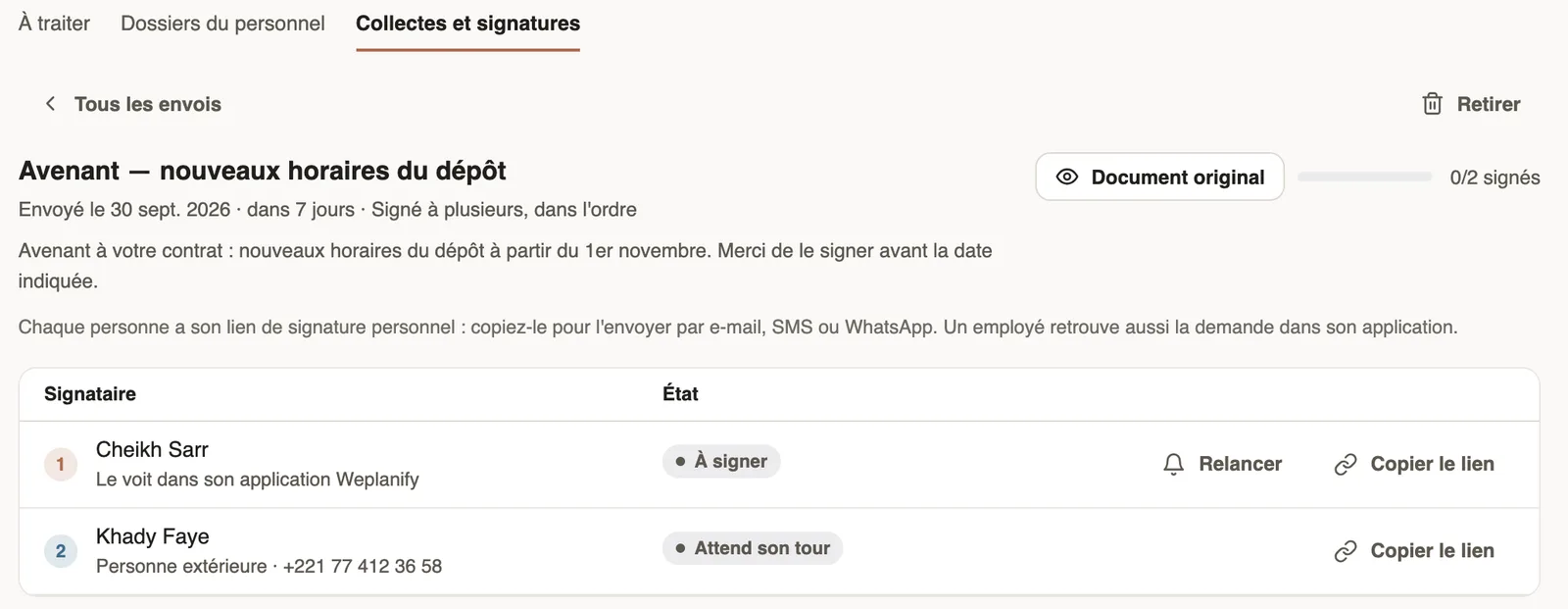
In Weplanify, the detail of a request shows where each signer stands, copies their signing link, reminds late signers and opens the signed document.
In Weplanify, the Signatures part of the Collections and signatures tab lists each document sent, the state of its signers and its progress ("0/2 signed").
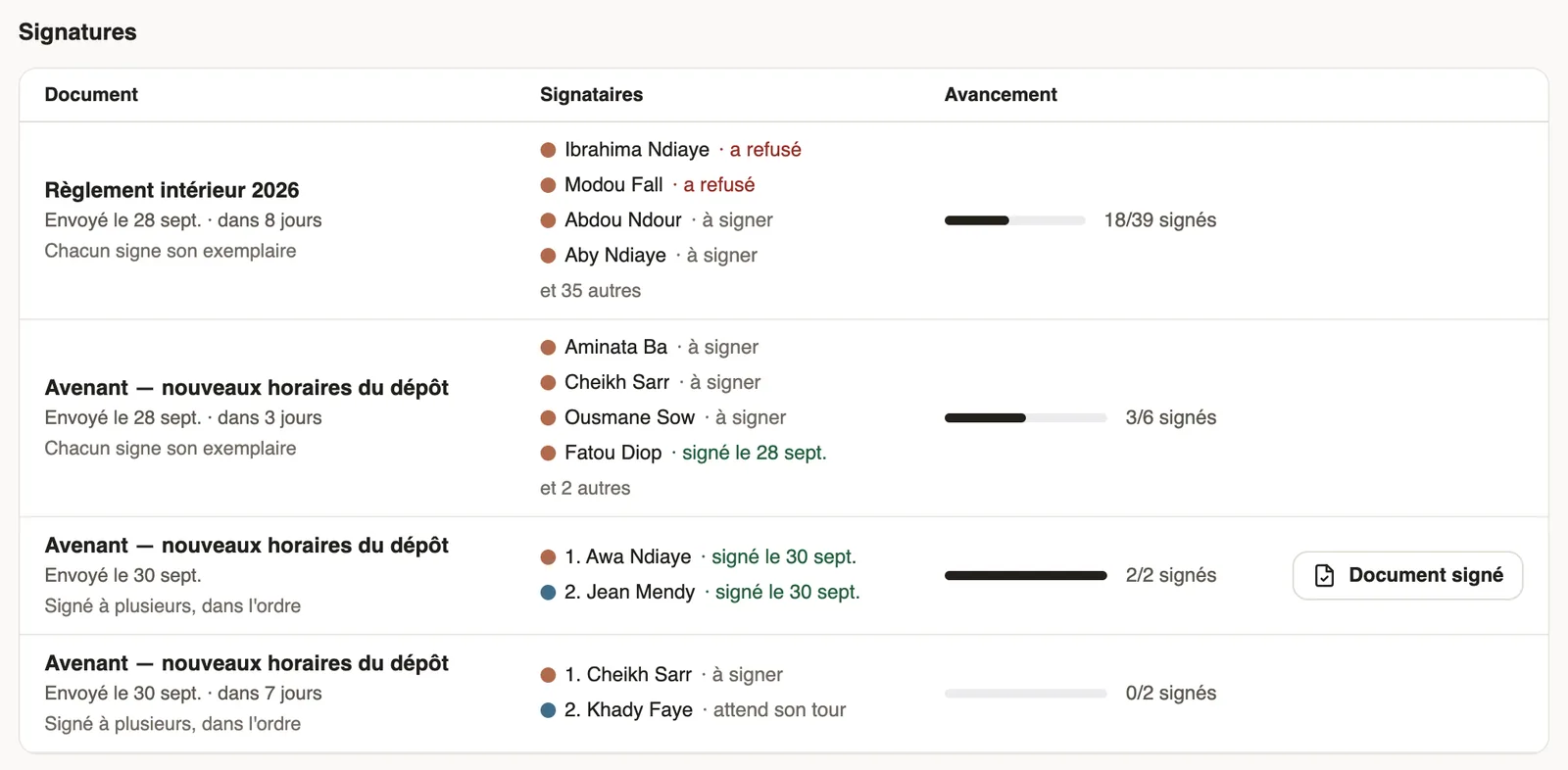
Steps
- Open People → Documents, Collections and signatures tab, and click a request in the Signatures part.
- Read each signer's state: To sign, Waiting for their turn (someone before them has to sign), Signed with the date, time and channel (from the app or with their link), or Declined with the reason.
- Click Copy link to send a person their signing link by email, text message or WhatsApp.
- Click Remind on a row. When several people are waiting, Remind (n), at the top, reminds them all at once.
- Open the Original document, a person's Signed copy or, when everyone signed the same document, the Signed document.
Good to know
- Only people whose turn it is can be reminded. Someone outside the company without an email is reminded by sending their link again.
- The signed copy is filed on the employee's record. It ends with a proof page: signature, date and time, IP address and fingerprint of the original document.
- Withdraw cancels the request for those who have not signed; copies already signed stay on file.
- Pending signatures also show in To do and in the staff files.
- What the signer sees: sign from a personal link.
Go further
An employee's documentsIn Weplanify, the Documents section of the employee record gathers their papers by type: contract, ID document, certificates and signed copies.Handle pending documents: the To do tabIn Weplanify, the To do tab lists papers to approve, signatures still pending, expired papers to request again and the collections in progress.Spot incomplete staff filesIn Weplanify, Staff files show for each employee where their contract, ID document, collections and documents to sign stand, in a single row.Sign a document from a personal linkIn Weplanify, each signer has a personal link: they read the document, sign with a finger or the mouse, or decline, with no account and even on a phone.HR documents in WeplanifyIn Weplanify, the Documents module files HR papers, spots incomplete staff files, gets PDFs signed and collects documents from your employees.Send a document for signature in four stepsIn Weplanify, sending a PDF for signature takes four steps: the document, the signers, where each one signs, then a final check before you send it.