
Add an employee in Weplanify
In Weplanify, an employee is created in four short steps; the name and phone number are enough, the rest can be completed later on their record.
In Weplanify, an employee exists as soon as their record has a name and a phone number. A summary, on the right, shows what is already filled in.
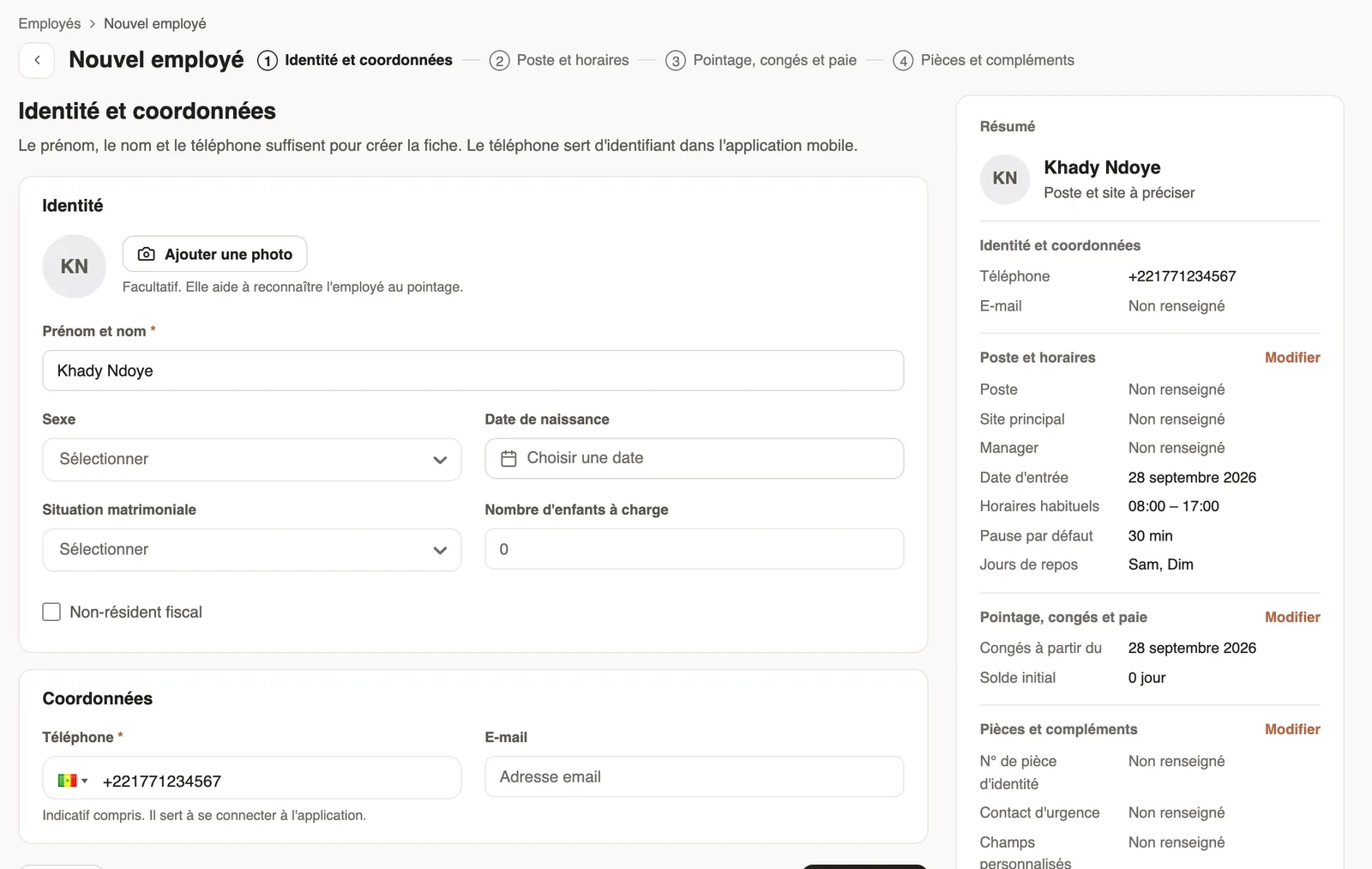
Steps
- In Employees, click Add an employee.
- Identity and contact: first and last name, phone with the country code, and if needed photo, gender, date of birth, family situation and email.
- Job and hours: job, main site, team, manager, start date, working hours and days off.
- Time tracking, leave and payroll: only change what differs from the company settings.
- Documents and extras, optional, then Create employee; from the second step on, Create now creates the record without going further.
Good to know
- The phone number is unique: it is the employee's sign-in on the mobile app.
- The manager approves their leave and clock-ins, and builds the org chart.
- Every employee is created with employee access; manager rights and the web invitation are set afterwards, Access tab.
- For many employees: the Excel import.
Go further
Sign in to the mobile appHow an employee signs in to the Weplanify app with their phone number and a text code, and what to do if the code doesn't arrive.The company org chartIn Weplanify, the org chart shows who reports to whom, by manager, by team or by site, and lets you change a person's manager in a single click.Invite an employee to the web versionIn Weplanify, invite an employee, often a manager, to the web version: they receive an email link to create their password and then sign in.Import your employees from ExcelIn Weplanify, create or update dozens of employees at once from an Excel or CSV file, each of them being recognised by their own phone number.The Weplanify mobile app for your employeesWhat your employees do from their phone with Weplanify: clock in, see their schedule, request leave, fill in a form, read their payslips.Getting started with WeplanifyIn Weplanify, the web is for managers and the mobile app is for employees: here is where to start, from creating the account to the first published schedule.Try Weplanify with sample dataIn Weplanify, start with samples: fictitious employees, schedules, clock-ins and requests to try everything out, then remove them all with one click.The dashboard Getting started listIn Weplanify, the dashboard Getting started list shows what is left to do to get going, and each of its lines ticks itself once the step is done.Manage your employees in WeplanifyIn Weplanify, each employee has a record used everywhere: planning, time clock, leave and payroll. Here is how to create it and keep it up to date.Recruit: job offers and candidate trackingIn Weplanify, publish a job offer, share its application link and move each candidate forward, from their application to their employee record.