
A group's page: members, managers and uses
In Weplanify, a group's page shows who is in it and why, who manages it and where it is used, before you change it or delete it altogether later.
In Weplanify, clicking a group on the Groups screen opens its page: its members, its managers and its uses.
Steps
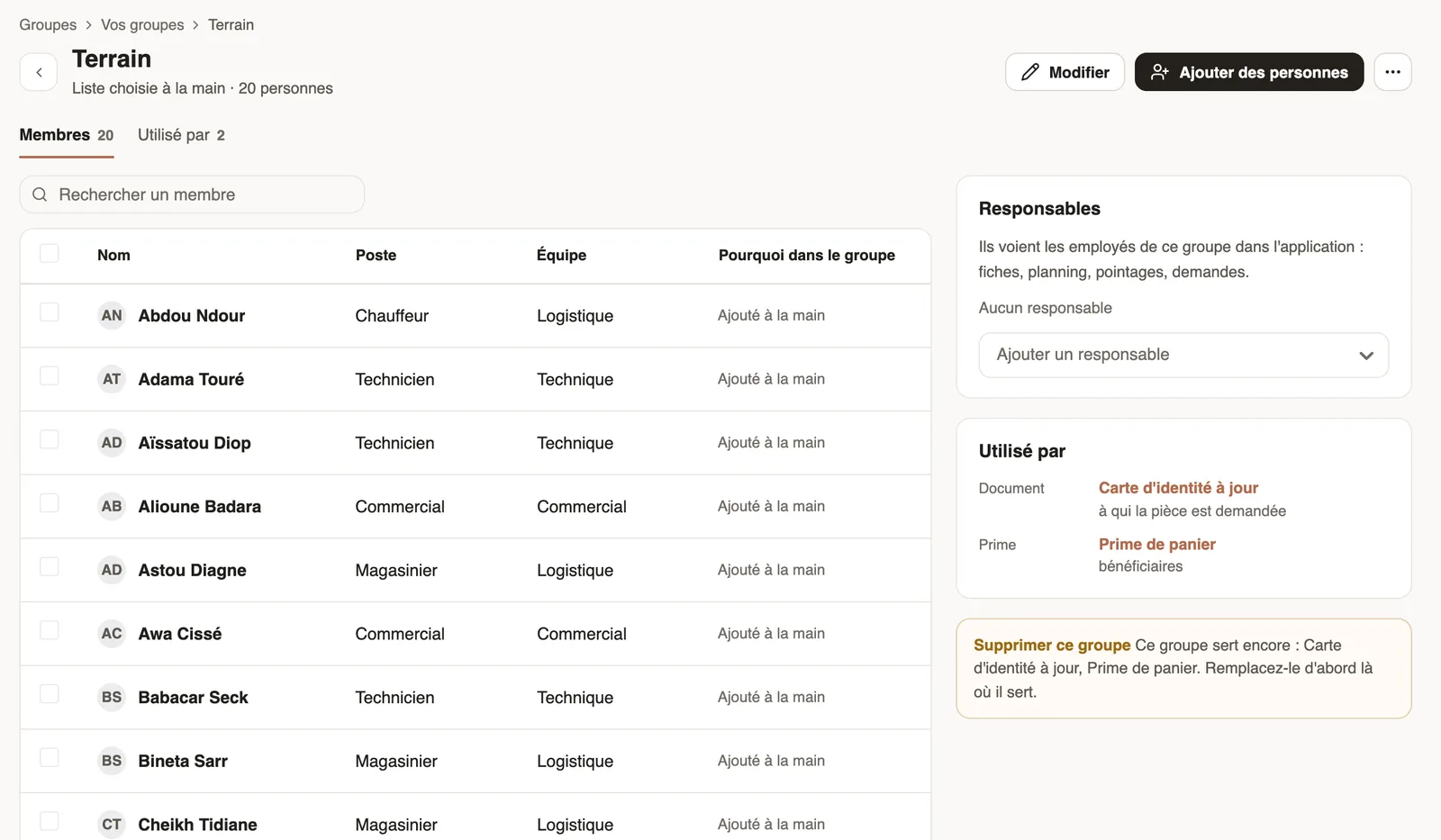
- Members tab: the Why in the group column says whether the person matches the criteria or was added by hand.
- For a chosen list, Add people or Remove from group; for a group with criteria, Edit criteria.
- Under Managers, Add a manager: they see the group's employees (records, planning, time clock, requests).
- Used by tab: the planning, forms, approvals, documents or bonuses that rely on it.
Good to know
- A group still in use cannot be deleted: first replace it where it is used.
- Automatically created groups follow the sites: only their managers can be changed.
- Planning teams are managed from the planning.
Go further
Create and manage employee groupsIn Weplanify, a group brings employees together for planning, forms, approvals, bonuses and documents, and it also sets a manager's own scope.Plan by teams and rotationsIn Weplanify, plan a whole team at once and rotate your teams over the morning, evening and night shifts with a ready-made rotation model to start.Give an employee a role and accessIn Weplanify, make an employee a manager or an administrator from the Access tab of their record: role, groups they manage and what they can do.