
DocumentationForms & requestsWeplanify forms: requests, reports and surveysRecruit: job offers and candidate tracking
Create a job offer
In Weplanify, a job offer takes a few fields to create: title, job, site, contract and number of positions, then its description and its deadline.
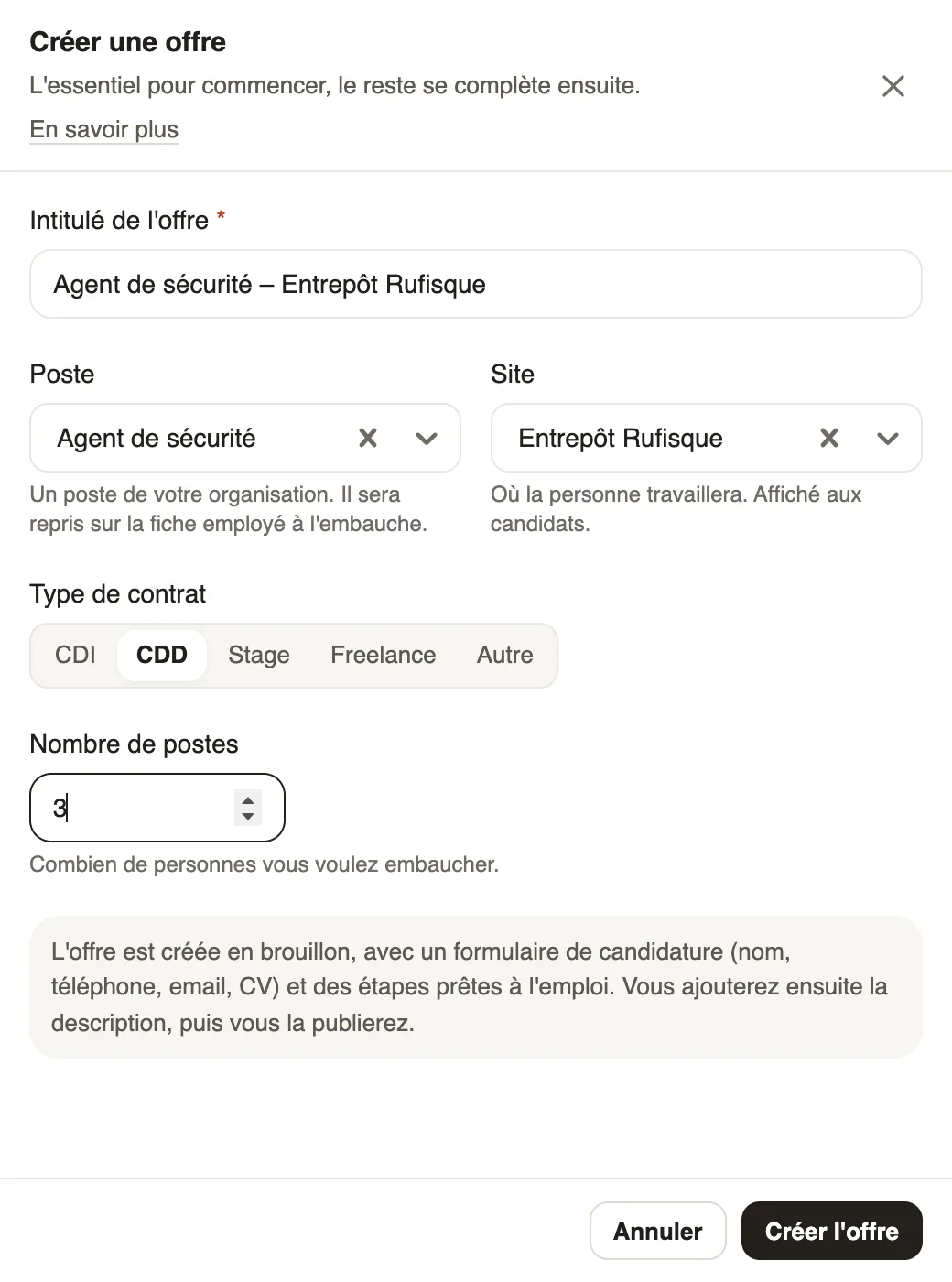
In Weplanify, an offer starts as a draft: nobody sees it until it is published. It comes with an application form (name, phone, email, CV) and selection steps ready to use.
Steps
- In Requests → Recruitment, click Create a job offer.
- Type the Offer title, the only required field, for example "Security guard – Rufisque warehouse".
- Choose the Job, carried over to the employee record when you hire, and the Site where the person will work.
- Choose the Contract type (CDI, CDD, Internship, Freelance or Other) and the Number of positions, then click Create the offer: its page opens on the The offer tab.
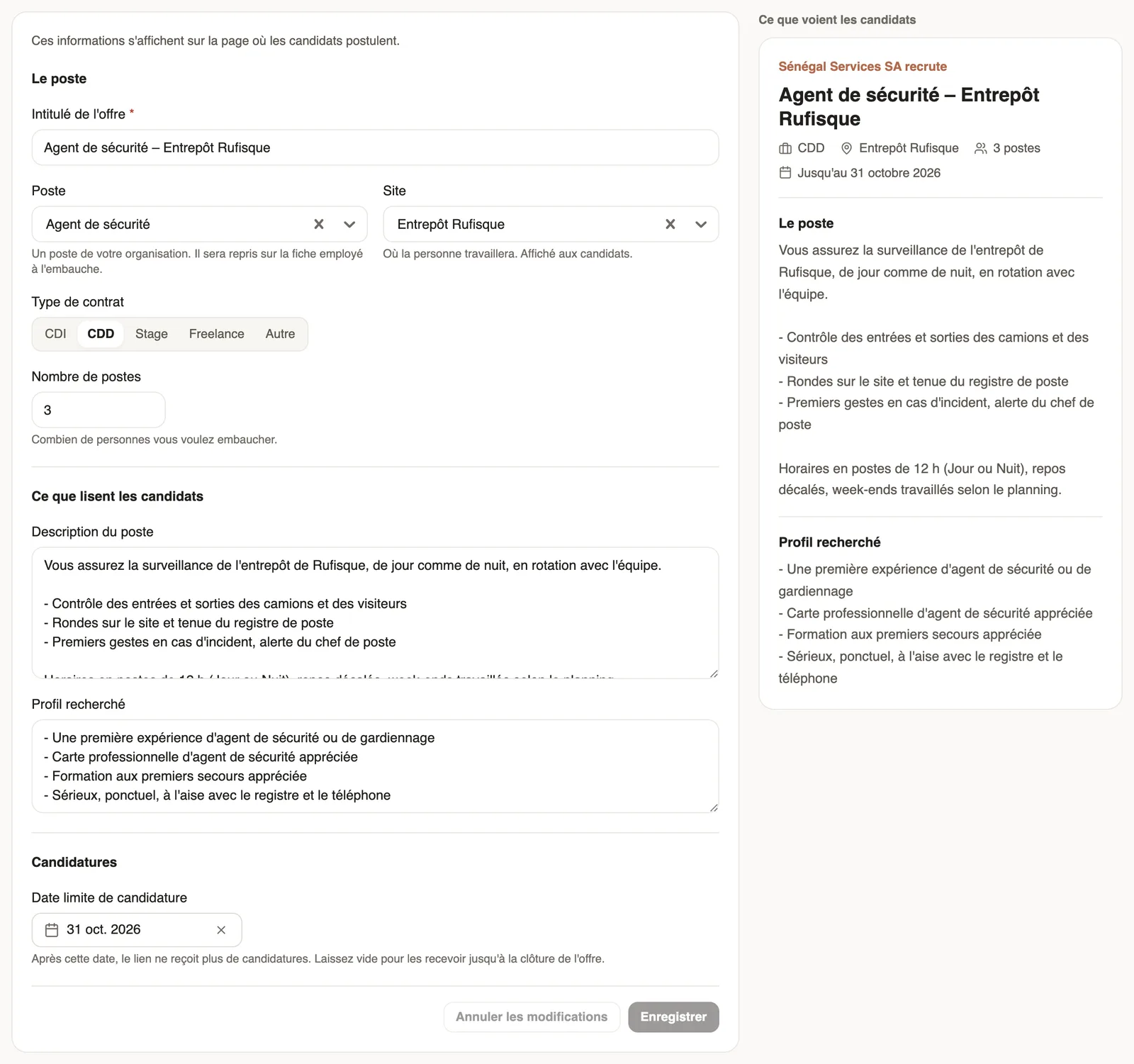
- Write the Job description (duties, working hours, workplace, salary) and the Profile wanted, choose the Application deadline, then click Save.
Good to know
- The What candidates see preview follows your changes: it is the page where they apply (what candidates see).
- After the deadline, the link no longer takes applications. Without a date, it takes them until the offer is closed.
- The Before publishing box guides the next steps: check the questions, check the steps, then publish and share.
Go further
What candidates see of a job offerIn Weplanify, an offer's link opens a page with no account needed: company, job, contract, site, deadline and description, then the form to fill in.Choose the questions asked to candidatesIn Weplanify, an offer's application form is set in its own tab: name, phone, email and CV by default, then your own questions for the candidates.Set up the selection steps of an offerIn Weplanify, an offer's steps are set in its Steps tab: add, rename, reorder or delete the steps of your selection, between arrival and decision.Publish a job offer and share its linkIn Weplanify, publishing an offer opens its application link: copy it, send it on WhatsApp or by email, or print a poster with a QR code to scan.Recruit: job offers and candidate trackingIn Weplanify, Recruitment shows your job offers as cards: create an offer, share its link and follow every candidate from application to hiring.The job offer page and its tabsIn Weplanify, every job offer has its own page with five tabs: Candidates, The offer, Application form, Steps and Publication, plus its actions.