
DocumentationForms & requestsWeplanify forms: requests, reports and surveysRecruit: job offers and candidate tracking
Choose the questions asked to candidates
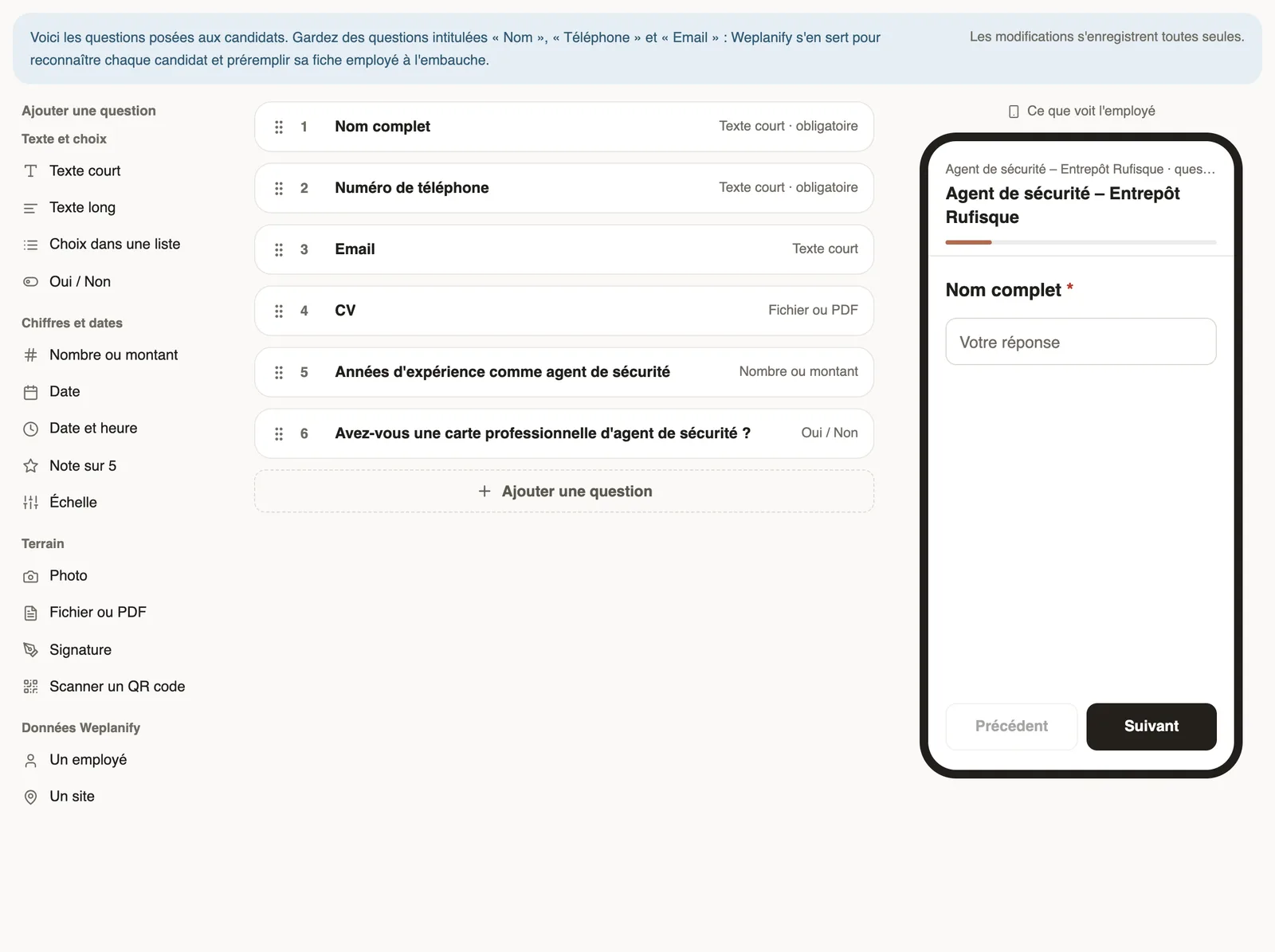
In Weplanify, an offer's application form is set in its own tab: name, phone, email and CV by default, then your own questions for the candidates.
In Weplanify, every offer has its application form, in the Application form tab of its page. It comes with four questions: full name, phone number, email and CV.
Steps
- Open the offer, then the Application form tab.
- Click a type in the Add a question column (Short text, Yes / No, Number or amount, File or PDF…), then type the label, for example "Years of experience as a security guard".
- Turn on Required if needed, then click Done. Drag the questions to change their order.
- Check the result in the phone preview, on the right.
Good to know
- Changes are saved on their own; the banner shows the time of the last save.
- Keep questions titled "Name", "Phone" and "Email": Weplanify uses them to recognize each candidate and prefill their employee record. Renamed otherwise, the candidate may show as "Unnamed candidate".
- The first two short answers, such as years of experience, show on the candidate's card ("8 years of experience").
- The CV is uploaded as a PDF, 10 MB at most. The editor works like the forms editor (add questions).
Go further
Create a form and add its questionsIn Weplanify, create a form from your need and a ready-made template, then adjust its questions while the phone preview shows what employees see.Recruit: job offers and candidate trackingIn Weplanify, Recruitment shows your job offers as cards: create an offer, share its link and follow every candidate from application to hiring.Create a job offerIn Weplanify, a job offer takes a few fields to create: title, job, site, contract and number of positions, then its description and its deadline.What candidates see of a job offerIn Weplanify, an offer's link opens a page with no account needed: company, job, contract, site, deadline and description, then the form to fill in.The job offer page and its tabsIn Weplanify, every job offer has its own page with five tabs: Candidates, The offer, Application form, Steps and Publication, plus its actions.