
DocumentationForms & requestsWeplanify forms: requests, reports and surveysRecruit: job offers and candidate tracking
The job offer page and its tabs
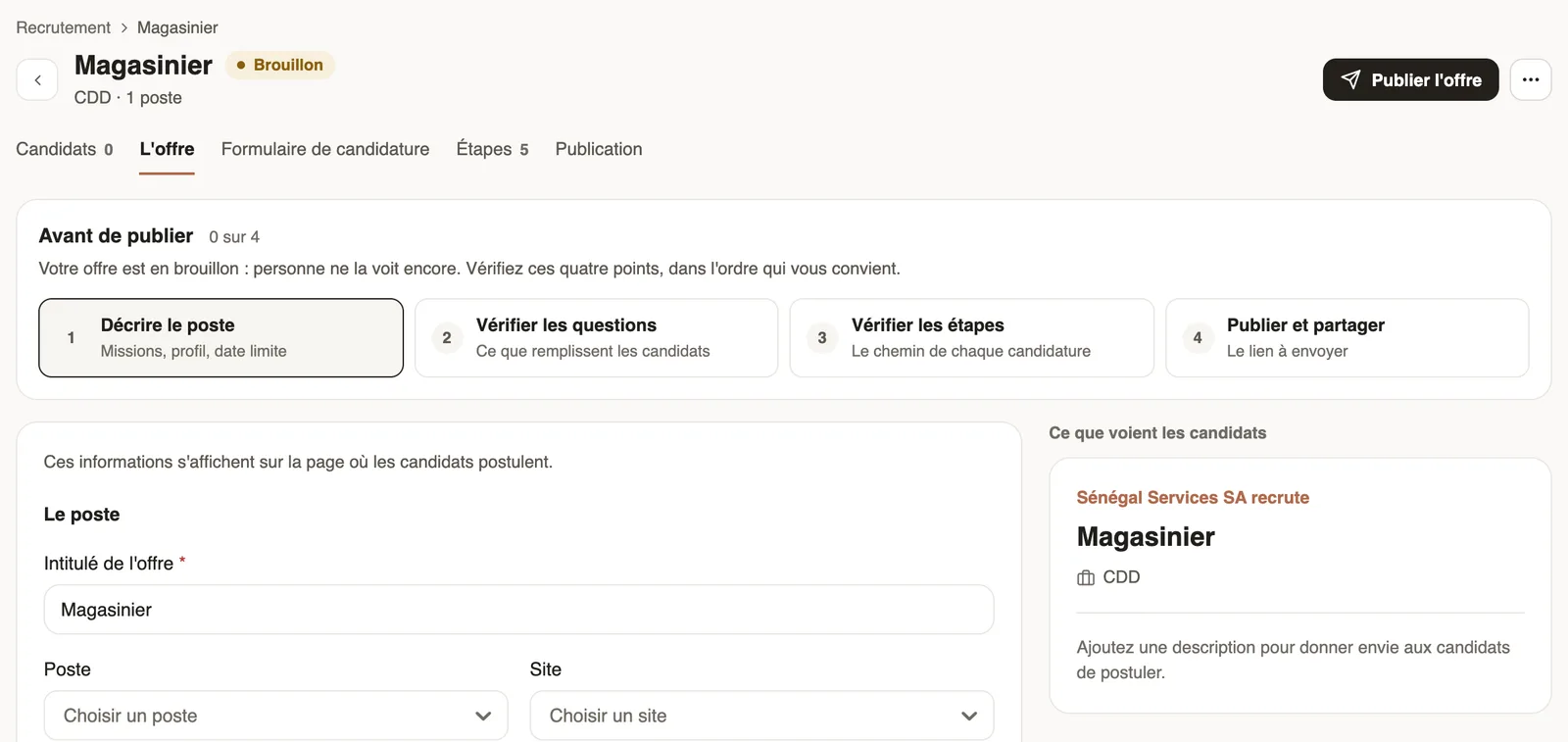
In Weplanify, every job offer has its own page with five tabs: Candidates, The offer, Application form, Steps and Publication, plus its actions.
In Weplanify, click an offer in Requests → Recruitment to open its page. The header shows the title, the state, the site, the contract, the number of positions and the deadline.
Steps
- Candidates: the board of candidates, one column per step (follow the candidates).
- The offer: the title, job, site, contract, description, profile and deadline, with the preview of the candidates' page (create an offer).
- Application form: the questions asked to candidates (choose the questions).
- Steps: the path of each application, from its arrival to your decision (set up the steps).
- Publication: the state of the offer and its link to share (publish and share).
Good to know
- While the offer is a draft, the Before publishing box lists four points: Describe the job, Check the questions, Check the steps and Publish and share. Each point opens its tab and turns to "Done" once handled.
- Top right: Publish the offer for a draft, Copy the link for a published offer, Reopen the offer for a closed one. The … menu offers Close the offer and, as long as there is no candidate, Delete the offer (close or delete).
- If you leave a tab with unsaved changes, Weplanify asks before you lose them.
Go further
Move candidates from step to stepIn Weplanify, an offer's Candidates tab puts each candidate in the column of their step: drag their card, or open it to read the answers and decide.Create a job offerIn Weplanify, a job offer takes a few fields to create: title, job, site, contract and number of positions, then its description and its deadline.Choose the questions asked to candidatesIn Weplanify, an offer's application form is set in its own tab: name, phone, email and CV by default, then your own questions for the candidates.Set up the selection steps of an offerIn Weplanify, an offer's steps are set in its Steps tab: add, rename, reorder or delete the steps of your selection, between arrival and decision.Publish a job offer and share its linkIn Weplanify, publishing an offer opens its application link: copy it, send it on WhatsApp or by email, or print a poster with a QR code to scan.Close, reopen or delete a job offerIn Weplanify, closing an offer shuts its application link without losing the candidates; an offer that has received no application can be deleted.Recruit: job offers and candidate trackingIn Weplanify, Recruitment shows your job offers as cards: create an offer, share its link and follow every candidate from application to hiring.