
DocumentationForms & requestsWeplanify forms: requests, reports and surveysRecruit: job offers and candidate tracking
Publish a job offer and share its link
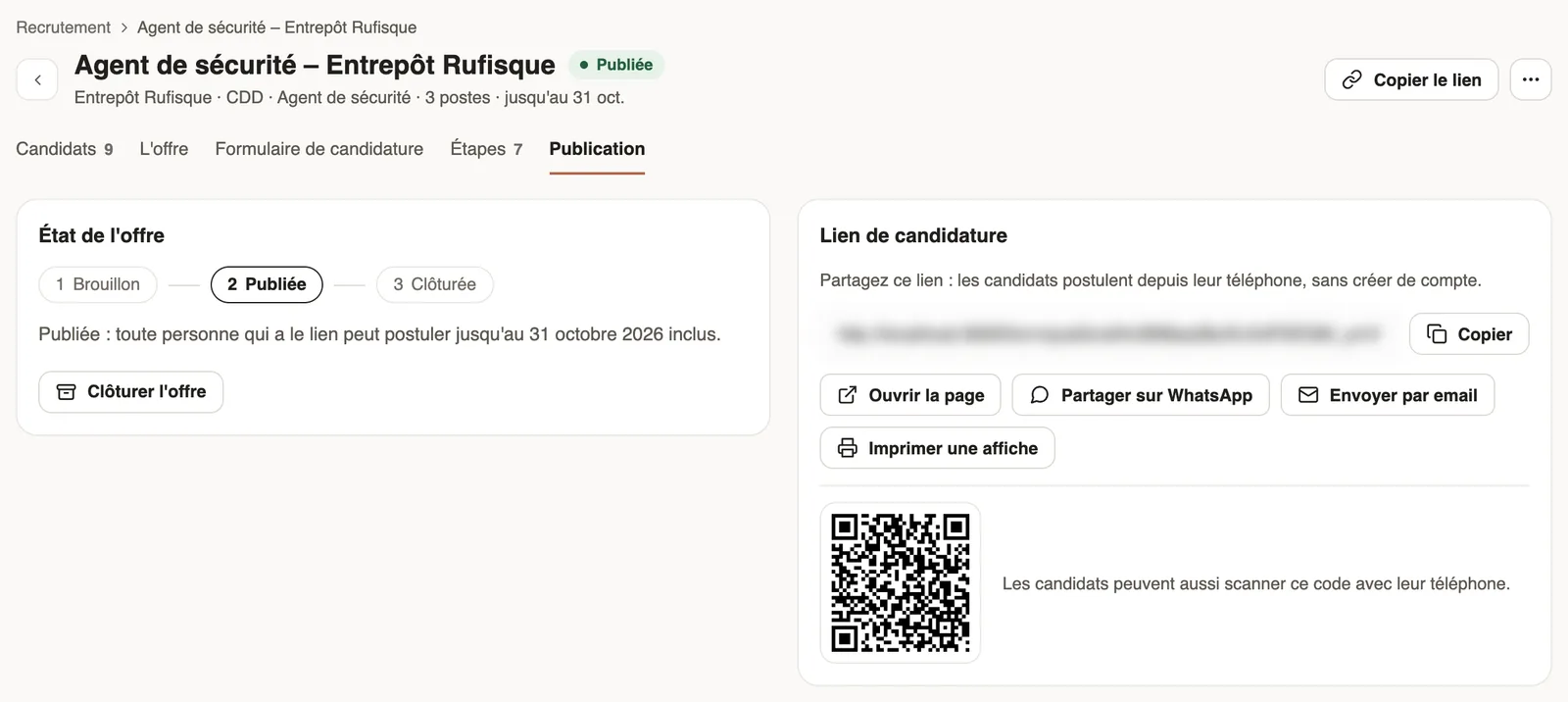
In Weplanify, publishing an offer opens its application link: copy it, send it on WhatsApp or by email, or print a poster with a QR code to scan.
In Weplanify, an offer has three states: Draft (nobody sees it), Published (anyone with the link can apply) and Closed (the link no longer takes applications). The Publication tab brings them together, with the link.
Steps
- Open the offer and click Publish the offer, top right or in the Publication tab.
- In Application link, click Copy, or Copy the link at the top of the page.
- Share on WhatsApp prepares the "We are hiring…" message with the link; Send by email opens an email ready to go.
- For a notice board on a site or at reception, click Print a poster: it carries the offer title and a QR code to scan.
- Open the page shows the offer as candidates see it.
Good to know
- Candidates apply from their phone, without creating an account (what candidates see).
- With a deadline, the link takes applications up to and including that date; after it, a banner offers Change the date.
- To stop applications: close the offer.
Go further
What candidates see of a job offerIn Weplanify, an offer's link opens a page with no account needed: company, job, contract, site, deadline and description, then the form to fill in.Close, reopen or delete a job offerIn Weplanify, closing an offer shuts its application link without losing the candidates; an offer that has received no application can be deleted.Recruit: job offers and candidate trackingIn Weplanify, Recruitment shows your job offers as cards: create an offer, share its link and follow every candidate from application to hiring.Create a job offerIn Weplanify, a job offer takes a few fields to create: title, job, site, contract and number of positions, then its description and its deadline.The job offer page and its tabsIn Weplanify, every job offer has its own page with five tabs: Candidates, The offer, Application form, Steps and Publication, plus its actions.