
Declare a departure on leave or a final departure
In Weplanify, declare a departure on leave or a final departure from the employee's record, Contracts tab, so that payroll prepares what is due to them.
In Weplanify, both departures are declared in the employee's record, Contracts tab, in the same frame, which replaces the list of contracts while you fill it in.
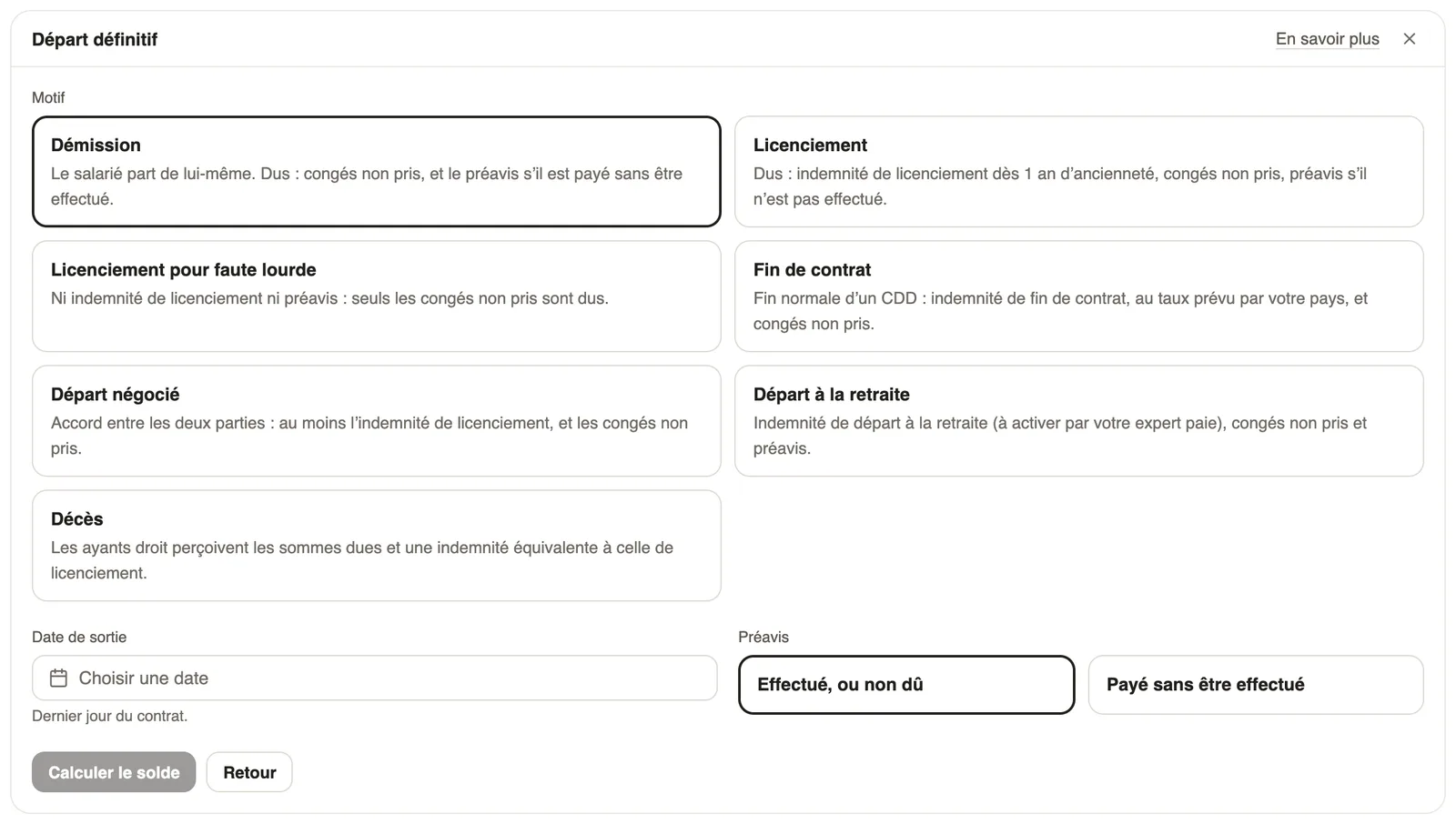
Steps
- Open the employee's record, Contracts tab (active contract).
- Click Departure on leave or Final departure: the Declare a departure frame opens.
- For a departure on leave: pick the dates and the leave request, check the allowance, then click Validate the departure (prepare a departure on leave).
- For a final departure: pick the Reason, the Exit date and the Notice, then click Compute the settlement.
- Back or the cross closes the frame; Learn more opens the help.
Good to know
- The departure shows in the payroll of the month concerned (before closing).
- How a departure on leave is paid is set in Leave & indemnity.
- Exit allowances depend on your country's rule and on the reason; to be right, the history must be complete (opening history).
Go further
A contract's statuses: suspend, terminate, activateIn Weplanify, the record's Contracts tab shows the running contract and its history, and what each action changes for the employee's payroll.Prepare a departure on leaveIn Weplanify, prepare an employee's departure on leave from their record: days counted, balance, leave request and allowance, then validate the departure.Follow the monthly payroll step by stepIn Weplanify, the Monthly payroll page shows where payroll stands: the next step, what is left to settle, the provisional figures and the five steps.Choose how leave is handled in payrollIn Weplanify, choose how a departure on leave is paid: salary maintained, allowance on departure, or deduction then add-back on the payslips.Import payroll history at installationIn Weplanify, import the payroll totals paid before you started using it, so that annual totals, the annual statement and allowances start out right.Leave balancesIn Weplanify, each employee has a leave counter: earned since the return date, taken, and available balance, shown on their record and in the report.Delete an employee who has left the companyIn Weplanify, deleting an employee removes their record from the lists and cuts their sign-in, while keeping the history of their time, leave and pay.