
DocumentationTime tracking
Employee time clock
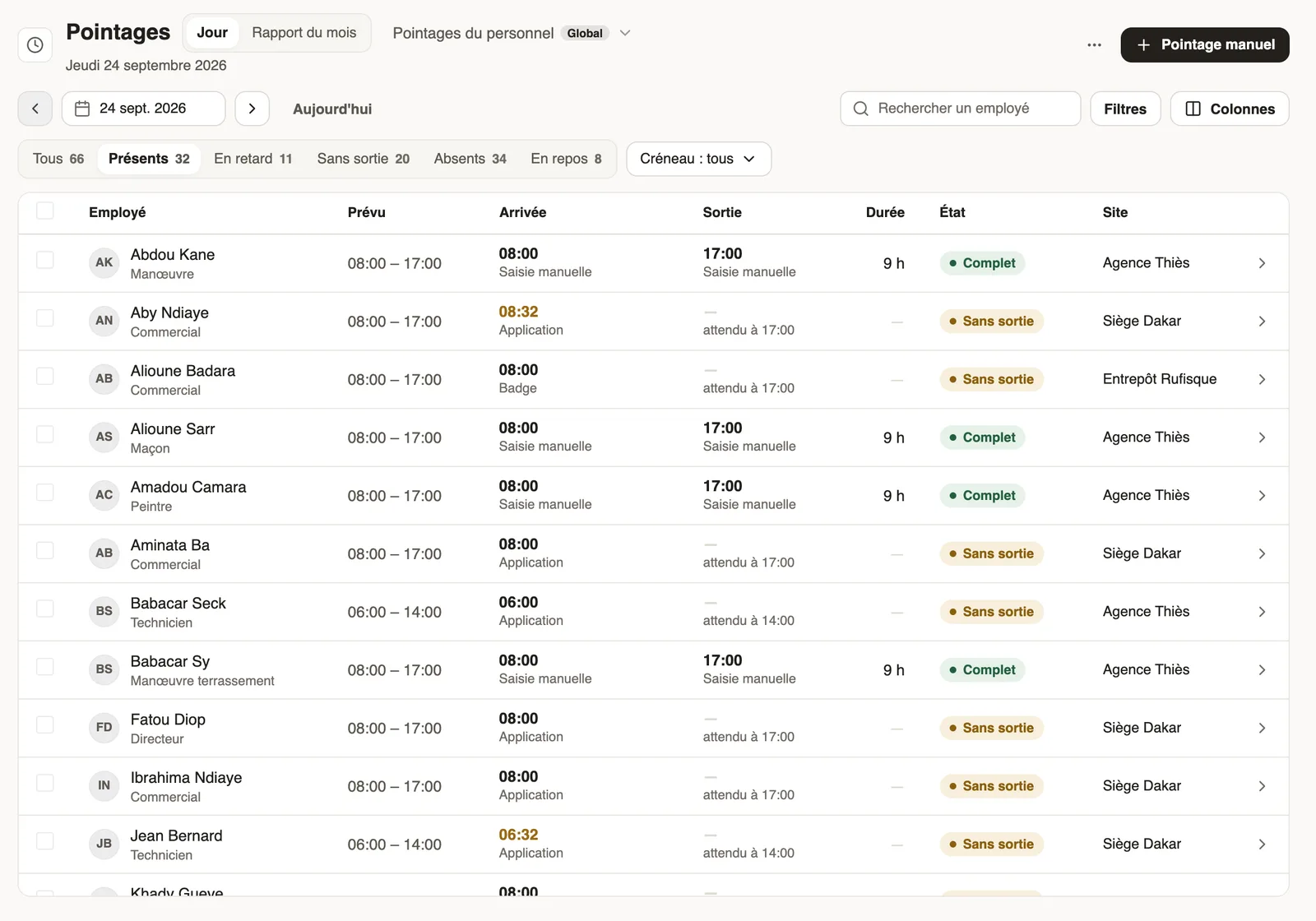
In Weplanify, the Time entries screen shows, day by day, each employee's arrival and exit against what was planned, and what is left to fix.
In Weplanify, the Time entries screen (Time menu) compares, for each employee, the Planned time from the schedule with their real Arrival and Exit.
Steps
- Employees clock in from the mobile app: QR code, geolocation or facial recognition (clock-in methods).
- Choose the day and the tab: present, late, no exit, absent, rest day.
- Click a row for the day's detail, and fix what needs fixing.
- For a forgotten clock-in or a team without phones: Manual clock-in (manual entry).
- For the whole month: Monthly report (time clock report).
Good to know
- The planning says who is expected and when; without a slot, the hours on the record apply (how lateness and overtime are computed).
- Time entries feed the monthly payroll: a day without an exit counts as 0 h until it is fixed.
Go further
How lateness, missing time and overtime are computedIn Weplanify, each clocked day is compared with the planned slot: here is where lateness, missing time, time worked and overtime all come from.Fix an arrival or exit timeIn Weplanify, fix a day's arrival, exit or break from its detail, with a reason kept in the history, or add all the exits that were forgotten.The detail of a clock-in dayIn Weplanify, a day's detail shows the arrival and exit against the plan, where each clock-in came from, the summary of hours and who fixed what.Merge the time sheets entered on mobileIn Weplanify, review the attendance sheets entered on a phone by a time clerk, then merge them to create the day's clock-ins for everyone listed.Turn on overtime trackingIn Weplanify, turn on overtime counting, then set the weekly threshold, the way overtime hours are approved, and the range of the night hours.Split time entries by clockIn Weplanify, a clock gives a site or a team its own separate list of time entries, visible only to the groups of employees that you choose.See who is present, late, without an exit or absentIn Weplanify, the tabs of the day's list sort employees into present, late, no exit, absent or rest day, with a count for each of the groups.Choose how an employee clocks inIn Weplanify, each employee clocks in one way only, chosen on their record: by scanning the QR code, by geolocation or by facial recognition.The monthly time clock report and Excel exportIn Weplanify, the time clock report sums up the month: hours worked against planned, lateness, overtime, absences, and what to fix before payroll.Clocking in with facial recognitionIn Weplanify, facial recognition compares the photo taken at clock-in with the employee's profile photo; here is what to do when the check fails.Enter a clock-in by handIn Weplanify, enter by hand the day of an employee who forgot to clock in, or clock in a whole team on a shift from the hours of the planning.Clock in from your phoneClock in and out with the Weplanify app, by geolocation on site or by scanning the QR code posted at the workstation.The team planningIn Weplanify, the planning says who works, when and where, week after week; the slots stay as drafts until you publish them to your employees.Prepare the month's time and absencesIn Weplanify, the Time and absences step gives each employee's paid days, leave, absences and overtime, taken from the source chosen for their site.Payroll in WeplanifyIn Weplanify, the monthly payroll is prepared in five steps, from time, absences and variable elements up to the payslips, the payment and the closing.See who has arrived today from the dashboardIn Weplanify, the dashboard's Attendance today card counts live, shift by shift, the employees who have already arrived out of all those expected.