
Choose who approves a step of the circuit
In Weplanify, choose who approves a step: the manager, the head of a site or a department, specific people, or a different person depending on rules.
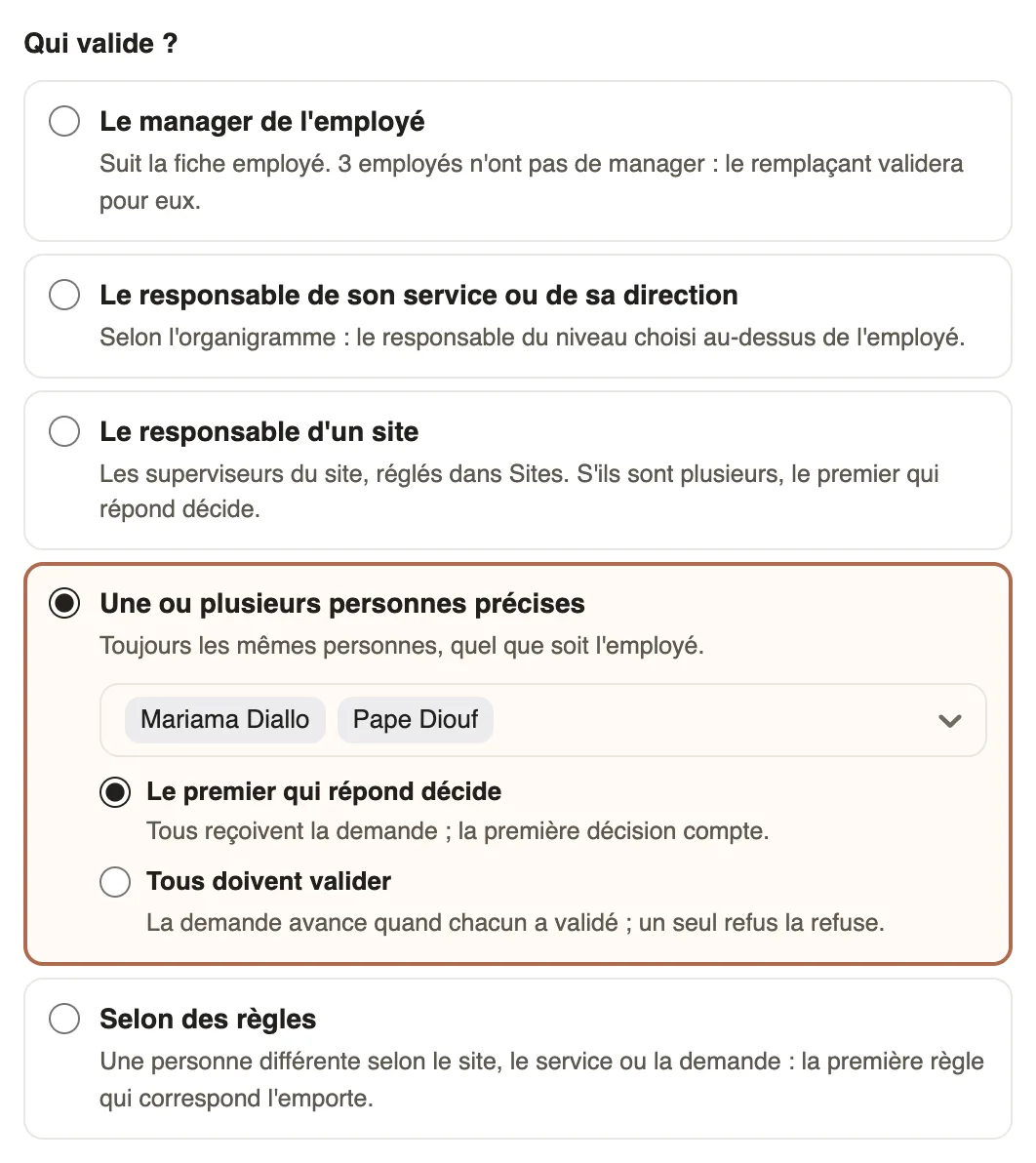
In Weplanify, the Who approves? part of a step's panel designates the approver. The approvers offered depend on who answers:
- an employee, for themselves (leave, expense claims and advances included): their manager, the head of their department or site, specific people, or based on rules;
- an employee, about another person: the concerned person's manager, the head of their department or site, specific people;
- an answer about a site: the site's manager, specific people;
- an answer through the public link: specific people, or the manager of a site chosen in the answer.
Steps
- Click the step, then choose an option under Who approves?.
- For The manager of a site, say where the site comes from: The employee's main site, or a Site question of the form.
- For One or more specific people, choose the people; from two people on, choose The first to answer decides or Everyone must approve.
- For Based on rules, click Edit rules, add a condition and the person under Then approves, then Apply.
- Click Save.
Good to know
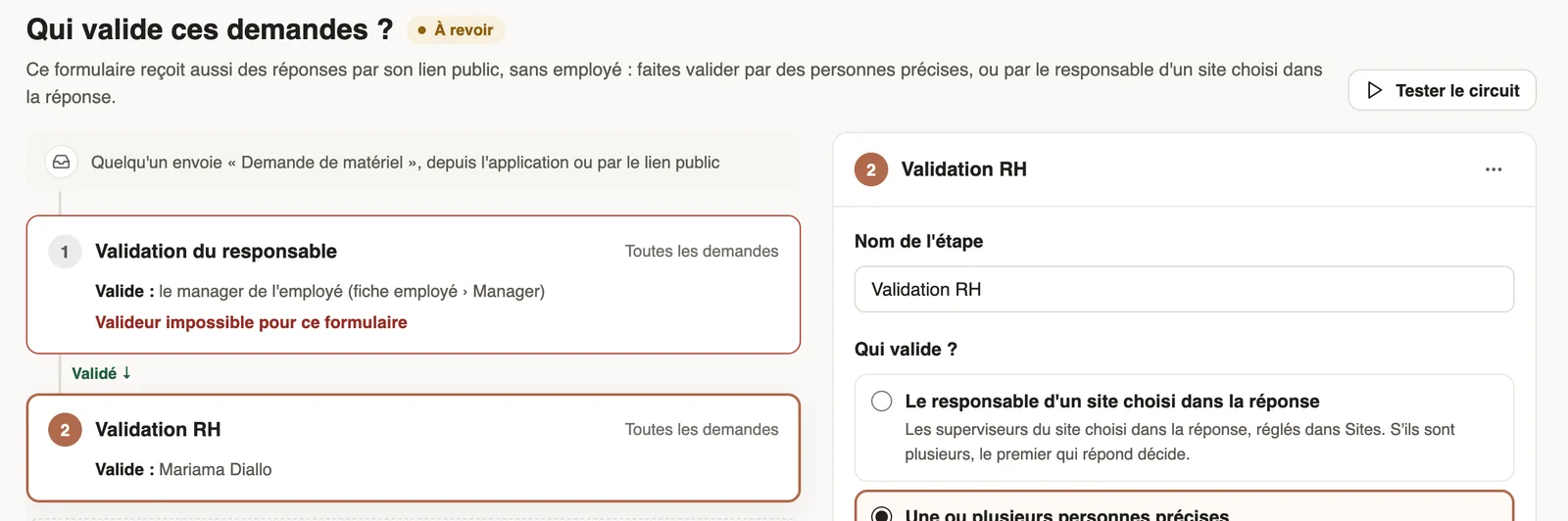
- A step whose approver does not exist for this form, for example the manager once a public link is open, is flagged Validator impossible for this form: until it is fixed, saving and publishing are blocked.
- The manager is the one on the employee record, the department head follows the org chart, a site's supervisors are set in Sites.
- Everyone asked receives the request; with Everyone must approve, a single refusal rejects it. Without an approver, the request goes to the substitute.
Go further
The employee recordIn Weplanify, the employee record brings together everything about a person in five tabs, with sections that you edit one at a time, separately.The company org chartIn Weplanify, the org chart shows who reports to whom, by manager, by team or by site, and lets you change a person's manager in a single click.Create and set up a siteIn Weplanify, declare your workplaces, their geolocation clock-in area, their time zone and their own overtime rules, one site at a time here.Choose a substitute and people in copyIn Weplanify, a substitute approves instead of an absent, silent or missing approver; people in copy follow every request and decision without approving.Choose who approves absencesIn Weplanify, the leave circuit says who receives each absence request, in which order, under which conditions, and who stands in for an absent approver.Link each response to an employee or a siteIn Weplanify, link each response of a form to an employee or a site: for an evaluation, an inspection or an incident report written on the ground.Configure an approval circuitIn Weplanify, build the approval steps of a leave request, an expense, an advance or a form: the order, the name, the approver and when each step applies.Test an approval circuit before using itIn Weplanify, pick an employee and describe a request (duration, site, amount) to see, step by step, who will approve it, without sending anything.